
Attendance in Taqtics helps you monitor store-level check-ins and check-outs by users — along with their in-time, out-time, and total hours spent on-site. The feature is mostly used via the mobile app (with selfie + GPS support), but admins can configure attendance policies and view reports from the web platform too.
You can configure your working hour rules, track overtime, and assign attendance settings to stores or specific users.
1. Configure Attendance Settings
How to reach here:
- Log into Taqtics
- Click the Creator Mode button (top-right)
- Under Admin Studio, click Attendance
You’ll land on the Attendance configuration page where you can define how attendance should be captured and calculated.
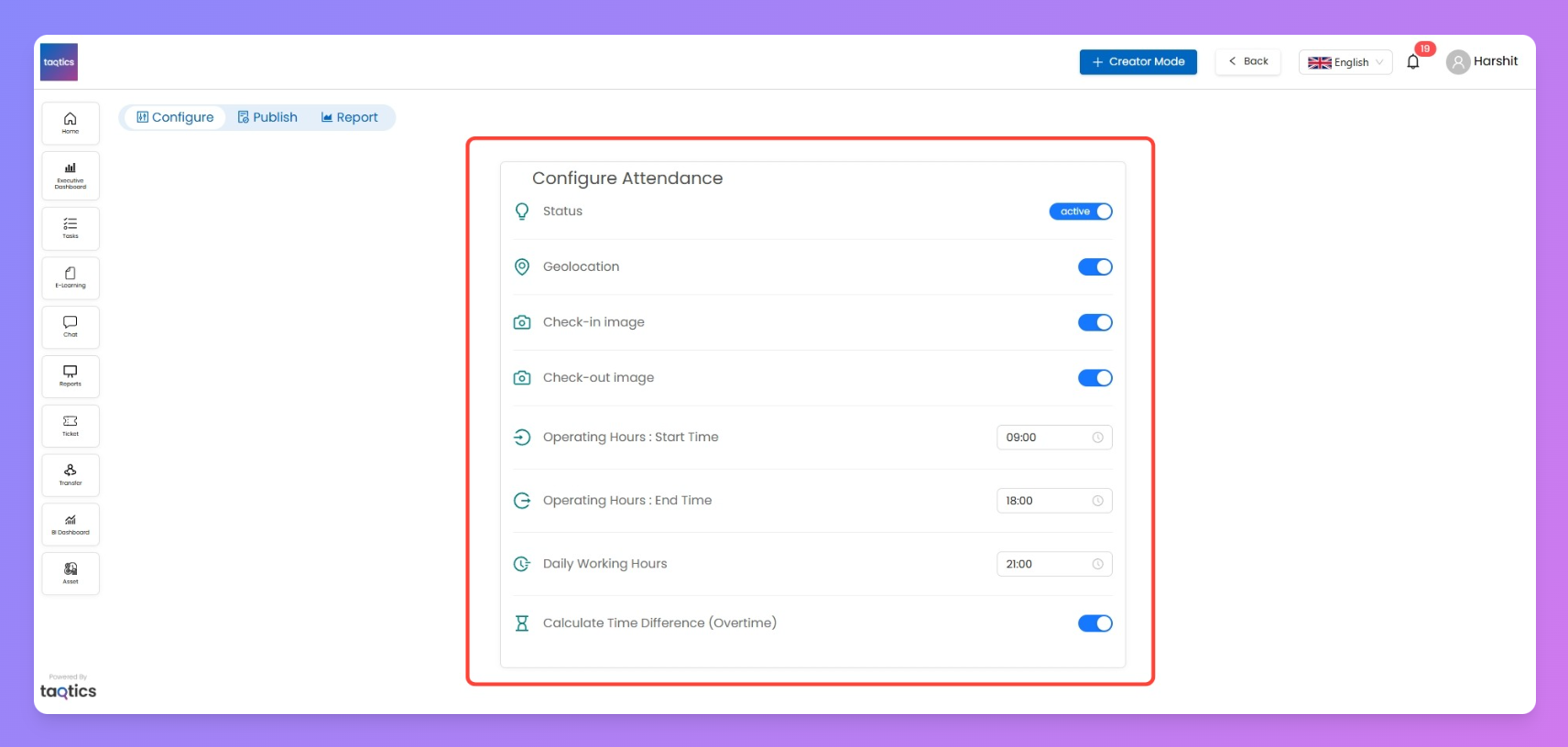
⚙️ Configuration Options
Setting | Description |
Status | Toggle attendance on/off for the org |
Geolocation | Enforces GPS-based check-in/out (only from mobile) |
Check-in image | Requires user to take a selfie while checking in |
Check-out image | Requires selfie on check-out |
Operating Hours: Start Time | Define when a store's workday starts |
Operating Hours: End Time | Define when a store's workday ends |
Daily Working Hours | Set how many hours count as a complete workday |
Calculate Time Difference (Overtime) | Automatically calculate over/under time |
2. Publish Attendance Settings
Once you’ve configured your rules, you need to assign them:
- By Store
- By User
🔗 Assigning attendance works the same way as in Processes — whether you're assigning by store or user, the UI stays consistent across Taqtics.Use these quick references if you need a refresher:
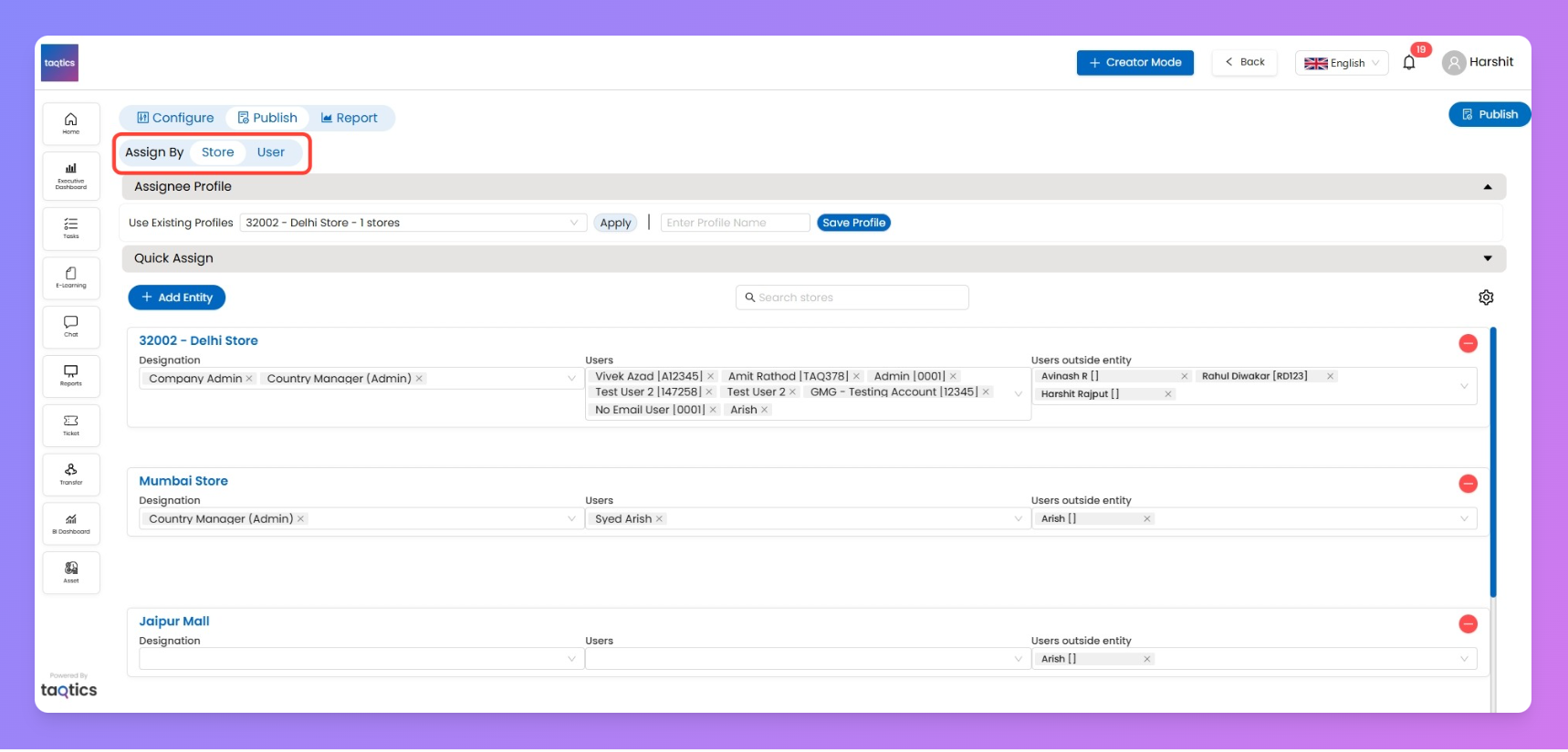
You can also use the Assignee profile, if you’ve saved some
3. View Attendance Reports
Unlike other Taqtics features, Attendance reports are available right inside the Attendance page — no need to go to the global Reports section.
After configuring and publishing your attendance settings, scroll down to view real-time punch-in and punch-out records.
📋 What you'll see in the report:
🔹 Attendance Report in Standard Reports
Attendance reports are now available as part of normal reporting, visible based on hierarchy and tenant configuration.
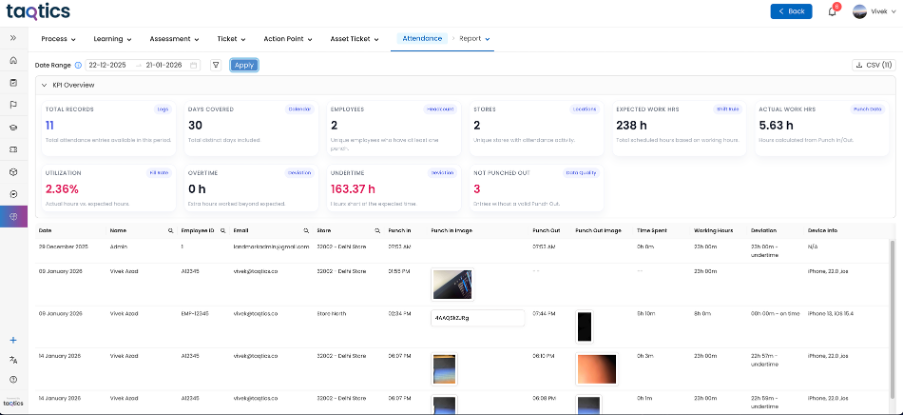
Field | Description |
Date | The calendar date of the attendance entry |
Name | Name of the user who checked in |
Employee ID | Unique employee identifier (if added in profile) |
Email | User’s registered email ID |
Store | Store name where the attendance was logged |
Punch In | Time when the user checked in |
Punch In Image | Selfie image taken during check-in (if enabled) |
Punch Out | Time when the user checked out |
Punch Out Image | Selfie taken at check-out (if enabled) |
Time Spent | Total time between check-in and check-out |
Working Hours | Expected work duration (set in config) |
Deviation | Overtime or shortfall vs. expected working hours |
Device Info | Device used for check-in/out (mobile only) |
You can also:
- Scroll through by date filter
- Export the data through CSV by clicking on
DOWNLOAD CSV
- Use this log to verify attendance and detect irregular patterns
Note: All images and data points are only captured when the feature is used via mobile, with permissions for camera and location turned on.
Any CSV download of the attendance log will include all fields except the check-in and check-out photos. These image files can only be viewed inside the Taqtics web.