
What is Platform settings Taqtics?
Platform Settings help your organization fine-tune how Taqtics behaves across locations. From customizing your business day start time to enabling secure logins and integrating real-time data via webhooks — this is where you define the operating rules for your account.
How to access Platform Settings
- Log in to Taqtics.
- Click on Creator Mode from the top-right corner.
- Under the Settings column, click on Admin Center.
Platform Admin Configuration
This section lets you control core business setup options.
1. Send Email on User Creation
When this is turned on, newly added users will receive:
- A temporary password to log in.
- A consent email to allow future communication from Taqtics.
2. Business Day Closure Time
Choose the time when your business day officially ends (e.g., 1:30 AM).
Any process submitted before this time will be counted as part of the previous day.
3. Start Day of the Week
Set which day should be considered the start of your business week (e.g., Sunday or Monday).
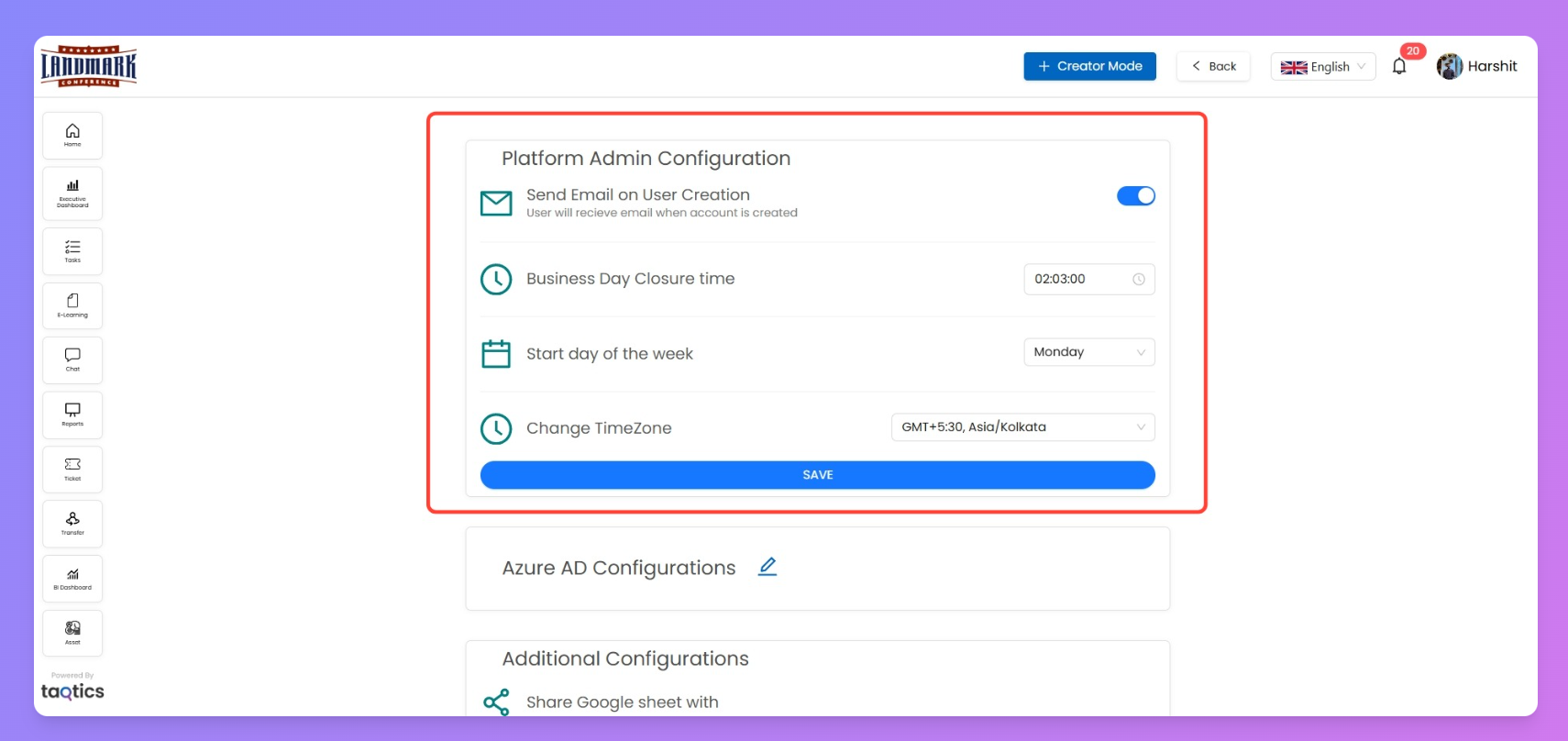
4. Change Timezone
Choose your local time zone (e.g., GMT +5:30 Asia/Kolkata).
Ensures all timestamps across reports and processes match your working hours.
Azure AD Configuration (SSO)
Enable Single Sign-On (SSO) using Google or Microsoft accounts.
Once enabled, users can log in to Taqtics without using their email-password combo.
To activate this, please contact your Taqtics Account representative.
Additional Configurations
Let you manage how data flows in and out of Taqtics.
1. Share Google Sheet With
Automatically share a submission-linked Google Sheet with specified emails.
You can enter external emails too — doesn’t have to be limited to Taqtics users.
2. Configure Snapshot Emails
Enter email addresses to receive a daily Excel snapshot of all submitted processes.
Each file gives you a bird’s eye view — stores listed in rows, processes listed in columns — so you can easily track which locations completed which processes by end of day. It’s like your daily check-in sheet, straight to your inbox.
You’ll also find a similar visual snapshot in the Executive Dashboard — where submissions are mapped out in a grid, helping you spot missed checklists in seconds.
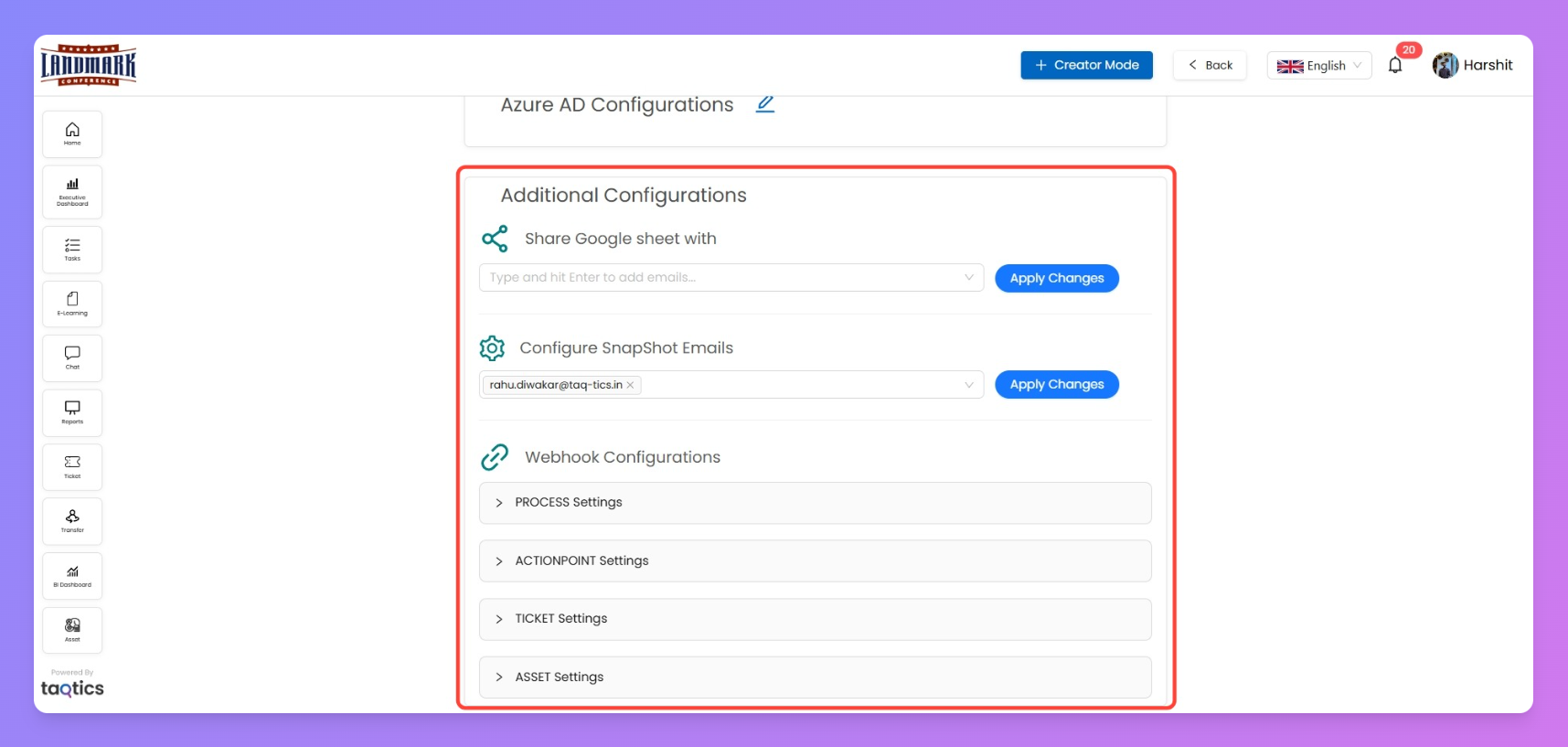
🌐 Webhook Configurations
Push real-time data from Taqtics to third-party tools or APIs using webhooks.
You can set up webhook configurations for:
Process Settings
- Choose between v1 and v2 webhook formats.
- Define a secure endpoint (HTTPS URL)
- Add optional API key, header, or query parameters.
Action Point Settings
- Define triggers when action points should send data.
- Set alert email for webhook failures.
Ticket Settings
- Set up webhook triggers for tickets (e.g., when created or closed).
- Define a fallback user for assignment if no match is found.
Asset Settings
- Send real-time updates for asset changes via webhook.
- Useful for keeping third-party asset systems synced.