
What this page covers
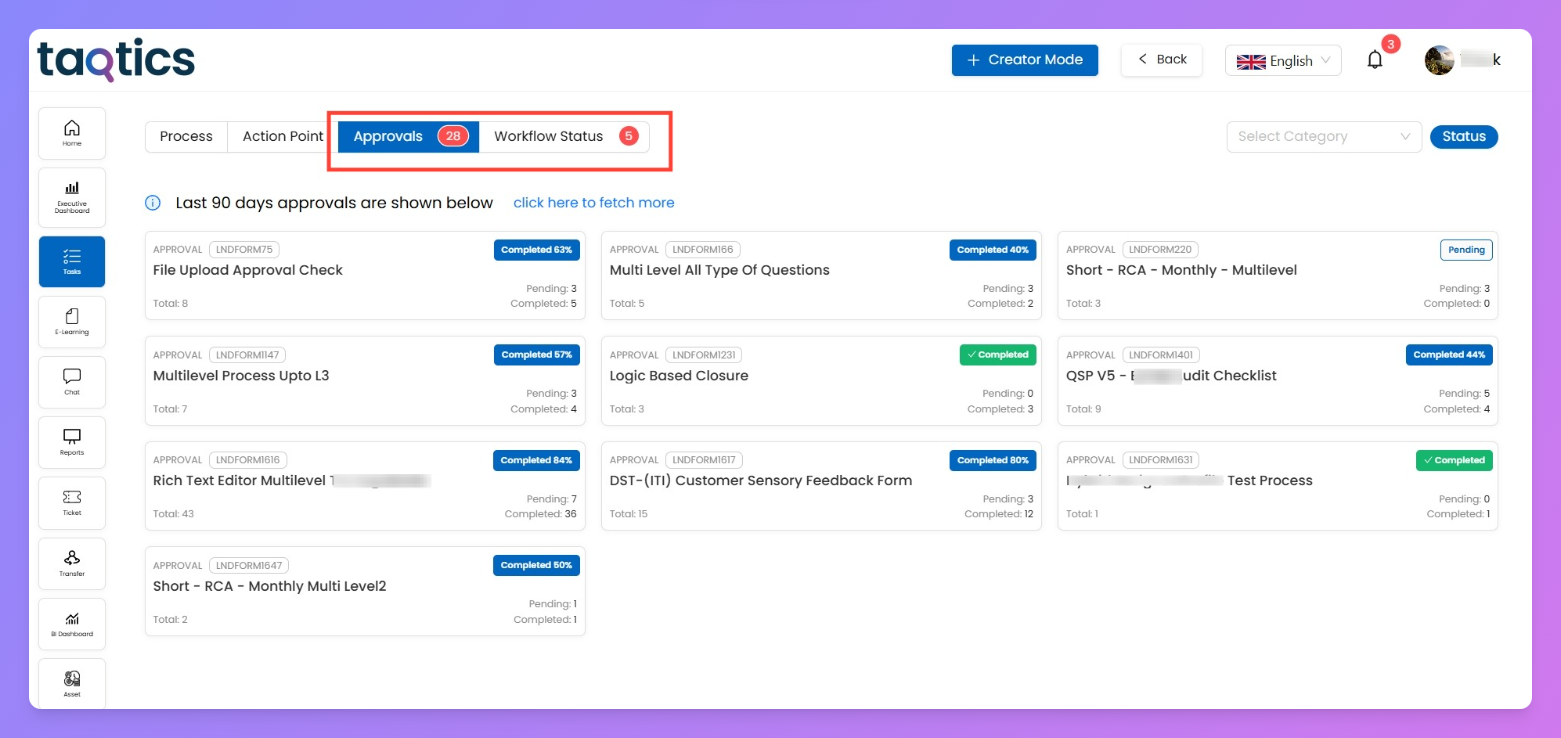
Approvals = your reviewer inbox — processes assigned to you that need action.
Workflow Status = a timeline & health view for submissions (mostly for submitters) to see where each item sits in the multi-level review flow.
Where to find them
- Tasks → Approvals (cards → click a card to open the detailed grid).
- Tasks → Workflow Status (default grid with quick KPI buttons; toggle to card view).
Approvals (reviewer view)
Approvals shows every process where you are a reviewer (any level). Each process appears as a card with pending/completed counts; click a card to see the detailed list of submissions assigned to you.
Card view (overview)
Card shows:
- Process title
- Total submissions for you (Total)
- Pending count (e.g., Pending: 2)
- Completed count (e.g., Completed: 5)
- Completion % badge (optional)
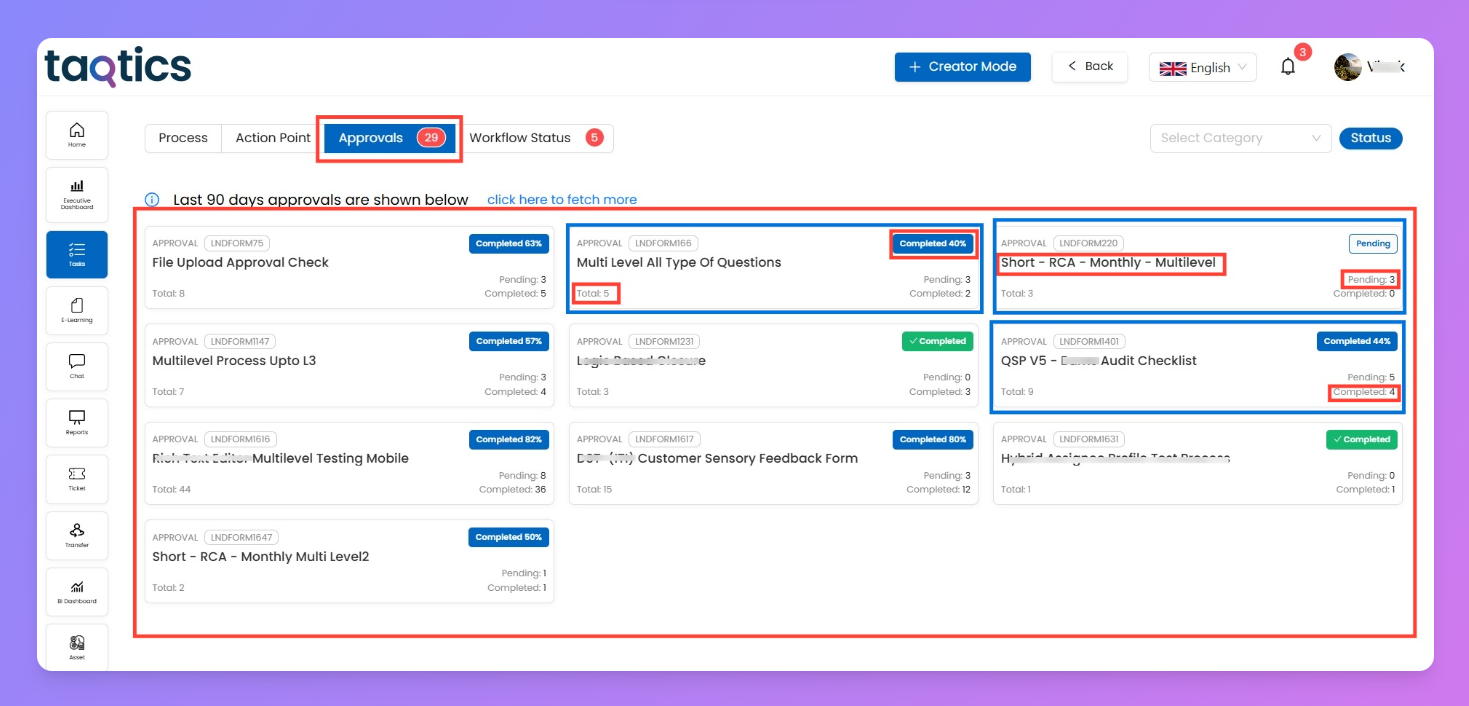
Click the card → opens the grid (detailed list).
Grid columns (typical)
- Submission ID
- Store / Location
- User (L0 submitter)
- Date (submission date)
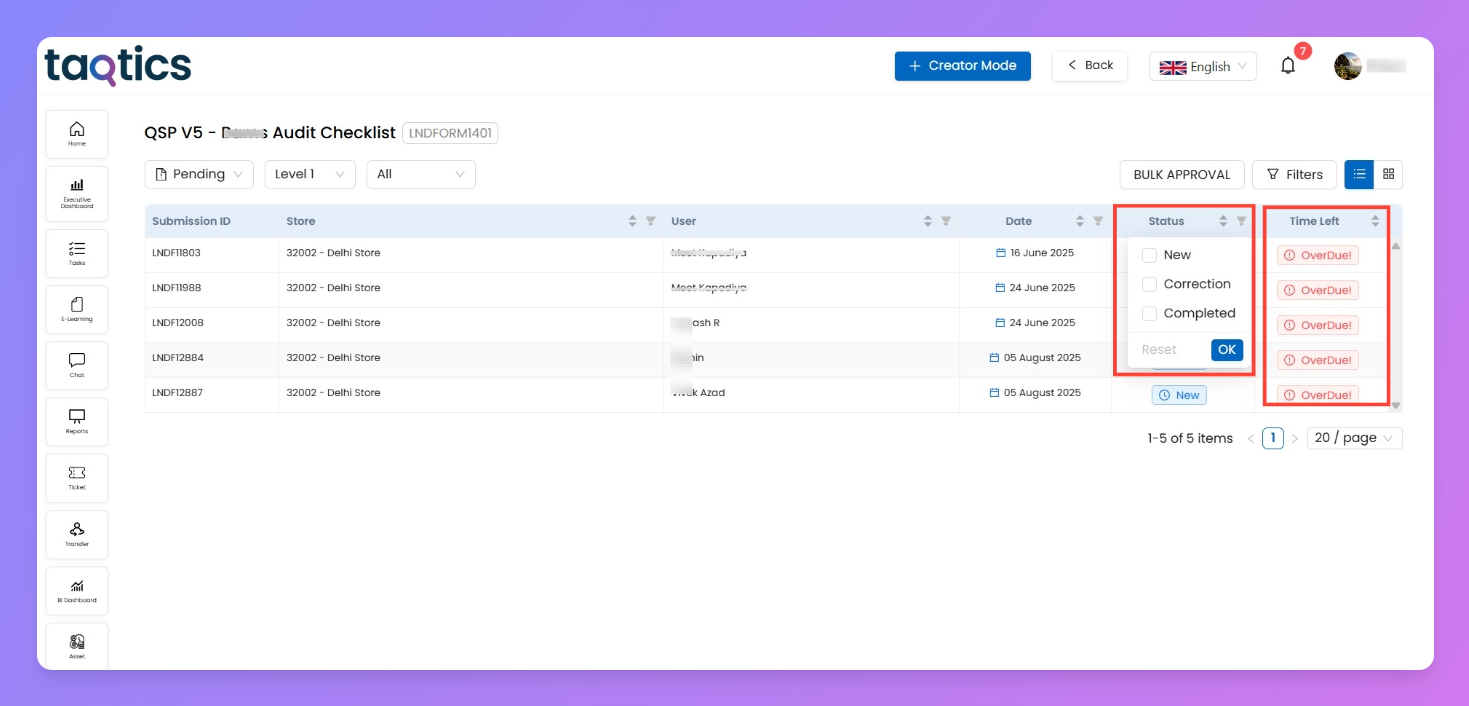
- Status — common values:
New,Correction,Completed.
- Time Left — countdown until due; shows Overdue when SLA passed.
- Actions — open the submission to Approve / Send Back (correction) / Reject.
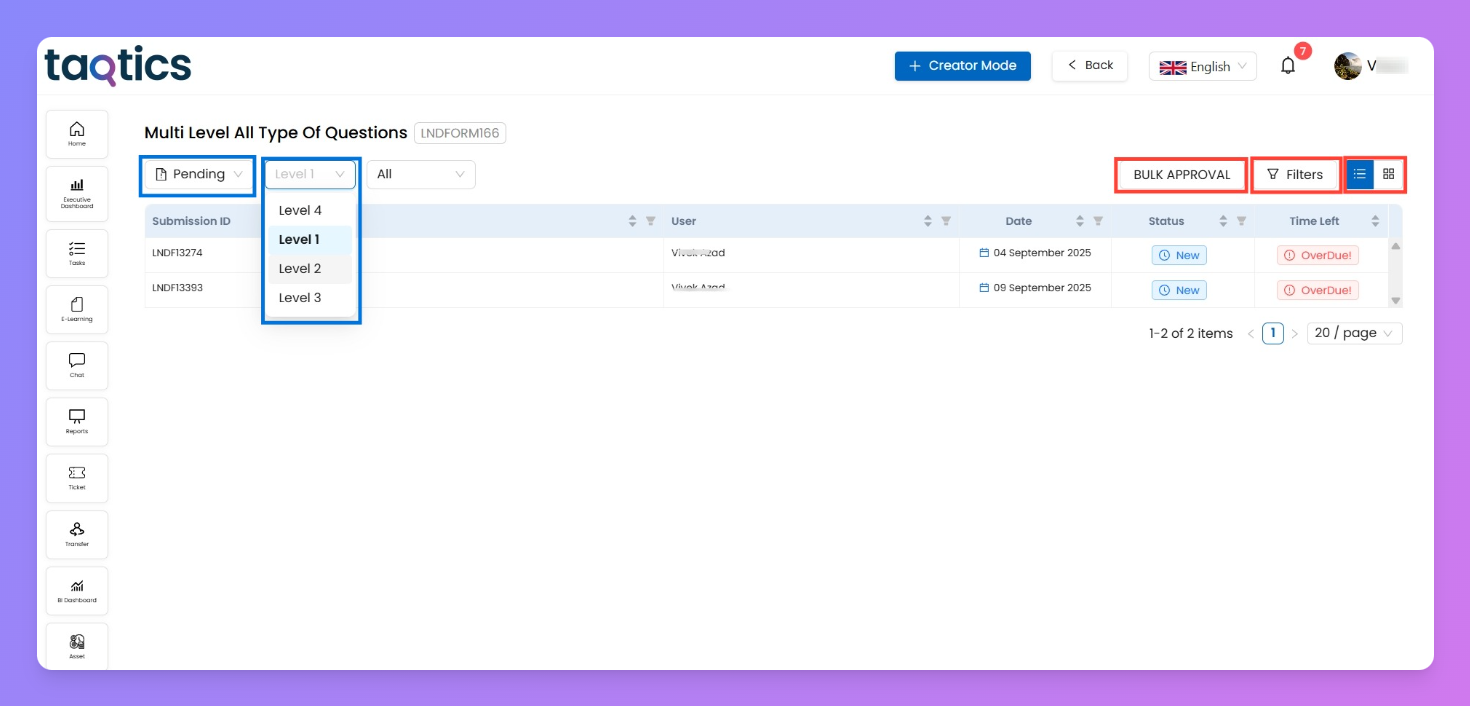
Grid view — top controls
At the top of the grid you’ll see:
- Pending / Completed dropdown — show items that still require action or already done.
- Level dropdown — pick the reviewer level you want to act as (useful if you are assigned different levels in different submissions).
- Date dropdown — filter by submission date range/type.
- Bulk Approval button — approve multiple rows at once.
- Filters / View toggle — filter down or switch grid/card view.
Status meanings (for Approvals)
- New — fresh item waiting for your review.
- Correction — item returned for fixes; requires re-review after submitter acts.
- Completed — you finished your action on this item.
- Time Left shows SLA countdown (calculated from Properties → Due date offsets).
How to act (step-by-step)
- Open Tasks → Approvals → click the relevant process card.
- In the grid, find the submission row (use filters if needed).
- Click the row → open submission details.
- Review answers & attachments.
- Use the action you need:
- Submit/ Complete — mark the item reviewed (moves to Completed).
- Send for Correction — send back to configured level (be precise: use the correction target that can fix it).
- Reject — use only for hard-fails (if allowed by Review Settings).
- If acting on multiple items, select rows → Bulk Approval (follow on-screen flow).
Tips + best practices
- Use Level dropdown to separate work if you’re multi-level reviewer.
- Prefer sending corrections to L0 (submitter) unless the fix requires a manager.
- Use Bulk Approval for many similar checks to save time, but verify a sample before bulk-completing.
- Use the Time Left column to prioritize oldest/closest-to-overdue items.
Workflow Status (submitter & manager tracking)
Short description
Workflow Status is the single-pane view to track where your submissions (or your stores’ submissions) currently sit across review levels — who reviewed, where it’s pending, or whether it was rejected.
Where it’s used
- L0 submitters: check where your form is stuck or completed.
- Managers: spot bottlenecks and overdue reviews.
- Audit owners: audit trail & status snapshots.
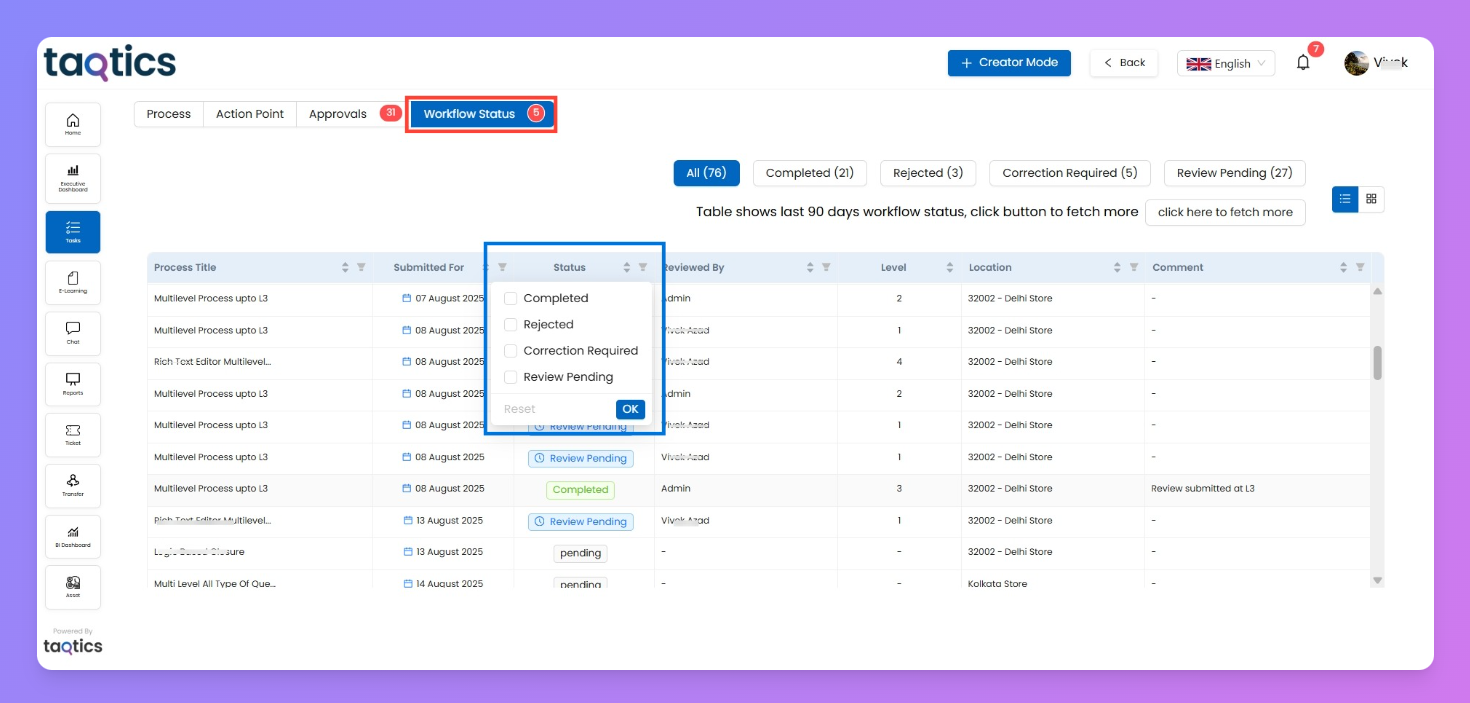
Top KPI buttons
Quick filters at top (show counts for the last 90 days by default):
- All — total items shown.
- Completed — fully reviewed/closed.
- Rejected — rejected by any reviewer.
- Correction Required — needs fixes.
- Review Pending — currently waiting in the review flow.

Note: use "Click here to fetch more" if you want older records beyond the default window.
Grid columns (typical)
- Process Title
- Submitted For (date)
- Status (Completed, Rejected, Correction Required, Review Pending)
- Reviewed By (last reviewer who acted)
- Level (the level where it currently sits or last acted)
- Location (store)
- Comment (reviewer note)
How to read it (use-cases)
- If you’re L0: find your submission → check Status & Reviewed By to see who last acted.
- If Review Pending: check Level column to know which reviewer level is currently expected to act.
- If Correction Required: look at Comment for details and act on the requested changes.
- If Rejected: follow your org’s incident process (rework / escalate).
Combined tips (Approvals + Workflow Status)
- Approvals = action; Workflow Status = visibility. Use Approvals when you need to do work; use Workflow Status when you want to track work.
- Encourage reviewers to comment clearly on corrections — that speeds rework.
Quick walkthrough examples
- Reviewer: Approve one submission
- Tasks → Approvals → click process card → open row → review the submission → click Submit/ Request Correction/ Reject→ status becomes Completed.
- Submitter: Check where my form is
- Tasks → Workflow Status → filter through KPI buttons → find your submission ID → check Level & Reviewed By → contact that reviewer if needed.