
Use this page to manage and track all workflows (Processes & Audits).
Save and manage drafts, edit or duplicate workflows, control status/visibility, and assign process managers.
Quickly track history, timelines, and public links — all from one place.
Drafts (while filling a workflow)
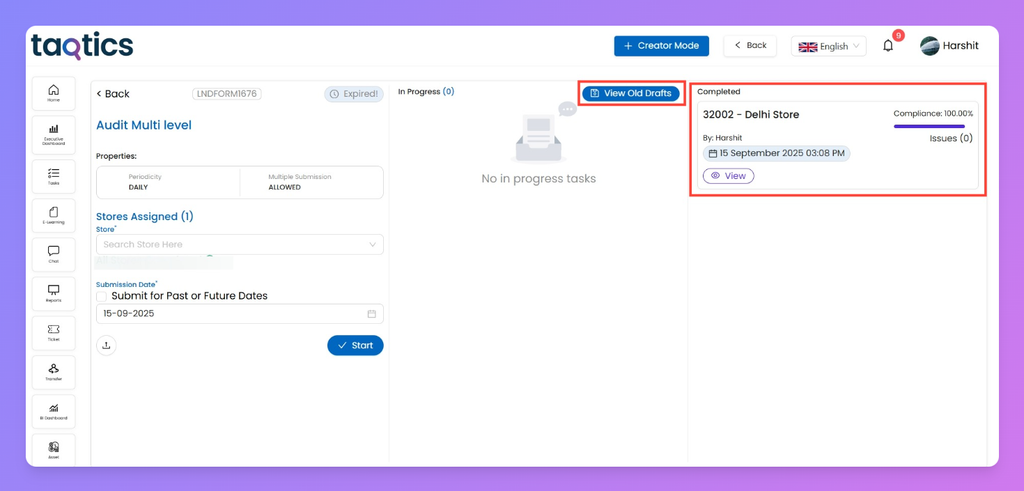
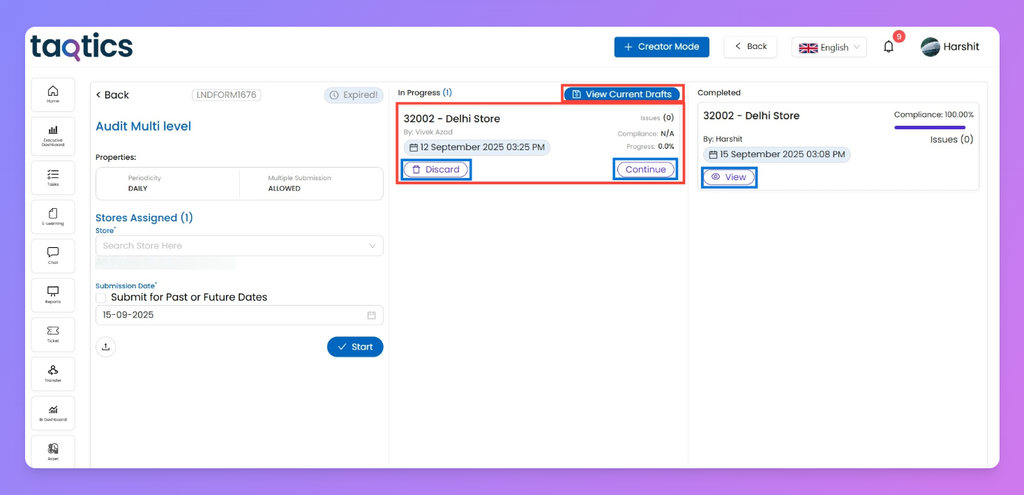
While filling a form, you can save progress as a draft, resume later, or even upload in bulk. You can also check completed submissions for reference.
Save as Draft
View Current Drafts
- Shows active drafts still valid within the periodicity window.
- Options: Continue (resume filling) or Discard (delete permanently).
View Old Drafts
(- if past/future submission is allowed in process properties.)
- Drafts move here once the periodicity expires.
- Options remain the same: Continue or Discard.
Completed Submissions
- On the right-hand side, see your finished submissions.
- Click View to open the full submission report.
Bulk Upload Drafts
- Use the upload button on the form start screen to submit multiple saved drafts at once.
Top Buttons
Three key buttons appear at the top of the Process/Audit page. These let you quickly create, import, or assign managers to workflows.
New
- Create a brand-new workflow (Process or Audit) from scratch.
- Opens the Builder tab, where you can add sections, questions, scoring, and properties.
- Best used when starting fresh with no pre-built template.
Upload Form
- Import a workflow instantly using a JSON file.
- Useful if you’ve exported a form earlier or received a ready-made template.
- Once uploaded, the workflow appears in your grid with all its configured sections and properties
.
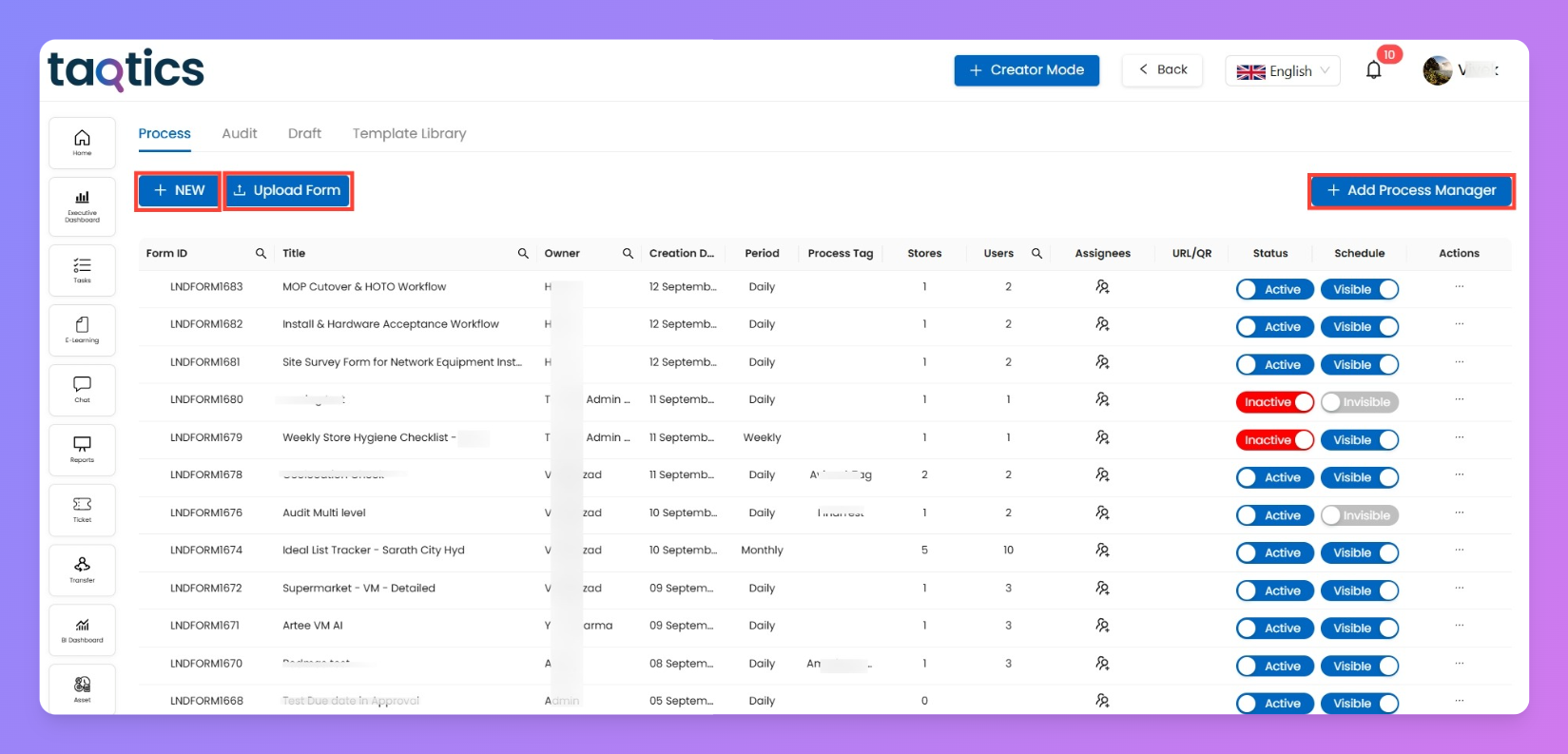
Add Process Manager
- Assign a dedicated user as Process Manager for one or more workflows.
- Steps:
- Click Add Process Manager.
- In the workflow grid, select the 👤 icon under “Action.”
- Choose a user from the dropdown and assign them to specific stores.
- Save to confirm.
- Prerequisite: The user must have secondary role access. If not, edit their profile under Edit User to enable this.
- Purpose:
- Provides access to a specific workflow even if the person is not a manager or doesn’t have default access roles.
- This ensures accountability and allows them to monitor or coordinate execution of that process.
- Their name will also reflect in reports (e.g., Process Reports, Old Reports, etc.) wherever process manager tracking is shown.
Workflow Actions (⋮ menu in Creator Mode)
Each workflow (Process or Audit) has a three-dot (⋮) menu in Creator Mode. From here, you can perform key administrative actions to update, copy, or manage workflows.
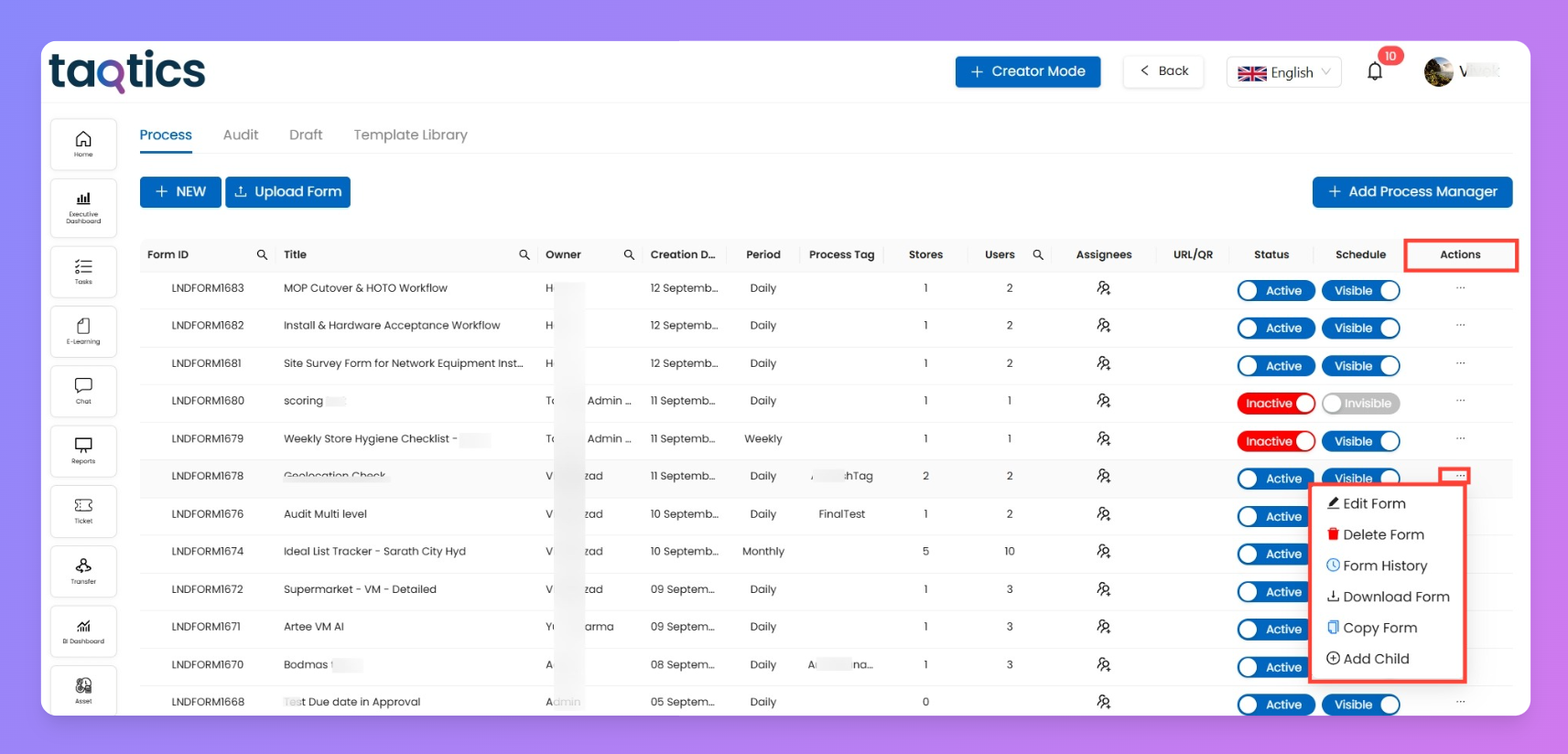
Edit Workflow
- Opens the workflow in Builder Mode.
- Allows you to:
- Update questions and scoring.
- Change process properties (periodicity, reminders, submission settings, etc.).
- Rename the workflow.
- Use this for any ongoing changes or fixes.
Delete Workflow
- Permanently removes the workflow from your list.
- Cannot be undone — all historical submissions and reports will be deleted.
- Best used to clean up unused or outdated forms.
View Form History
- Opens a log of all past edits to the workflow.
- Shows:
- What was changed (questions, properties, etc.).
- Who made the change.
- Date and time of each update.
- Useful for audit trails and tracking accountability.
Download Workflow
- Exports the workflow as a JSON file.
- Can be stored as a backup or imported later using the Upload Form button.
- Handy for sharing standard checklists across multiple accounts.
Copy Form / Duplicate Workflow
- Creates a copy of the selected workflow with the same structure, questions, and properties.
- The duplicate appears in your grid with a new Form ID.
- Helpful when creating variations of a standard template (e.g., different regions or departments).
Add Child Workflow
- Use this option when the same checklist needs to be filled multiple times (e.g., by different shifts).
- Steps:
- Click the ⋮ (three-dot menu) next to the workflow.
- Select Add Child Workflow.
- A new page opens with 3 tabs:
- Child Title → give the child workflow a name/description.
- Properties → configure timings, reminders, or rules different from the parent workflow.
- Assignment → assign it to specific users/teams/stores.
- Publish the child workflow.
- Once published, the child workflow appears linked under its parent workflow in the grid.
- The structure (questions, sections, scoring) is inherited from the parent, but properties and assignments can differ.
- Example: A Daily Cleaning Checklist is assigned as a parent process. You can create two child workflows — Morning Shift and Evening Shift — each with its own timing and assignee set.
Grid Controls (columns/toggles on workflow list)
These are quick options available directly in the workflow grid to control visibility and sharing of your processes/audits.
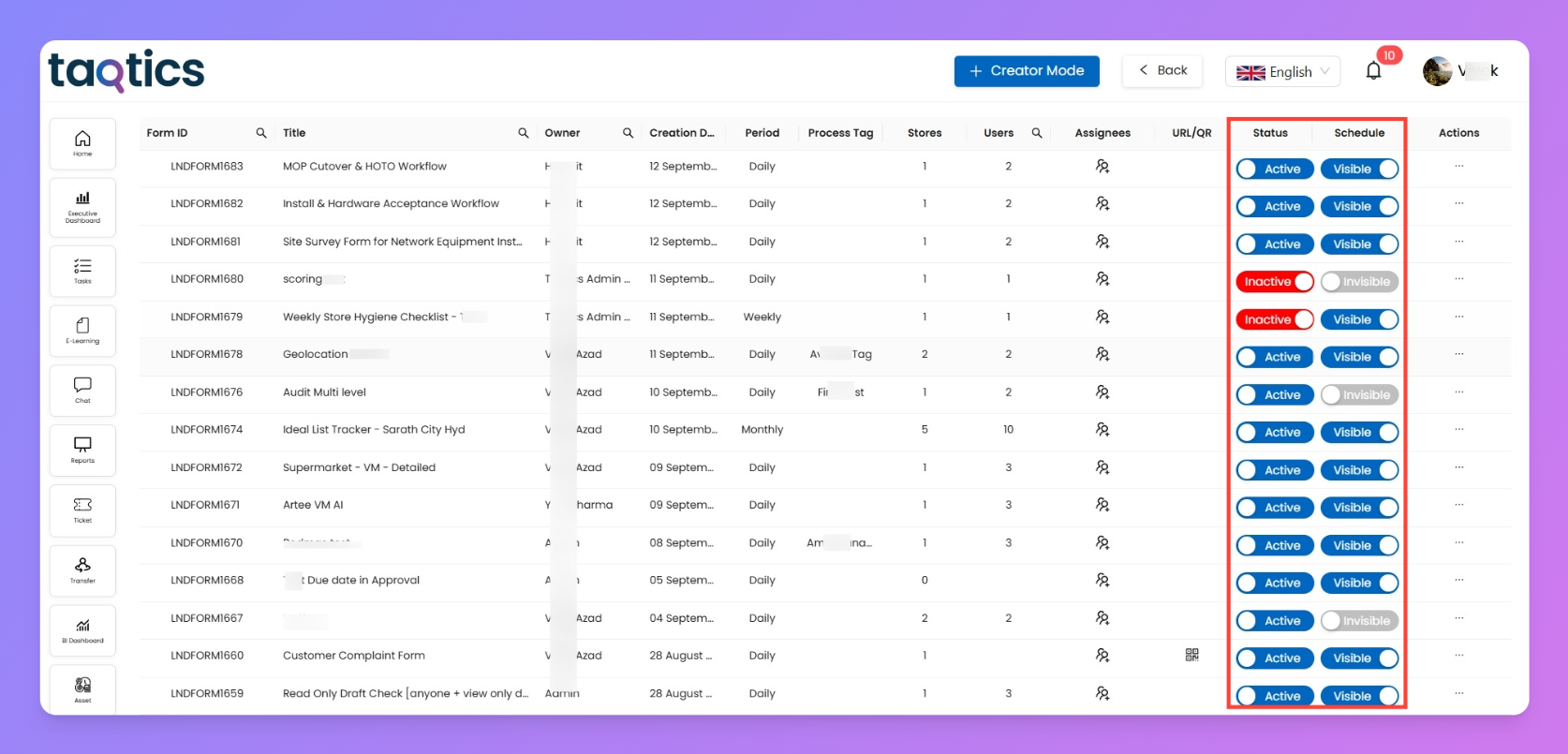
Status Toggle (Active / Inactive)
- Marks a workflow as Active (usable) or Inactive (disabled).
- Inactive workflows remain in your list but cannot be filled or visible reactivated.
Schedule Toggle (Visible / Invisible)
- Controls whether a workflow remains visible even after its periodicity expires.
- Example: If a daily process ends at 11:00 PM, it automatically turns Invisible.
- If you want staff to still access it after expiry, toggle it back to Visible manually.
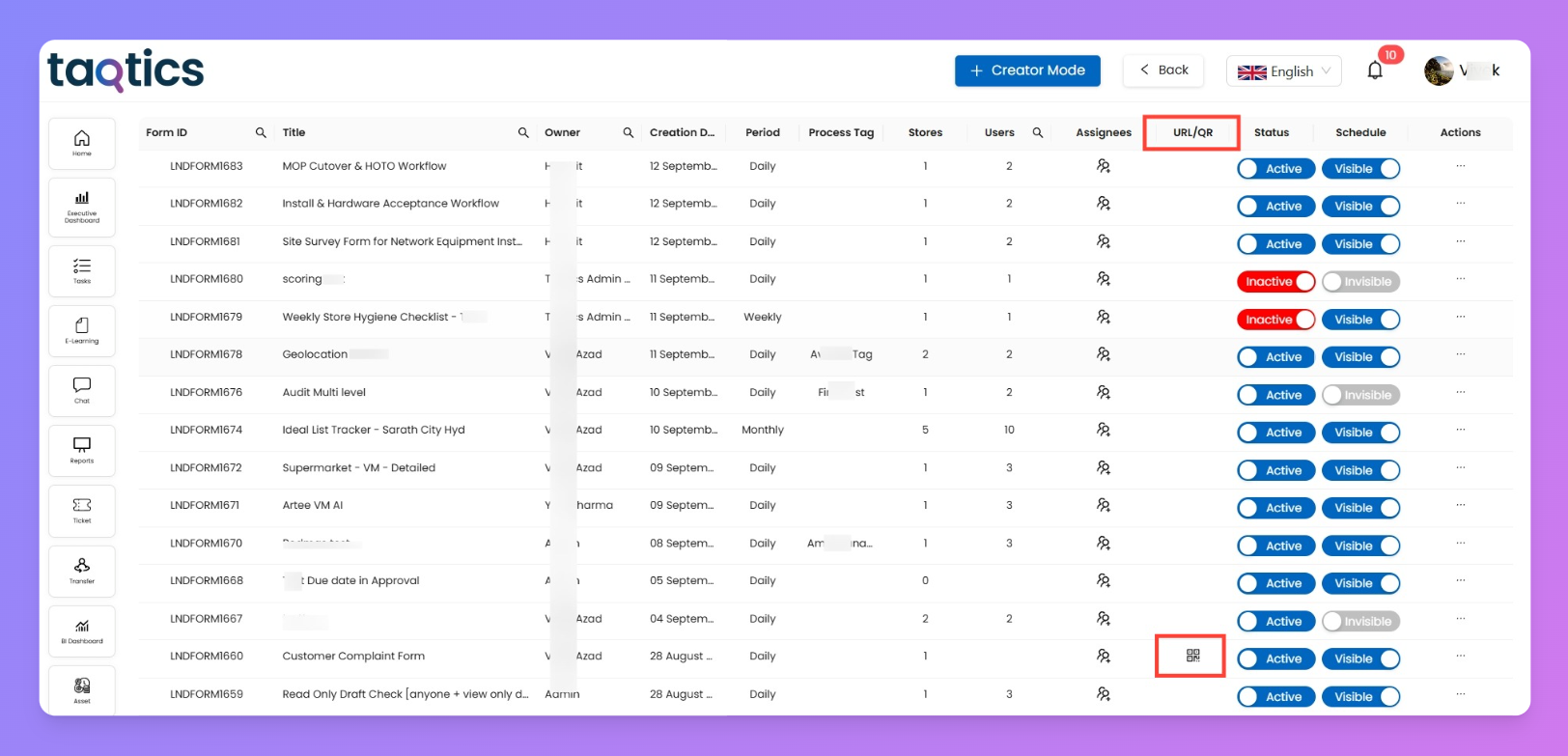
Public Form QR/Link
- Available only if you’ve enabled Public Form in the workflow’s properties.
- Once turned on, a QR code icon appears in the grid.
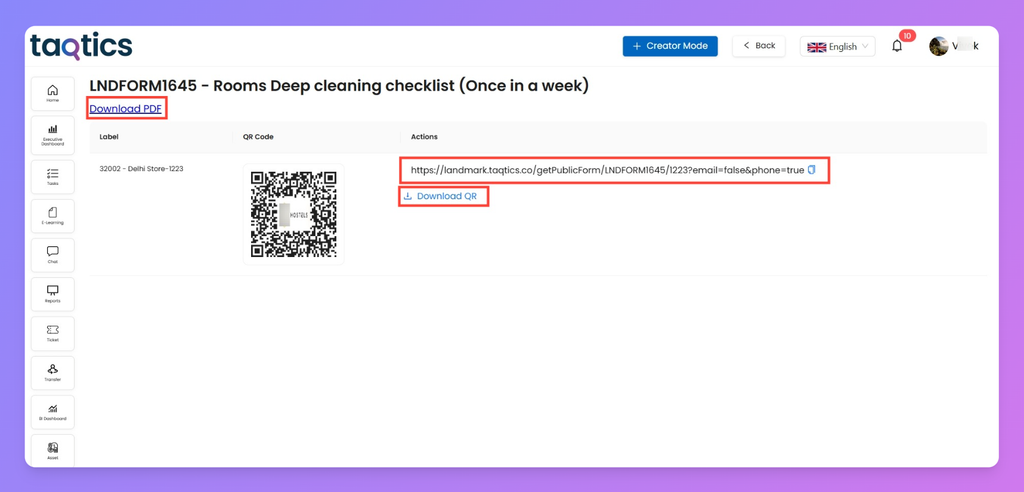
- Clicking it opens a new page where you can:
- Download the QR code for sharing.
- Copy the public link to send directly.
- Great for quick access via QR scans or open links (no login needed).
Track your Workflows
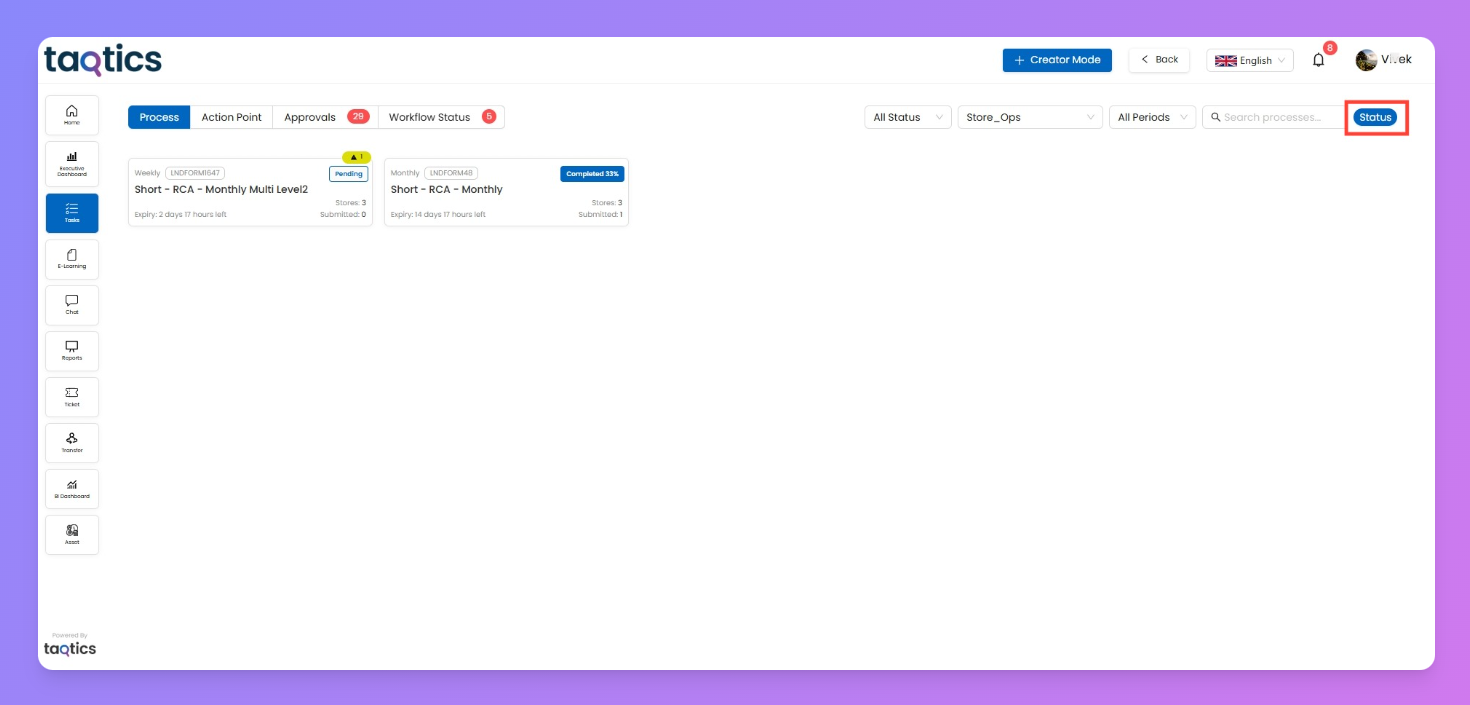
Once your processes and approvals are live, you can track their real-time status directly from the Tasks page. This helps you see what’s pending, completed, or awaiting approval without going into each workflow one by one.
How to Track
- Go to Tasks from the left menu.
- On the top-right, click the Status button.
- A sidebar will open showing a list of all submissions.
What You’ll See in the Sidebar
- Type: The first column shows whether it’s your Process or an Approval.
- If you submitted it → it will appear as a Process.
- If it’s been sent to you for review → it will appear as an Approval.
- Process Name: The exact workflow name.
- Store: The location/store linked to the submission.
- Status: Current progress of the workflow (e.g., Pending, In Progress, Completed).
Drill-Down Details
- Click on any row to expand it.
- You’ll see:
- The store and user details.
- When the process was submitted.
- Current workflow status (Pending, Completed, In Progress, or Workflow Pending).
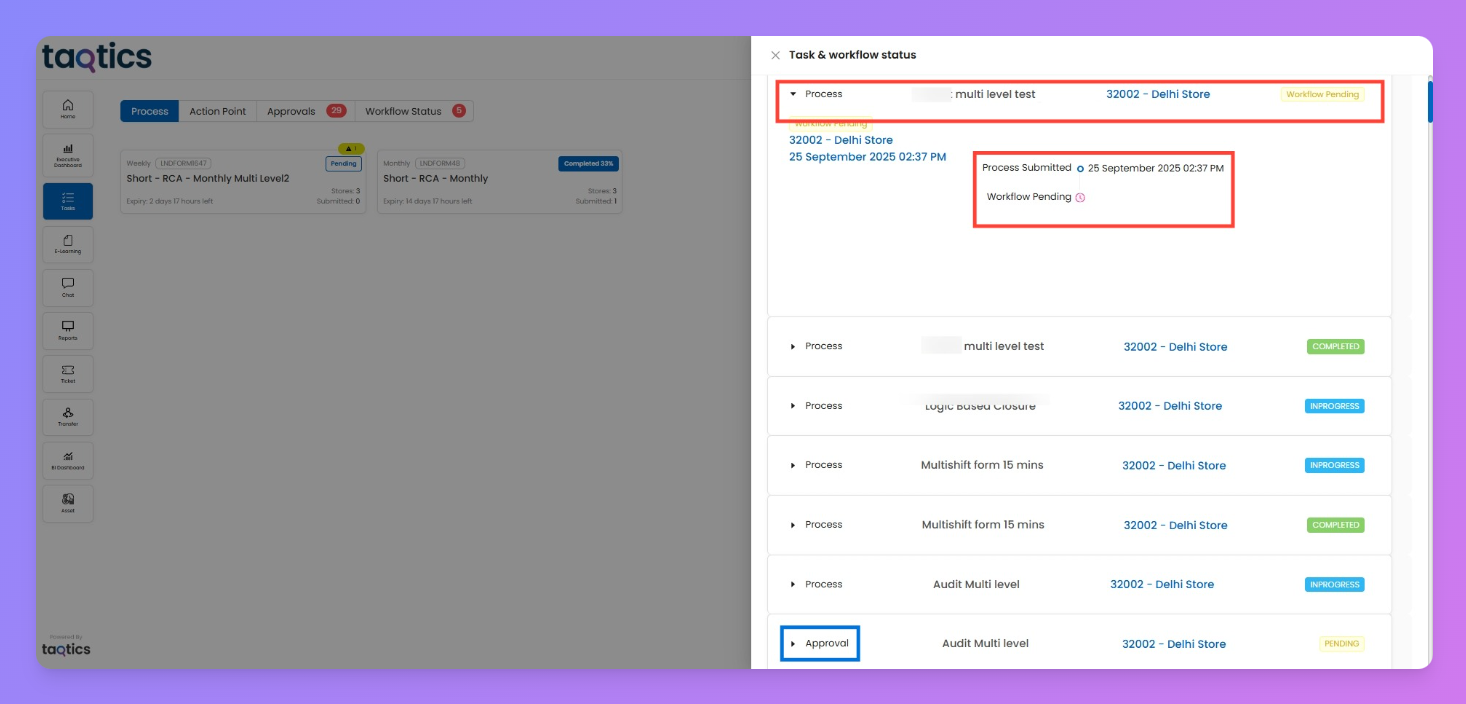
This view keeps all your running workflows transparent, so you can instantly check who submitted, who reviewed, and what’s pending at each stage.