
This dashboard shows all the Action Points you’re involved in — whether they’re assigned to you, created by you, or require your closure. Use the tabs and filters to quickly track status, priorities, and due dates.
Tabs in the Dashboard
1. Assigned to Me
See all Action Points where you are the current assignee.
This helps you stay on top of tasks you’re directly responsible for resolving.
2. Created by Me
Lists Action Points that you’ve raised, so you can track how they’re progressing and whether they’ve been closed.
3. Closure Assigned
Shows Action Points that can only be closed by you (as the creator) or by a designated role/person defined during configuration.
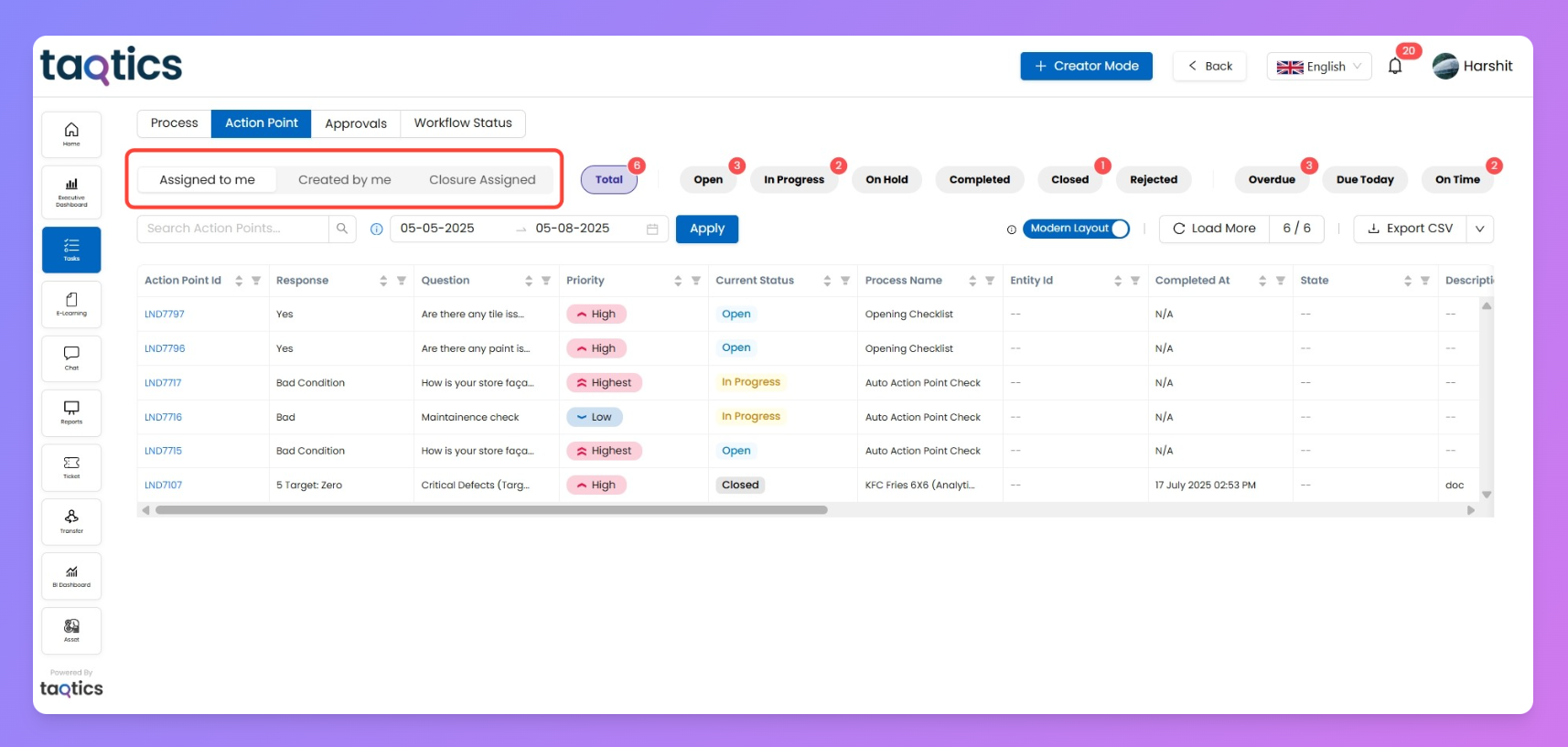
This ensures proper review before marking tasks as complete.
Using Filters
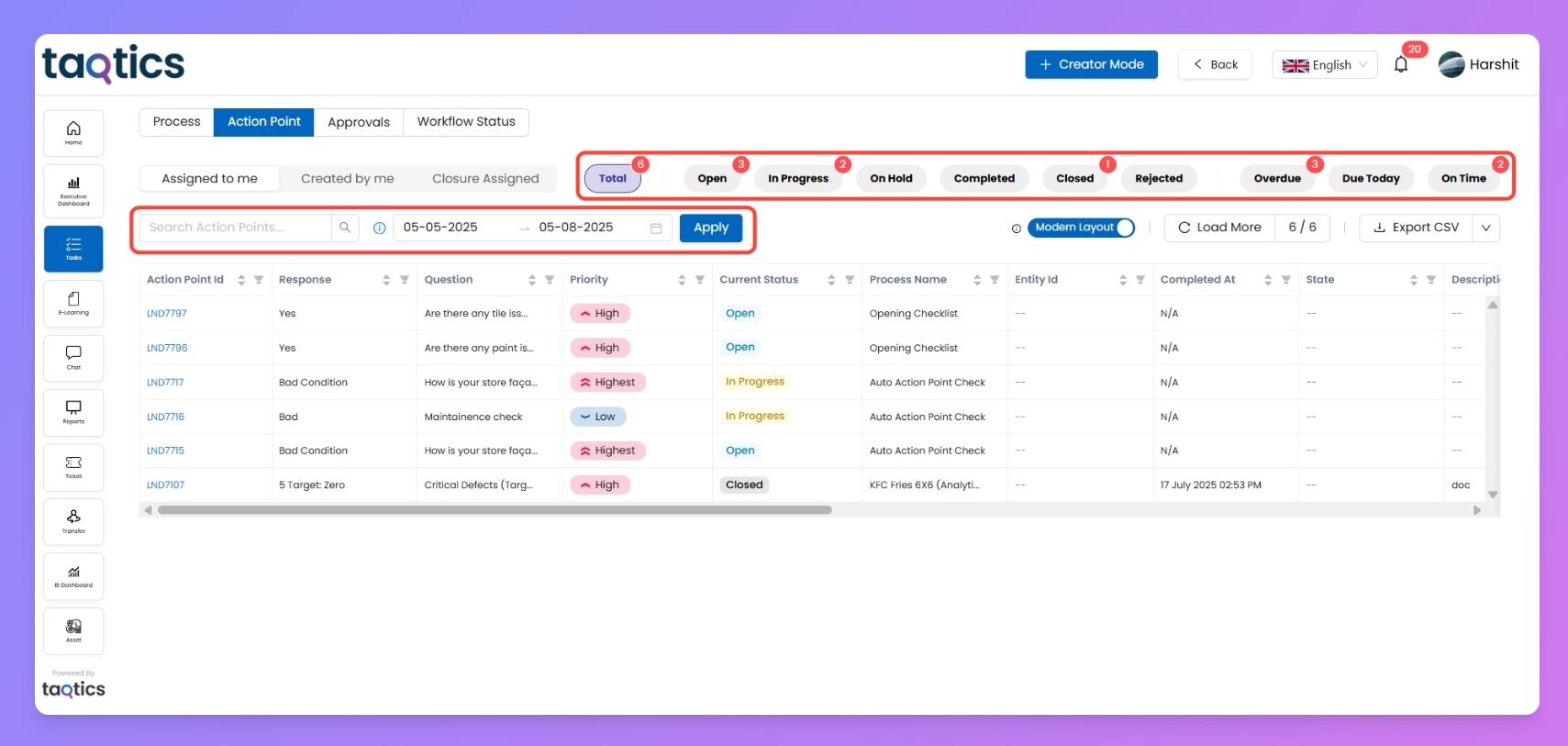
You can filter and find Action Points faster using:
- Search bar → Enter keywords like Action Point ID, Question, or Process Name.
- Date range filter → Select start and end dates to view Action Points created or updated within that period.
- Status filters → Quickly view items by status such as Open, In Progress, On Hold, Completed, Closed, Rejected, Overdue, Due Today, or On Time.
- Layout toggle → Switch between layouts (e.g., Modern Layout) for better readability.
Exporting Your Data
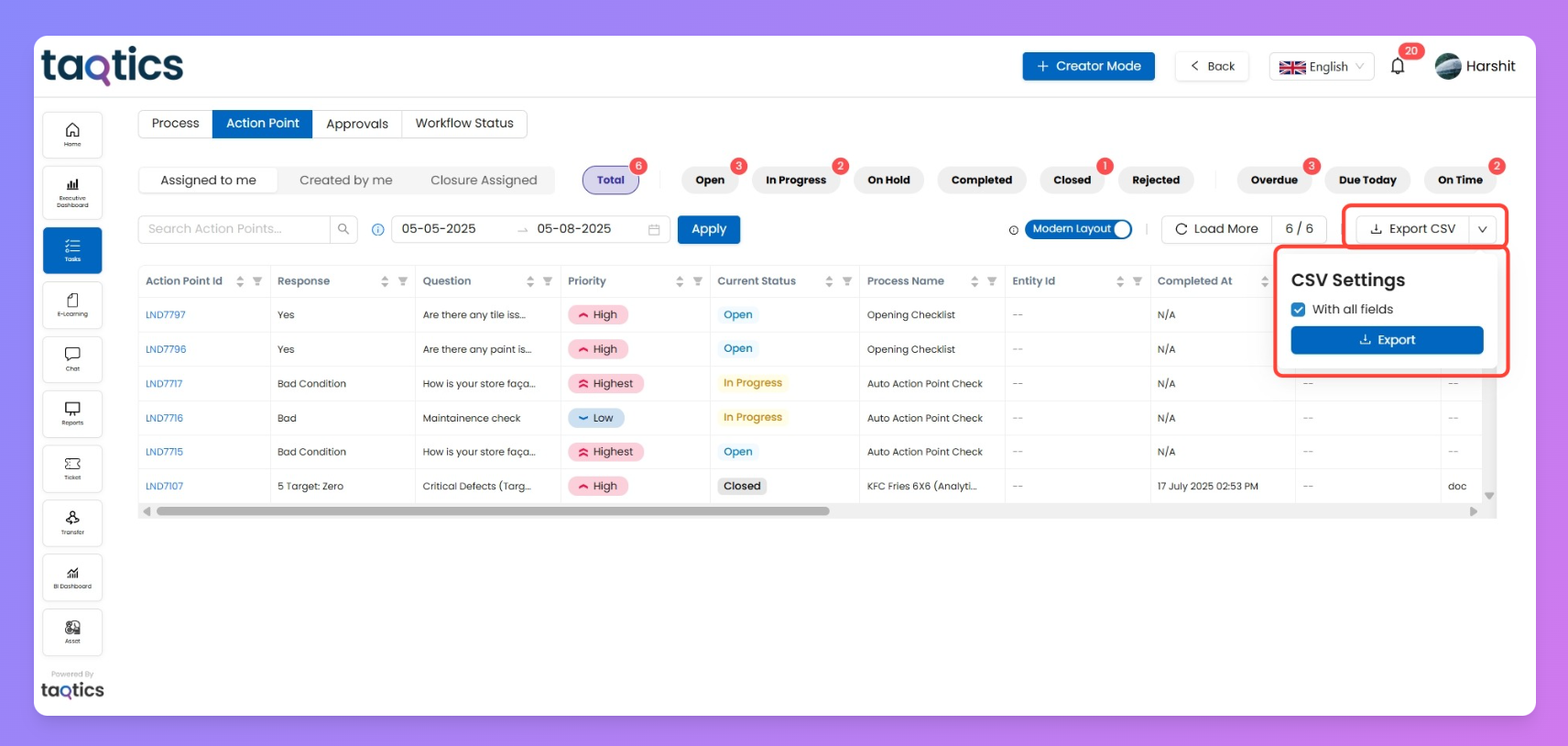
Click Export CSV to download your Action Points.
You can choose between:
- Export shown fields → Downloads only the fields currently visible in the table.
- Export all fields → Downloads the full dataset, regardless of what’s currently displayed.
⚡ Pro Tip: You’ll also see details like Priority, Entity ID, Completion Date, and Process Name for each Action Point right on the dashboard.