
Taqtics allows users to complete structured learning content through assigned Courses, often followed by quizzes. These are usually designed by your organization to train teams on SOPs, compliance topics, operational updates, or brand learning. Users can track their progress, complete content in sequence.
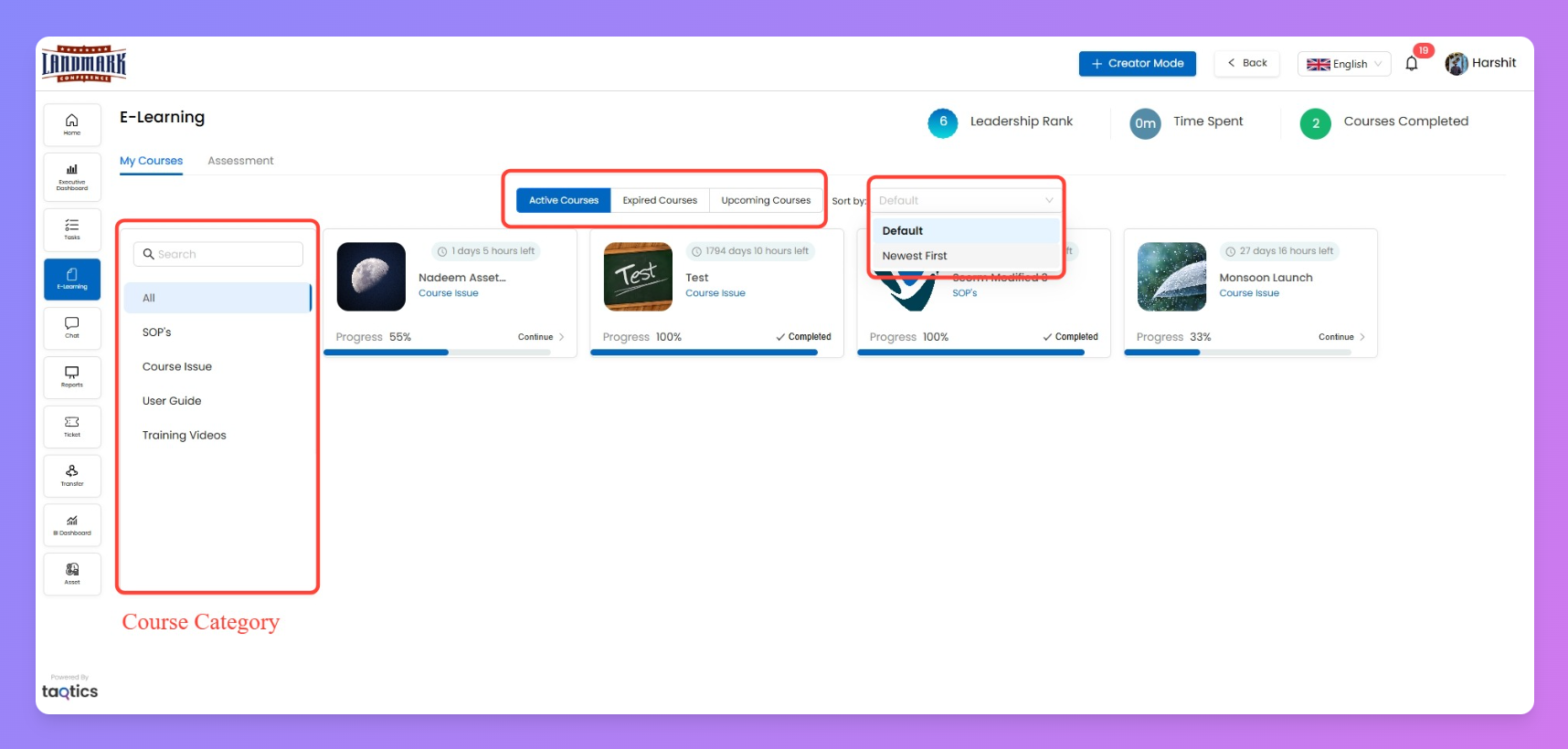
Courses are grouped by Course Categories, allowing for easier discovery and filtering. You can also switch between active, upcoming, and expired courses, and view your own performance across the org.
🔗 Learn how Course Categories are created →
Step-by-Step: Complete a Course
- Log in to Taqtics
- From the left menu, click on “E-Learning”.
- Filter & Find Your Course
- Use the Course Category filters (if you know what category your course belongs to).
- Tap the top filter buttons:
Active Courses→ All currently open and assigned coursesUpcoming Courses→ Courses starting in the futureExpired Courses→ Past courses no longer available- Sort courses using the dropdown:
Newest First→ Recent courses appear at the topDefault→ Standard sorting
On the eLearning screen:
- Track Your Metadata
- Leaderboard Rank (Your position across stores)
- Time Spent (Total minutes spent in courses)
- Courses Completed (Your total courses completed)
Above the course list, you’ll see:
- Start Learning
- Click a course to begin.
- You’ll see content blocks such as PDFs, PPTs, videos, or SCORM files.
- If Show in Sequence was enabled (by Admin), you’ll only see one block at a time.
Complete it + take any associated quiz → Only then the next content appears.
- Complete Quizzes (if any)
- Some content will trigger a quiz upon completion.
- Finish the quiz to move to the next block (if sequencing is enabled).
- Repeat Until Finished
- Continue through all content blocks.
- Once you complete the last content + quiz (if any), the course is marked as complete.