
The Notice Board feature lets you post important updates, announcements, or alerts for all relevant users. Once set up, your Notice Board posts appear right on the Home Screen for quick visibility.
Admins can create, edit, arrange, and activate/deactivate posts directly from the Manage Page Config section in Creator Mode.
Steps to Create a Notice Board Post
- Access Creator Mode
- From the top navigation bar, click Creator Mode.
- Go to Manage Page Config
- Under the Admin Studio section, select Manage Page Config.
- Open Notice Board
- Add a New Post
- Fill in the required details:
- Title – Short headline for your post.
- Description – The main content or announcement text.
- Upload Image/Video – Optional visual to accompany your post.
- Click Create Post.
- Activate or Deactivate a Post
- Toggle the Status switch beside each post to Active (visible on Home Screen) or Inactive (hidden).
- You can edit or delete posts anytime using the action icons.
- Arrange Posts (Optional)
- Use the Arrange Boards button to reorder posts on the Home Screen.
What Happens Next
- Once a post is active, it instantly appears in the Notice Board section on the Home Screen.
- Users can view the post, react (like/dislike), and start a discussion if enabled.
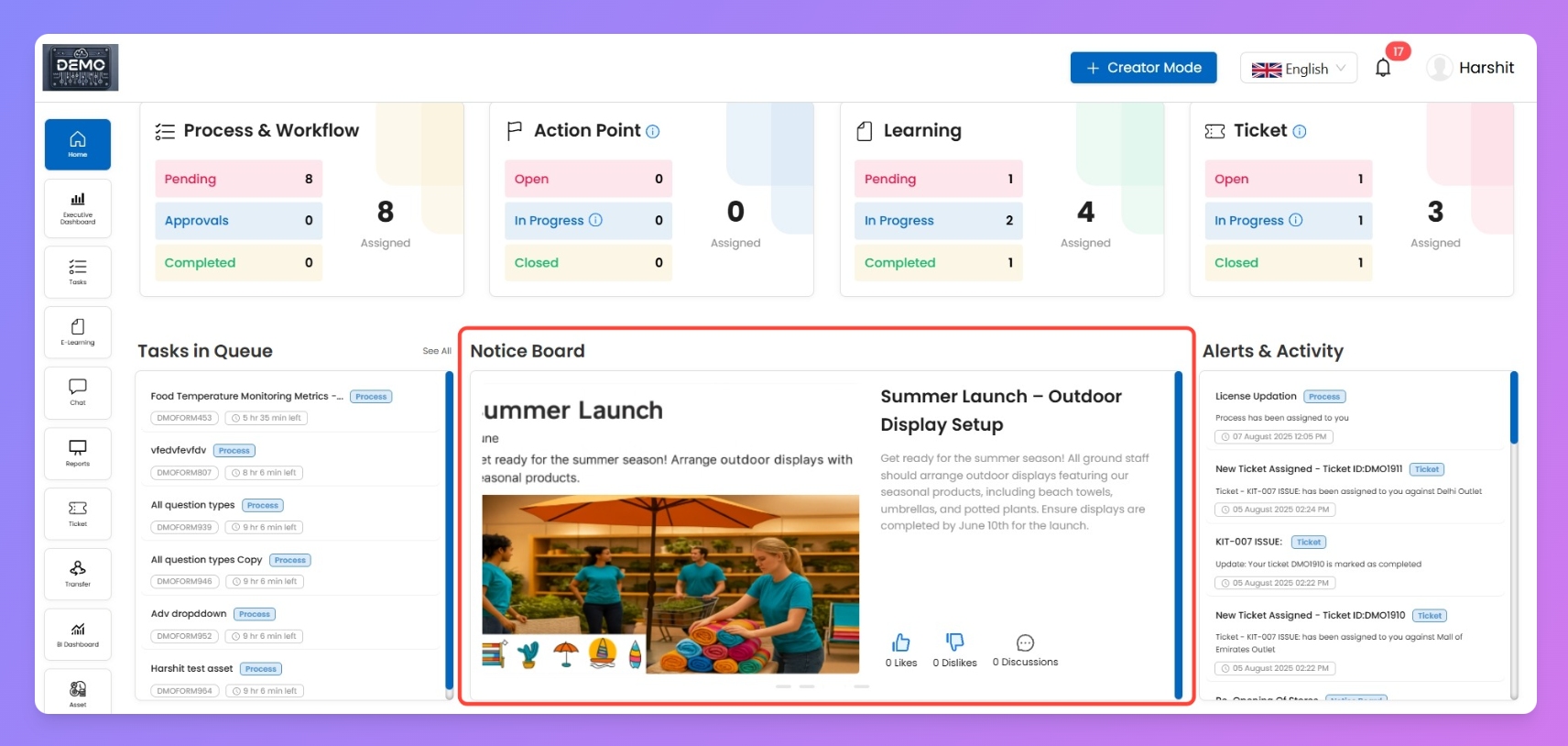
How It Looks After Setup
When your post is active, it appears in the Notice Board card on the Home Screen:
- Image/Video appears on the left.
- Title and Description are shown on the right.
- Engagement options are available below the description:
- Like 👍 – Show appreciation for the post.
- Dislike 👎 – Indicate a post isn’t relevant or useful.
- Discussions 💬 – Open a discussion thread for the post. Inside discussions, users can:
- Comment or reply.
- Attach files, images, or videos to their comments.
This setup ensures that updates are not only visible but also interactive, allowing staff to provide feedback and collaborate directly under each announcement.