
This space is where all issues, follow-ups, and flagged tasks from audits or processes land—giving teams one place to scan, filter, and take action. Everything’s in a big grid so you always have the full story at a glance.
Status Bar Details
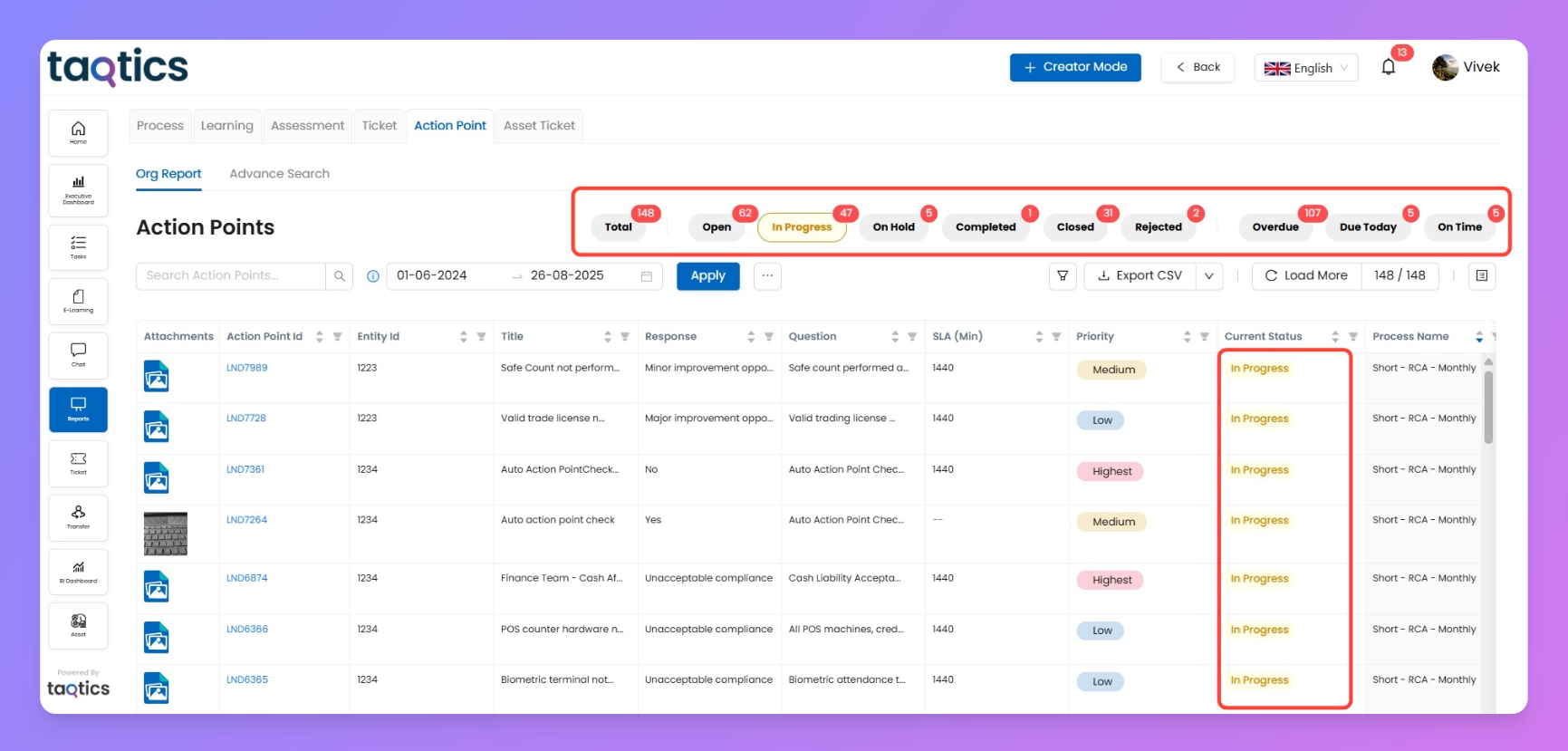
Up top, red chips show live counts for every status:
- Total
- On Hold
- Rejected
- On Time
- Open
- Completed
- Over Due
- In Progress
- Closed
- Due Today
- These status chips are color-coded for easy scanning.
- Clicking any one instantly updates the grid with just those results.
- You always have full awareness of workload, what’s urgent, and what’s resolved right now.
Filters
These quick-access tools help you slice, search, and organize your action points grid—making it easy to track, sort, and export exactly what you need.
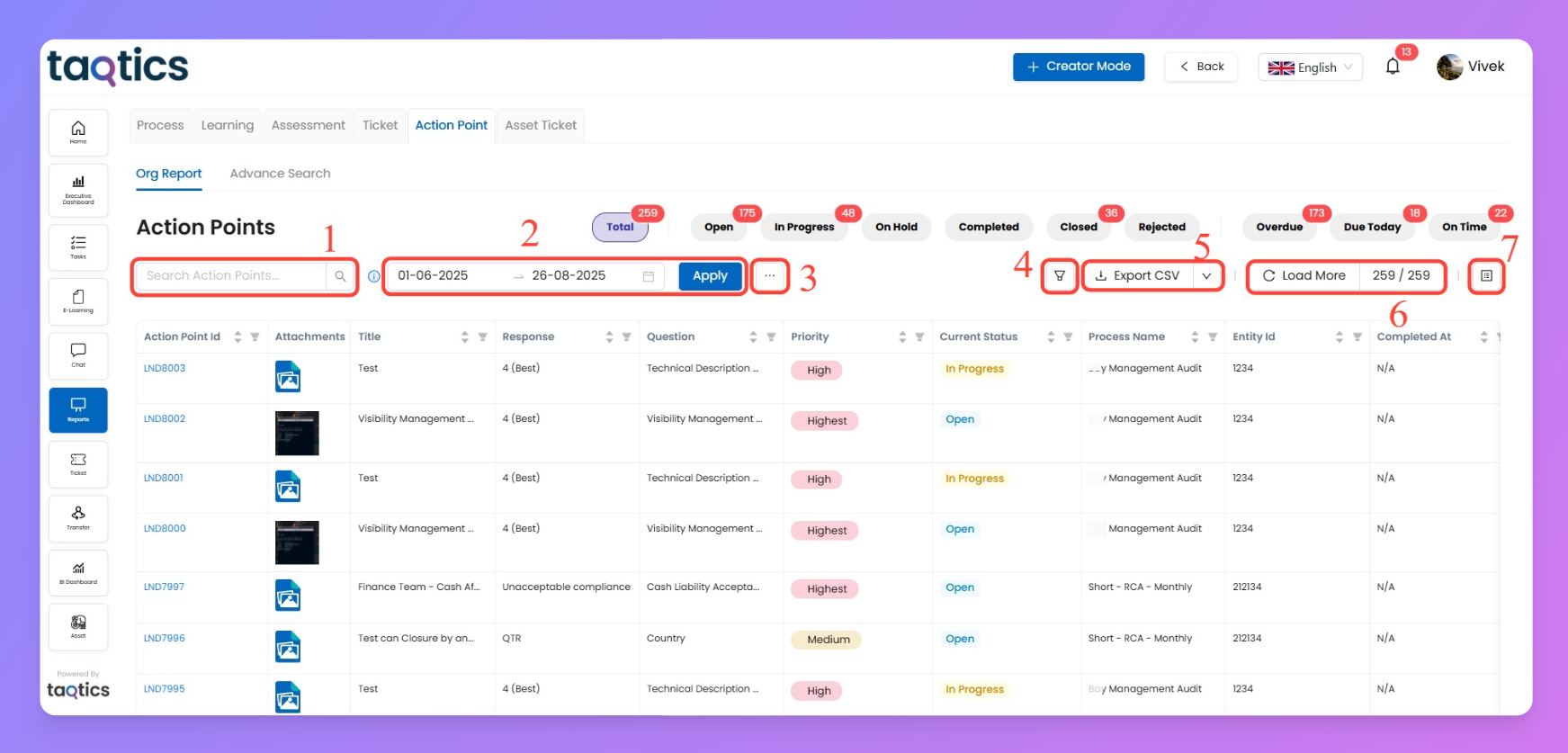
1. Search
Type any keyword or action point ID to instantly filter the grid and zero in on specific issues.
2. Date Range
Select start and end dates, then hit Apply to see all action points created in that exact window
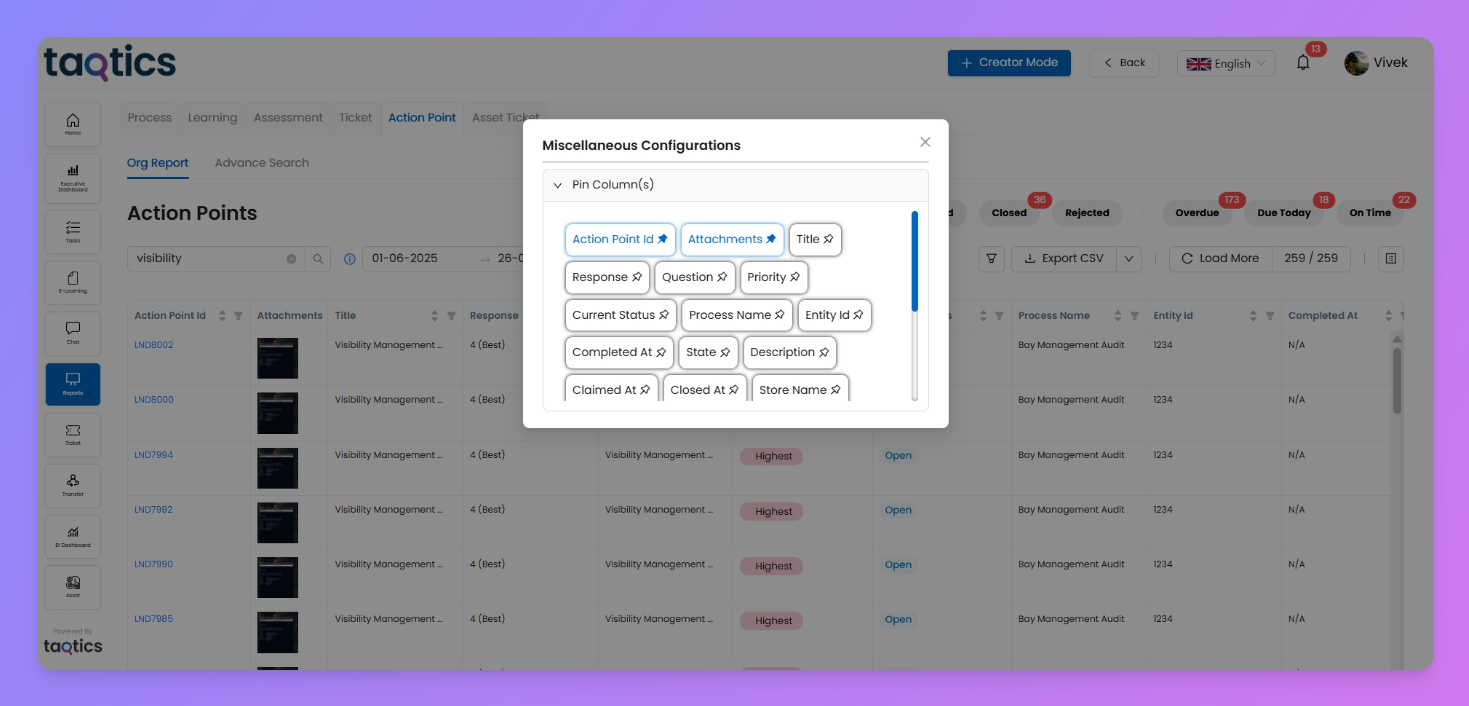
3. Pin Column Box
Highlight what matters most. Click the box to select columns like Priority or Status and pin them left—making them always visible as you scroll.
4. Advanced Filters
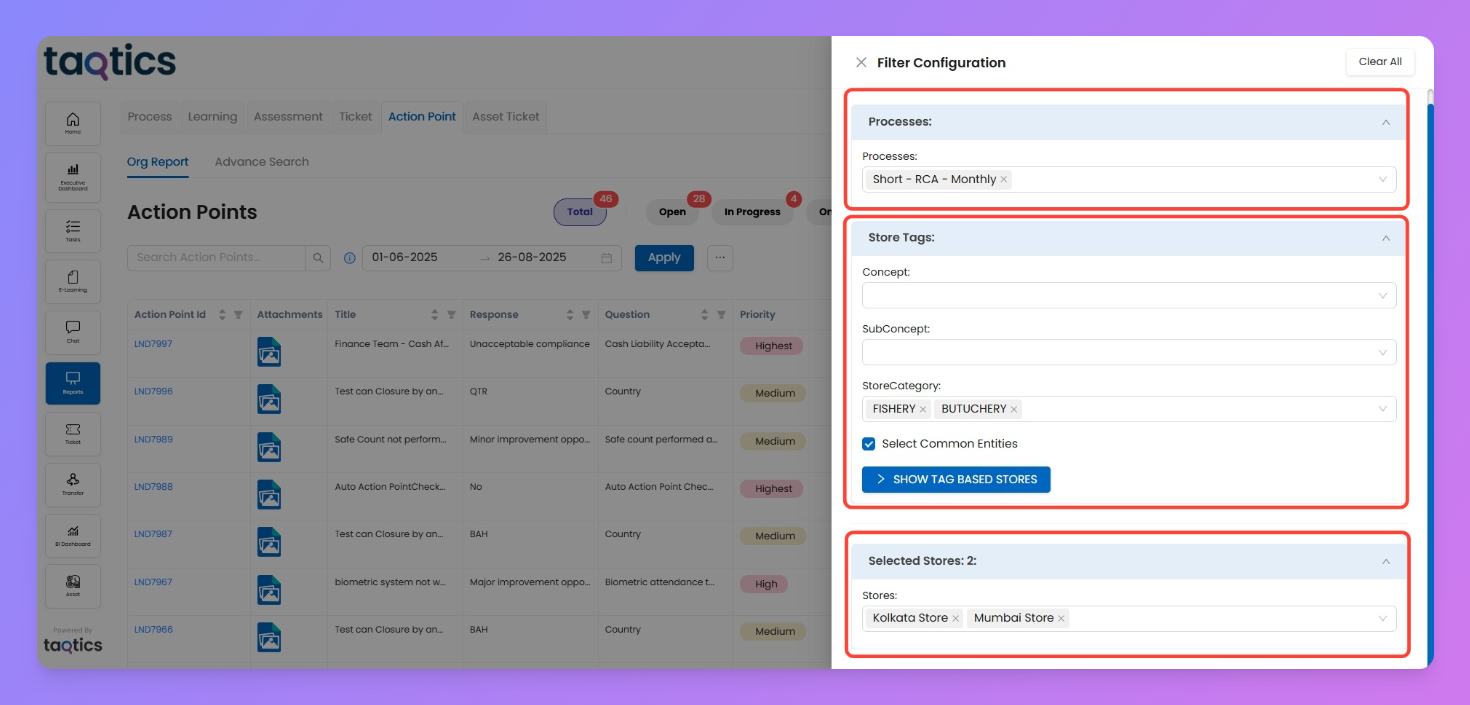
This side panel pops up to let you filter your action points grid using three major areas: Processes, Store Tags, and Selected Stores. These sections help you target exactly which data you want, in a clear, step-by-step way.
Processes
Focus your results by picking which process (e.g., audit, monthly task) you want action points from. You can select multiple or just one.
Store Tags
Drill down by how stores are grouped in your system.
- See tags and choose their values from dropdown to select groups of stores inside them.
- Select Common Entities: Checking this box narrows the grid to only stores that are shared across all chosen tag values.
- Show Tag Based Stores: Click to instantly preview the stores matching your tag criteria; these then show in the Selected Stores below.
Selected Stores
See or manually add individual stores that were found by your tag filter—or select others directly. You always have control to refine the grid to only those stores you want even further.
How to use it:
- Select your process at the top.
- Choose tags and tag values in Store Tags to filter by store group, and fine-tune with extra options (like common entities).
- Preview and select stores at the bottom—either keep what’s auto-selected, or add/remove stores as needed.
- Click on Apply
5. Export CSV
Take your work offline or share with a click. Download what’s shown.
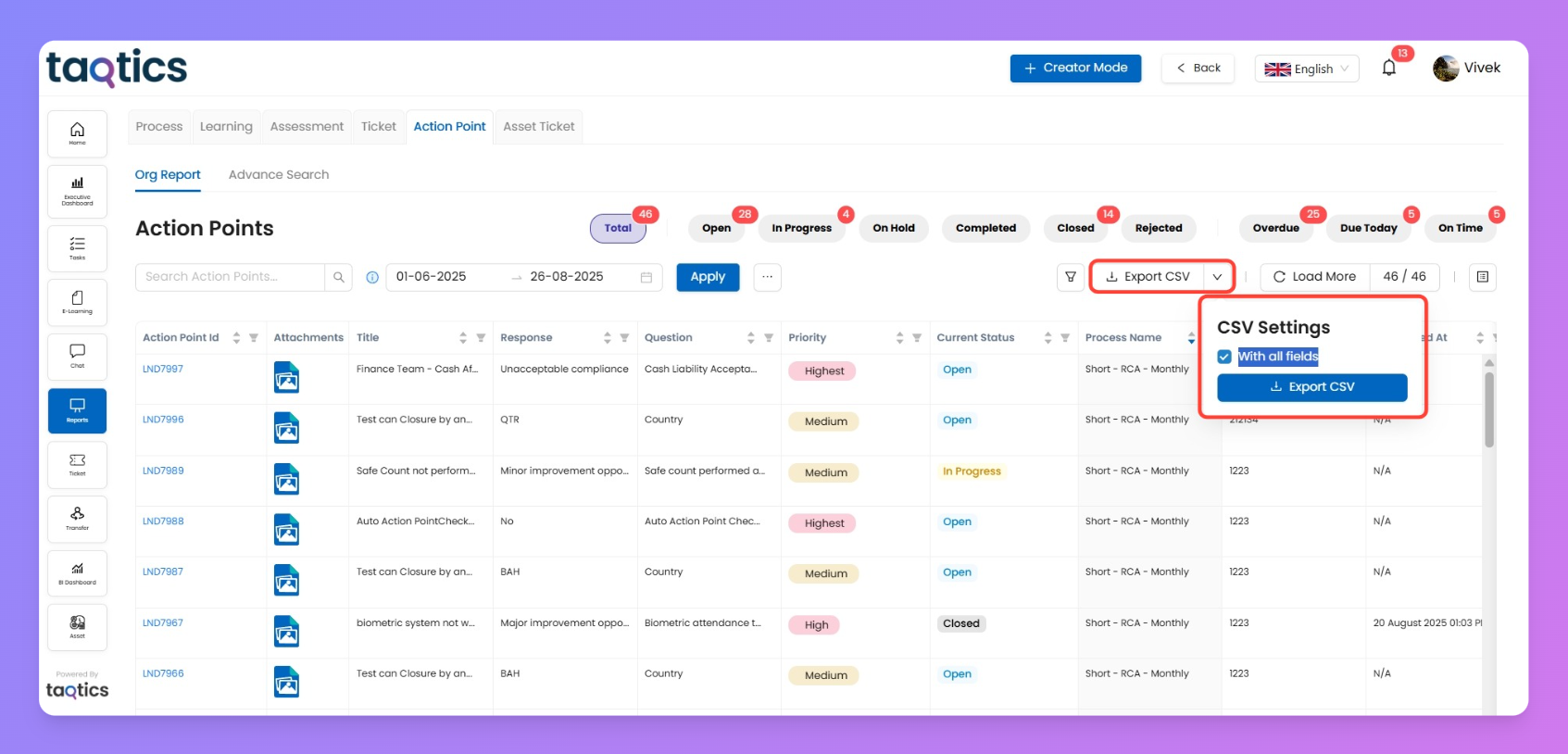
Click "With all fields" to export columns even if they're not currently visible. Handy for reporting and keeping team records sharp.
6. Load More
Shows the total action points you’re viewing vs. total available (e.g., 156/259). If you’ve got hundreds more, just click on “Load More” and keep scrolling to bring more onto the page.
7. Column selection & Reordering
Arrange your view your way. Hit the columns icon to drag and drop, hiding or reshuffling columns so your work habits always fit the grid.