
Assessment → Assessment Report
Assessment-level dashboard — shows all assessments created in the system and lets you drill down store-wise, user-wise, and submission-wise.
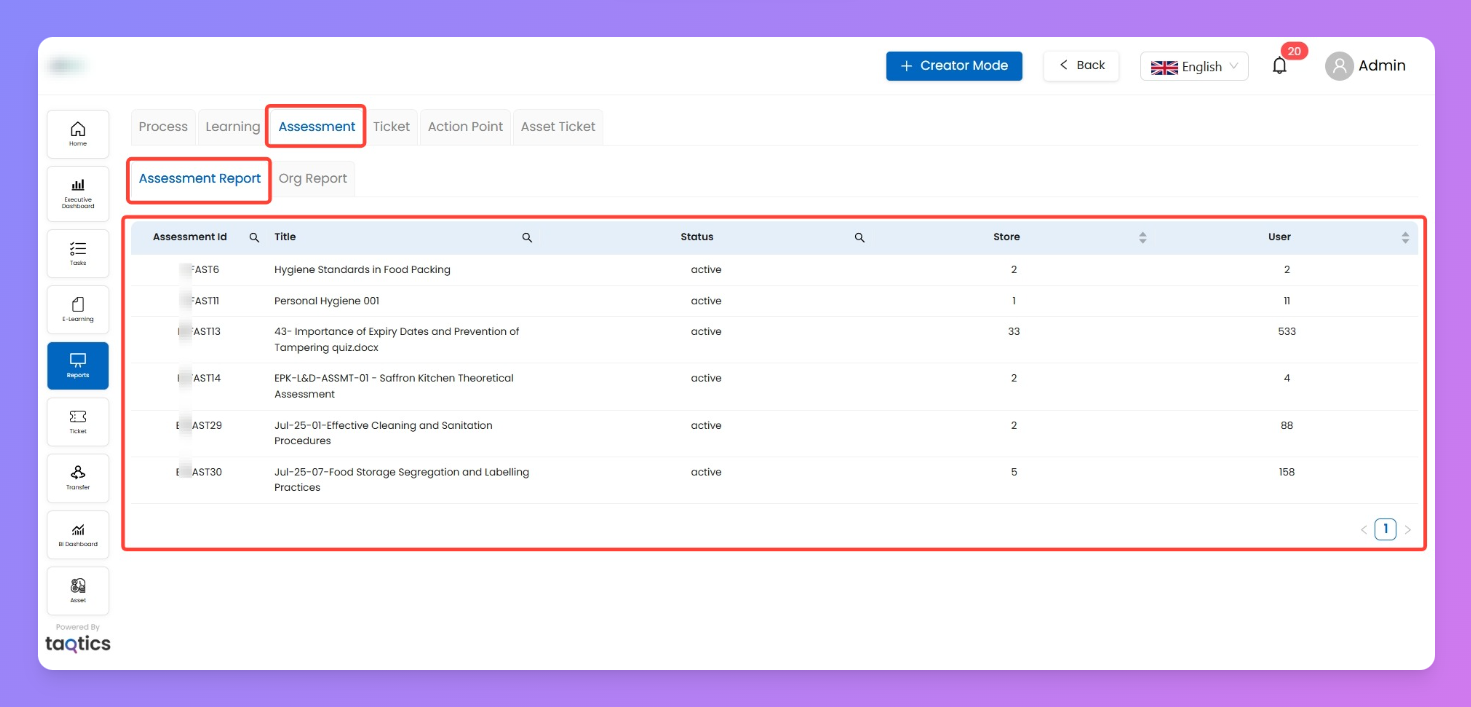
Assessment Report (main grid)
Here, you’ll see a list of all assessments.
Columns you’ll see:
- Assessment ID — system ID for the assessment
- Title — assessment name
- Status — Active / Inactive
- Store — number of stores linked to the assessment
- User — number of users assigned
Actions:
- Click any Assessment Title → opens store-wise breakdown (see below).
Store-wise Assessment Report
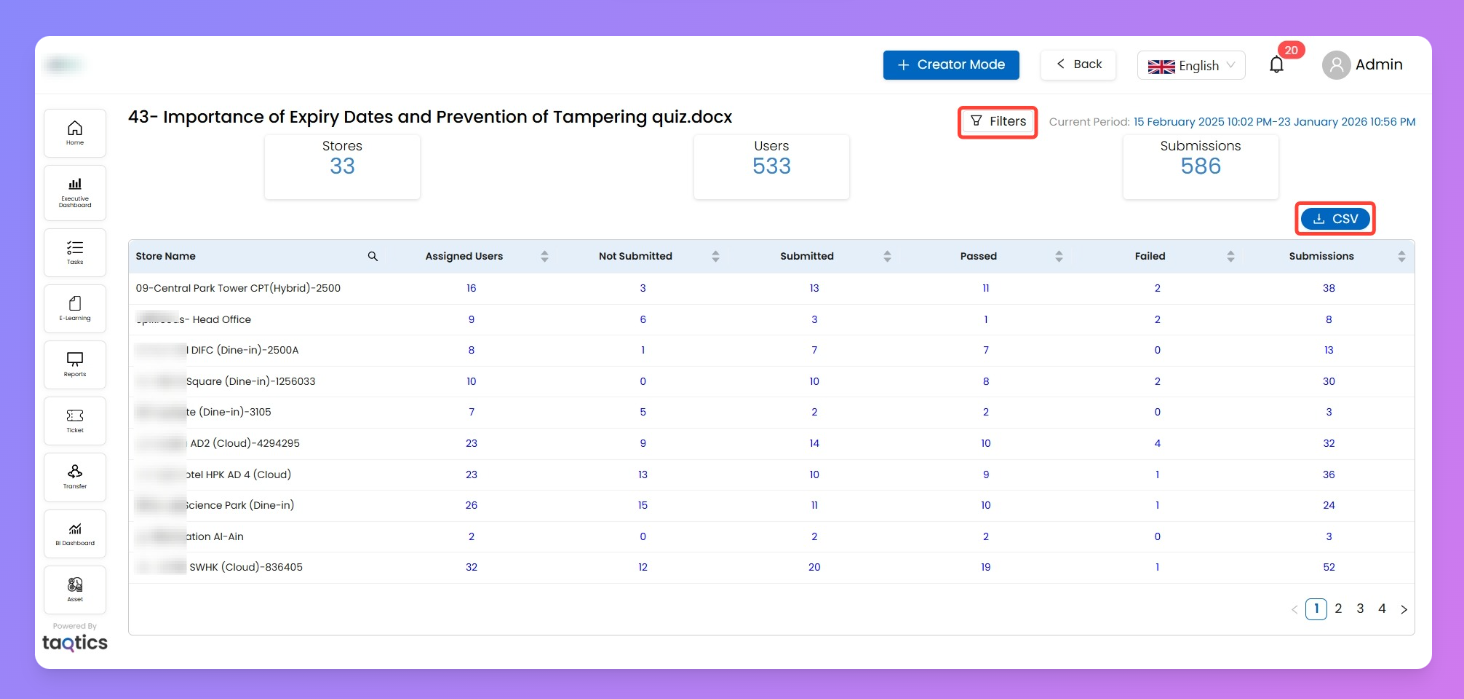
Clicking on an assessment opens a store-level dashboard.
Top KPIs:
- Stores — number of stores assigned
- Users — total users assigned
- Submissions — total submissions made
Store Grid columns:
- Store Name — official store name
- Assigned Users — learners assigned in that store
- Not Submitted — pending submissions
- Submitted — completed submissions
- Passed / Failed — submission outcomes
- Submissions — total attempts
Actions:
- Click KPI card (e.g. Submissions) → opens submission list
- Click Submission ID or User Name → opens the submission detail page
- Download CSV → export report
Notes
- Navigation: Assessment Report → Store-wise View → Submission Detail
- All blue text (IDs, names, stores) are clickable drill-downs