
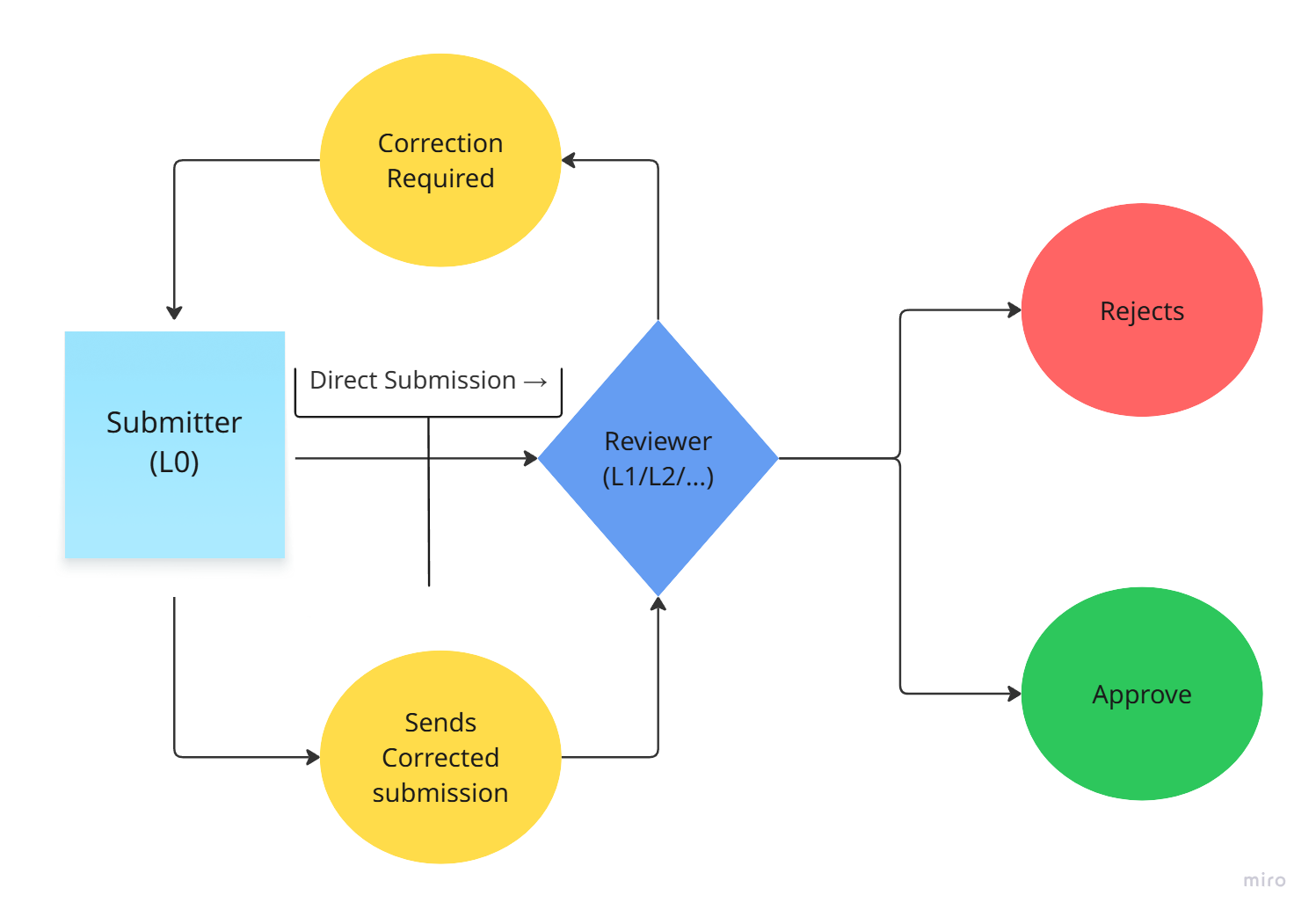
When you are assigned as a reviewer (L1, L2, L3…), your job is to validate submissions made by L0 (submitters). All review work happens through the Approvals tab.
Where to find your approvals
- Go to Tasks → Approvals.
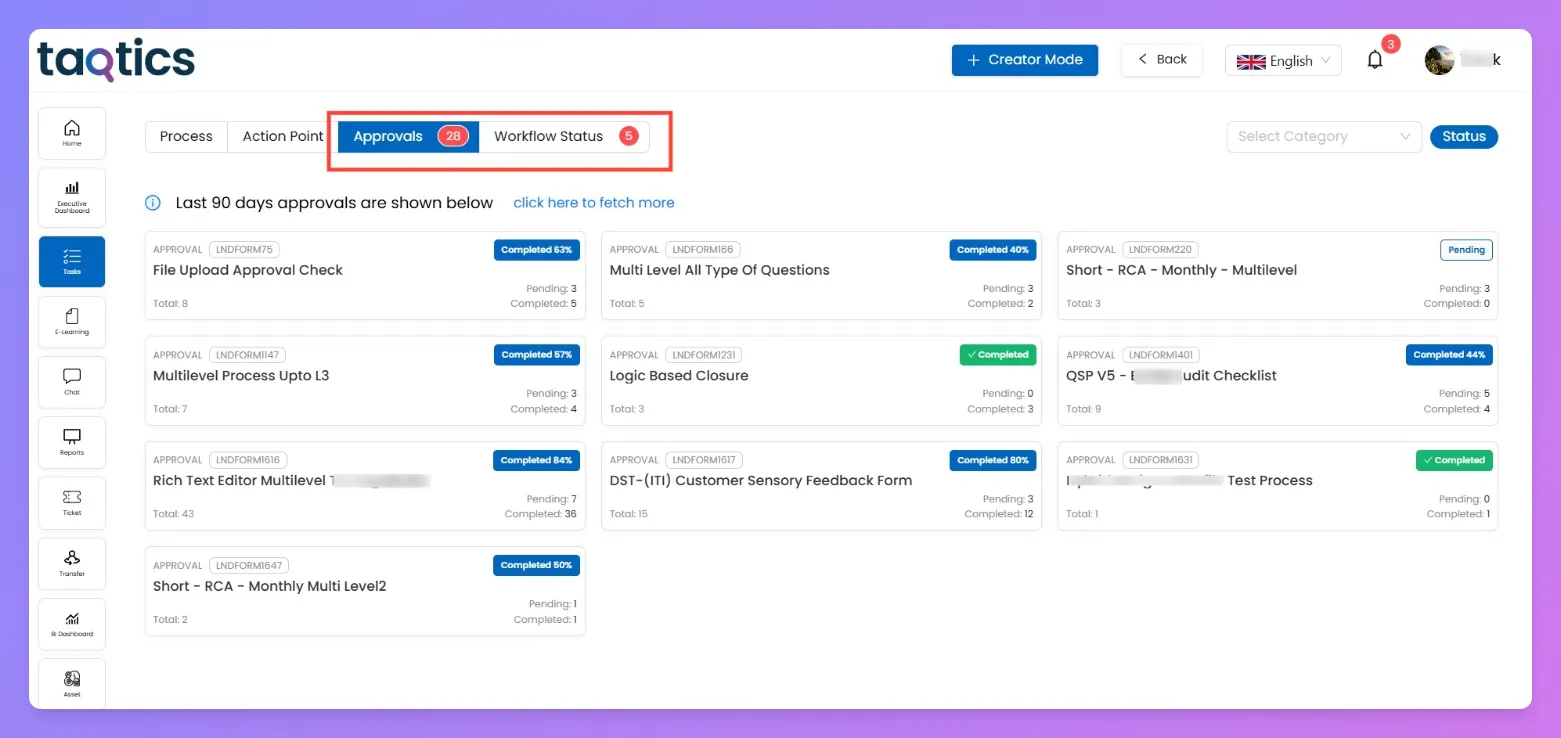
- Each card shows a process/audit where you have review responsibilities.
- Pending count = items waiting for you.
- Completed count = items you’ve already acted on.
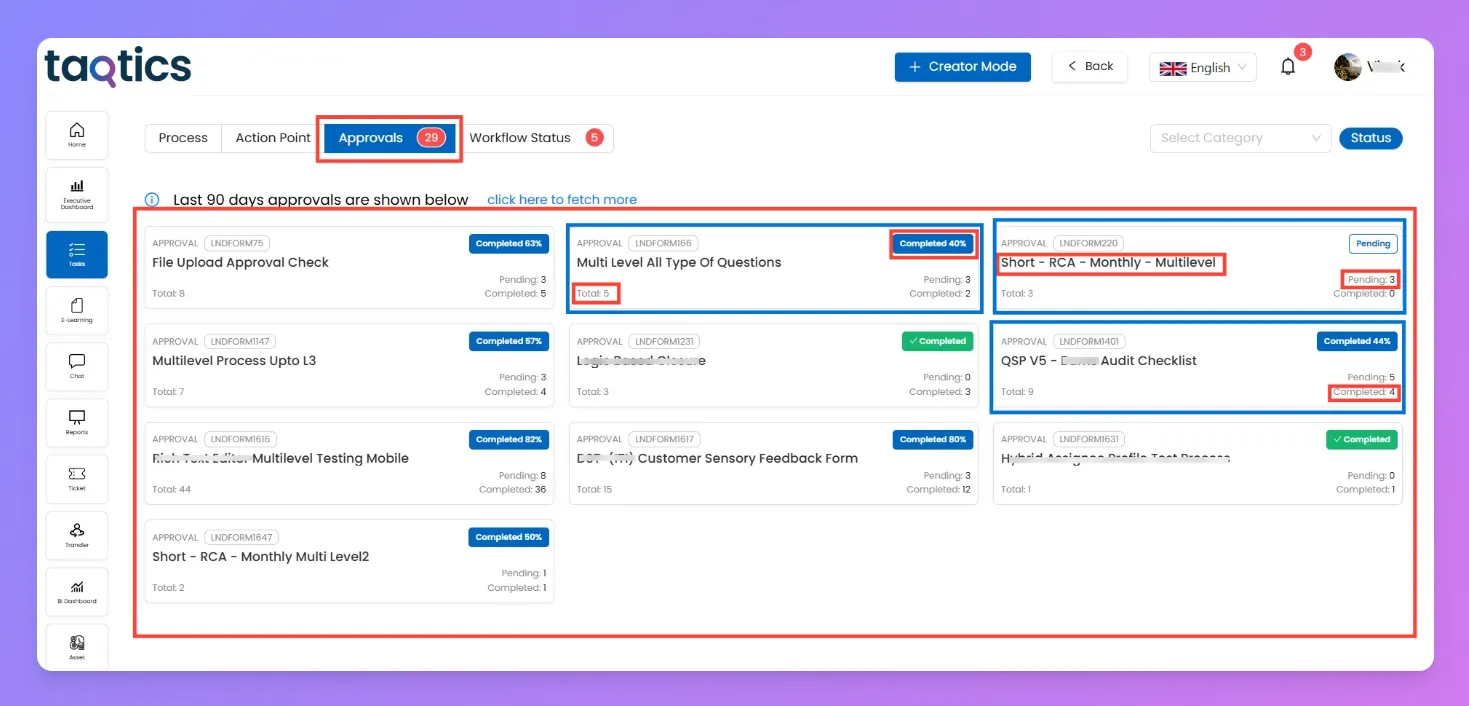
- Click the relevant card to open the detailed grid.
Reviewing a submission (step by step)
- In the grid, find the submission row (use filters for Pending/Completed, Level, or Date).
- Click the row → open the submission details.
- New → fresh submission awaiting your review.
- Correction → an item you returned earlier has come back for your review.
- Completed → you’ve finished your action.
- Overdue → time window set in Review Settings has expired
Status values you’ll see
- Review the answers, attachments, and overall submission provided by L0.
- Question Log → write comments/observations specific to that question.
- Add Attachment → upload supporting files directly against the question.
- Action Point → raise an action point if an issue needs to be tracked separately.
- Add Comment → leave a general note against the question.
Default reviewer add-ons
Apart from any specific enhancements turned on for the question (like scoring, NA, etc.), every reviewer always gets four default add-ons:
These add-ons ensure reviewers can always log evidence, request follow-ups, or document notes while reviewing.
- Take the required action:
- Complete / Submit → approve the submission at your level. Moves to Completed.
- Send for Correction → send it back to a configured lower level for fixes.
- Example: send back to L0 submitter for missing photo evidence.
- Reject → stop the submission completely. Use this only for hard-fails (if rejection is enabled in Review Settings).
- (Optional) If you have multiple similar items:
- Use Bulk Approval to complete them together.
Tips & best practices
- Always check attachments before approving.
- Use Correction when fixes are possible, Reject only when the submission must not continue.
- If you are assigned at multiple levels for the same process (e.g., L2 and L4), use the Level dropdown at the top of the grid to switch roles.