
Apart from internal Processes and Audits, Taqtics also supports Public Forms. These allow you to collect inputs from anyone outside your company (like customers, vendors, or third parties) using a simple URL or QR code.
1. Enable Public Form
- Make an audit → Add your question in Build tab
- Public Forms do not allow System User or System Store questions, since they require internal user/store mappings.
- All other question types are supported.
Few restrictions on Question Types
- Go to Properties → Advanced Settings.
- Toggle Allow Submission using URL / QR Code.
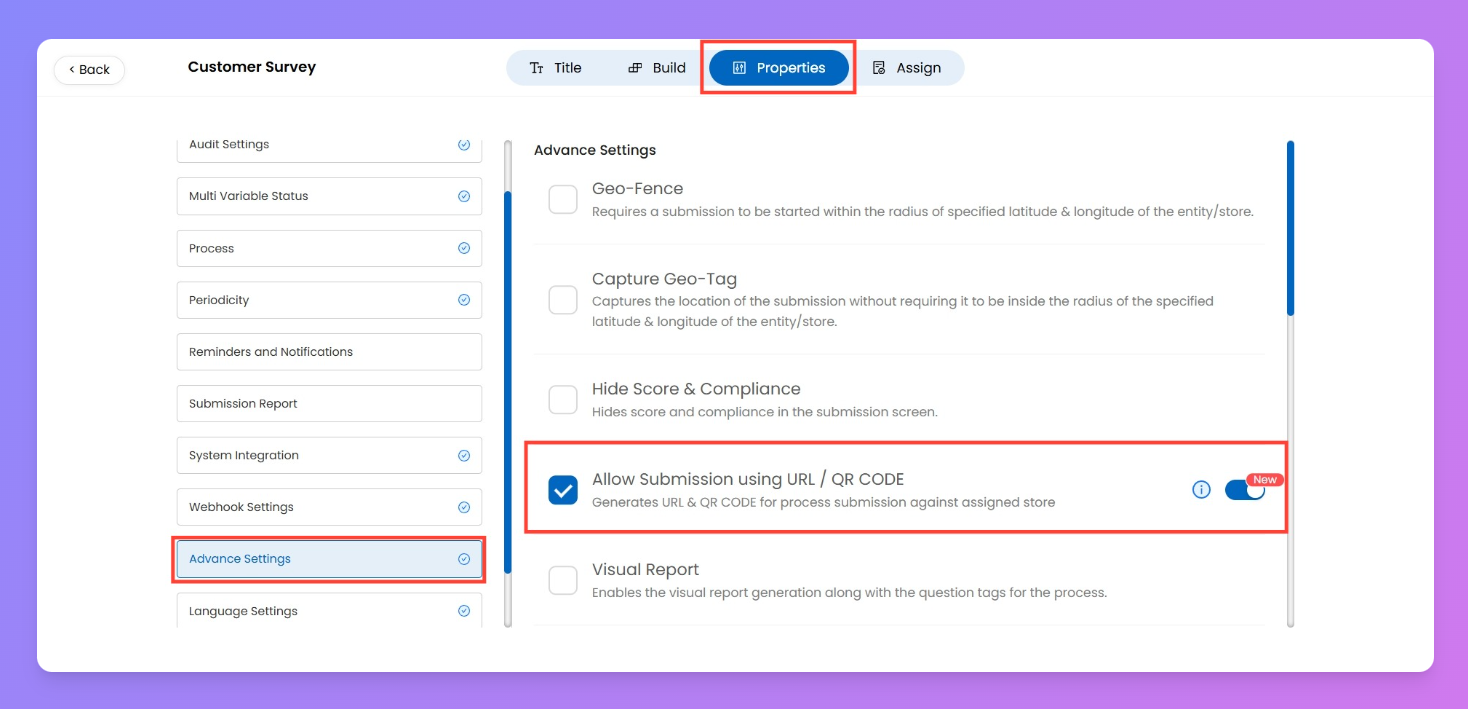
- Once enabled, a new section called QR Form Settings will appear in Properties.
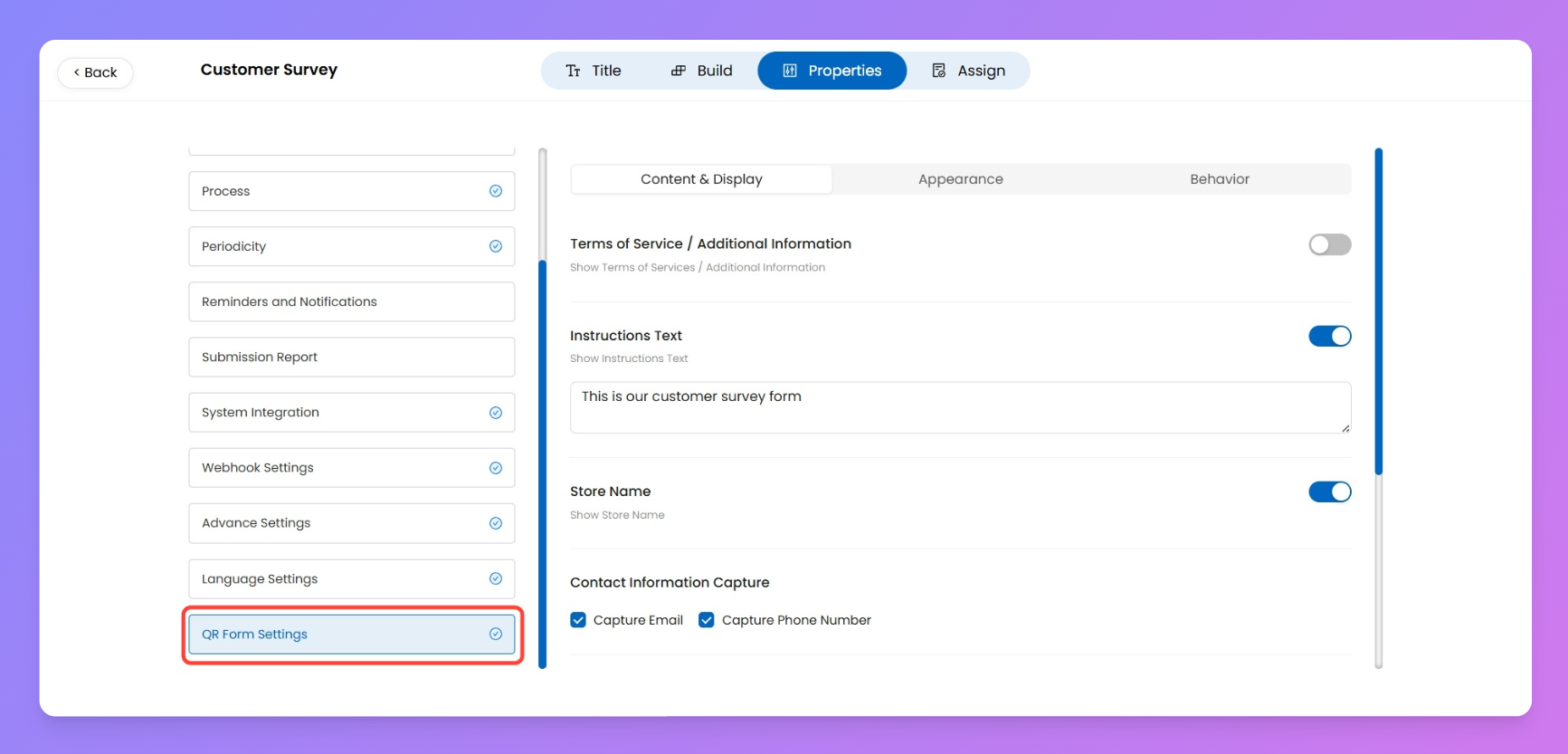
2. Configure Public Form (QR Form Settings)
Inside QR Form Settings, you’ll find following three tabs:
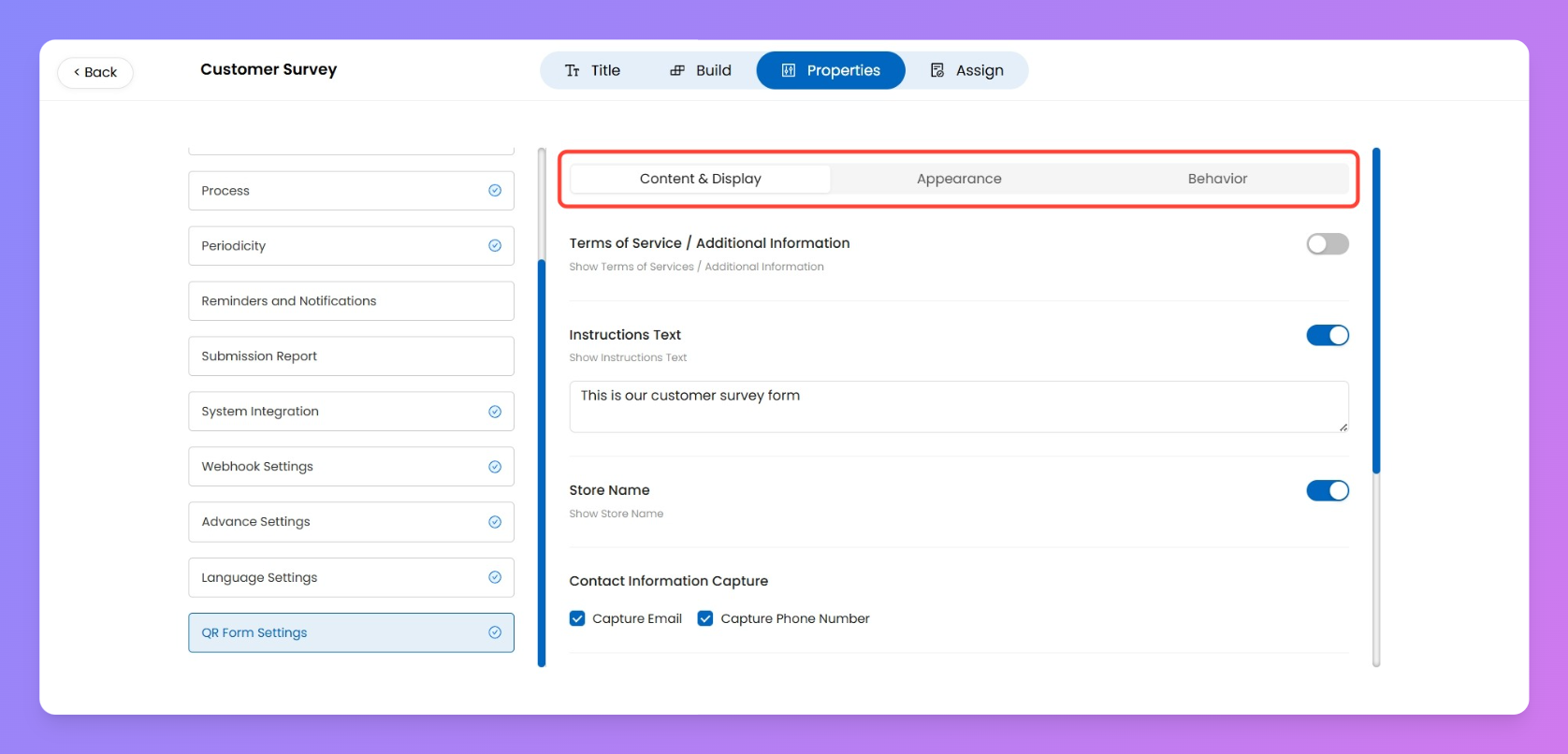
A. Content & Display
- Add Terms of Service / Additional Info.
- Display an Instructions text above the form.
- Choose whether to show the Store Name.
- Capture user contact info (Email / Phone Number).
- Customize question numbers and mandatory indicators (colors, visibility).
B. Appearance
- Upload your company logo.
- Set primary / secondary colors, background colors, and border radius.
- Upload a background image or loading icon.
- Customize typography (font family & size).
- Style the submit button (label, position, colors).
- Add a banner message and image for branding.
C. Behavior
- Configure the Thank You screen after submission.
- Add a title, thank-you message, and final image.
3. Assign & Publish
- Assign the form to Stores (cannot be assigned for individual users of your org, since it’s public form).
- Publish the form.
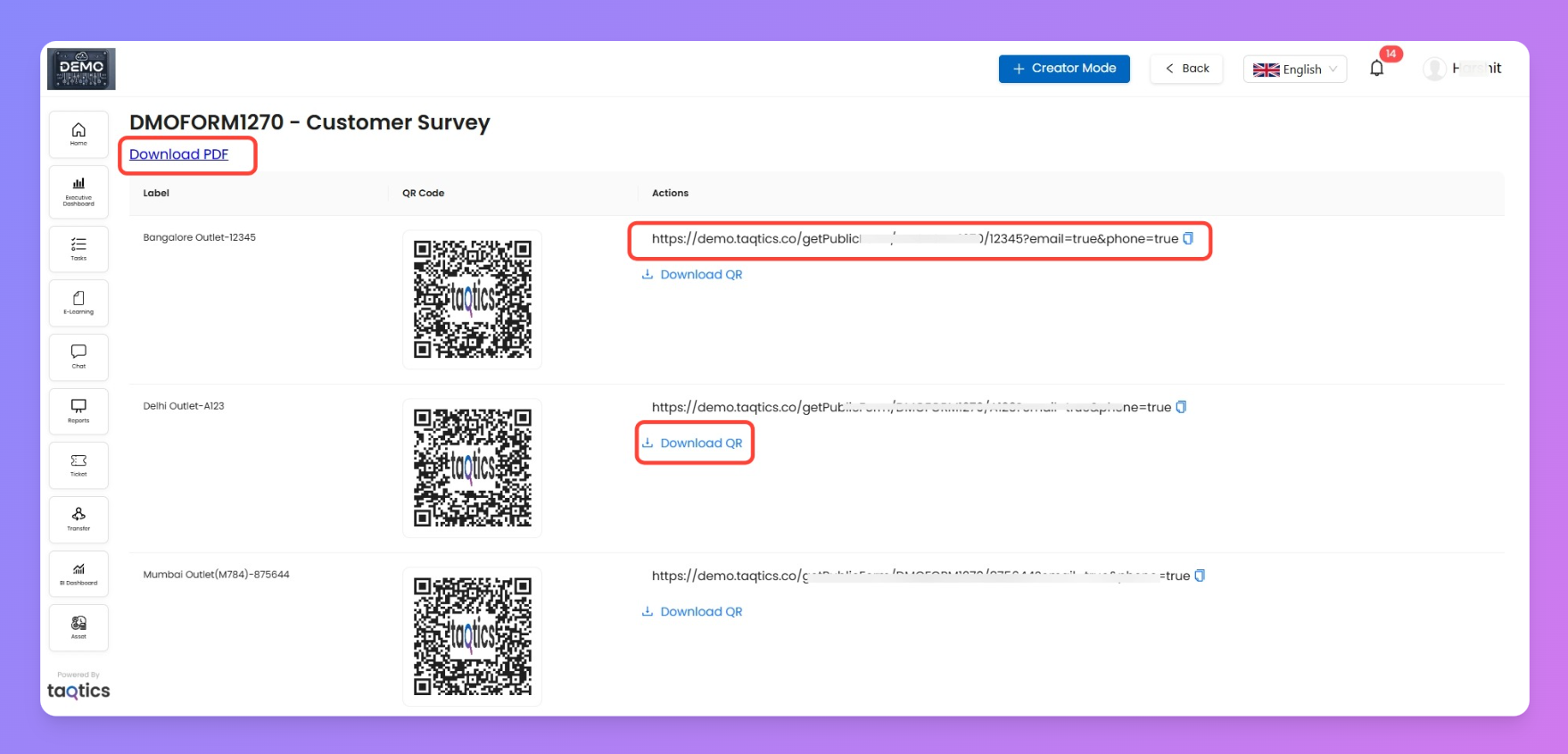
4. Share Public Form
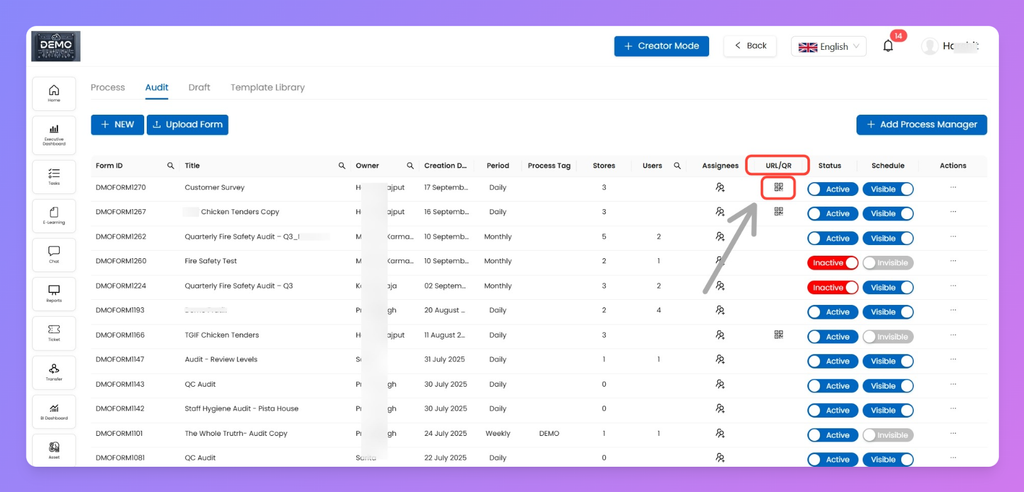
- From the main Process list, you’ll now see a QR icon.
- Click it to:
- Download the QR code for particular store, or the PDF at once
- Copy the public link to share via email, SMS, website, or social media.
6. User Experience
When someone opens the link or scans the QR:
- They’ll see your custom-branded form (with logo, colors, background, etc. if configured).
- They can fill and submit without logging in.
- You can take the csv of your submission through Org reports.
Public Forms are great for customer surveys, vendor feedback, complaint submissions