
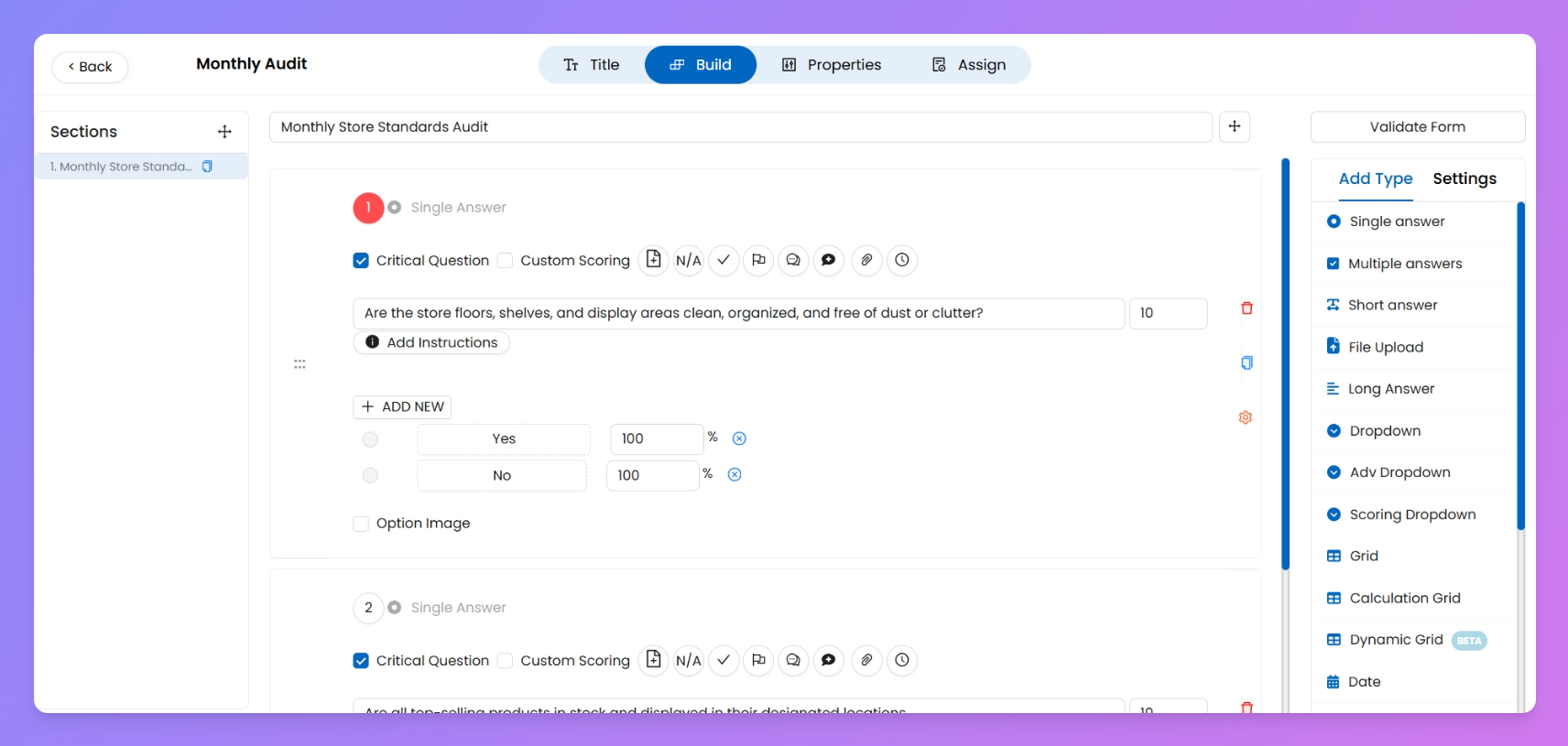
In this section, you’ll learn how to add and configure audit questions—making your monthly, quarterly, or ad-hoc audits smarter and easier. From setting up question types that match your checklist needs to powerful customizations like scoring, tags, multilevel reviews, and asset connections, you’ll get step-by-step instructions to build dynamic audit forms for any store or team.
Here’s what you’ll find in this section:
- Audit Status & Multivariable Status Configuration
- Overall Audit Status: Assign a status (like Pass, Fail, Needs Review) for the entire audit submission based on custom rules.
- Multivariable Status: Apply targeted statuses to individual audit questions or sections using scoring and conditions.
Set up flexible status logic for your audits—at two levels:
- Different types of questions
Use text, dropdowns, checkboxes, ratings, and image uploads—perfect for detailed store inspections.
- Add-ons for Audits
Add N/A toggles, comments, and file attachments to each audit question—helps auditors log exceptions or upload evidence.
- Visual Tags in Audit
Tag specific responses (like “Display Area”, “Backroom”, etc.) for instant insights on areas needing attention.
- Multi-level Review
Allow audits to be reviewed by multiple levels (L1, L2, etc.), so all entries are checked and approved before being finalized.
- Connect Process with Assets
Link your audit to asset tables—auto-fetch equipment data, update condition reports, and log any maintenance needs during the audit.
- Question Scoring & Option Settings
Assign scores, set pass/fail criteria, and automate result statuses based on mathematical or compliance thresholds.
Basically, if it configures the question block or result logic in your audit, you’ll find step-by-step instructions here!
Continue With 👇
Adding different Question Types Add-ons with QuestionsAdd Tags for Visual MerchandisingSet Question Scoring and Answer OptionsTurn On Review Connect Process with Assets