
Learning → Org Report
Short description: Org-level learning dashboard — shows a consolidated view of training across the entire organization. You can switch between Courses, Employees, and Quiz tabs to analyze performance from different angles.
Org Report → Courses
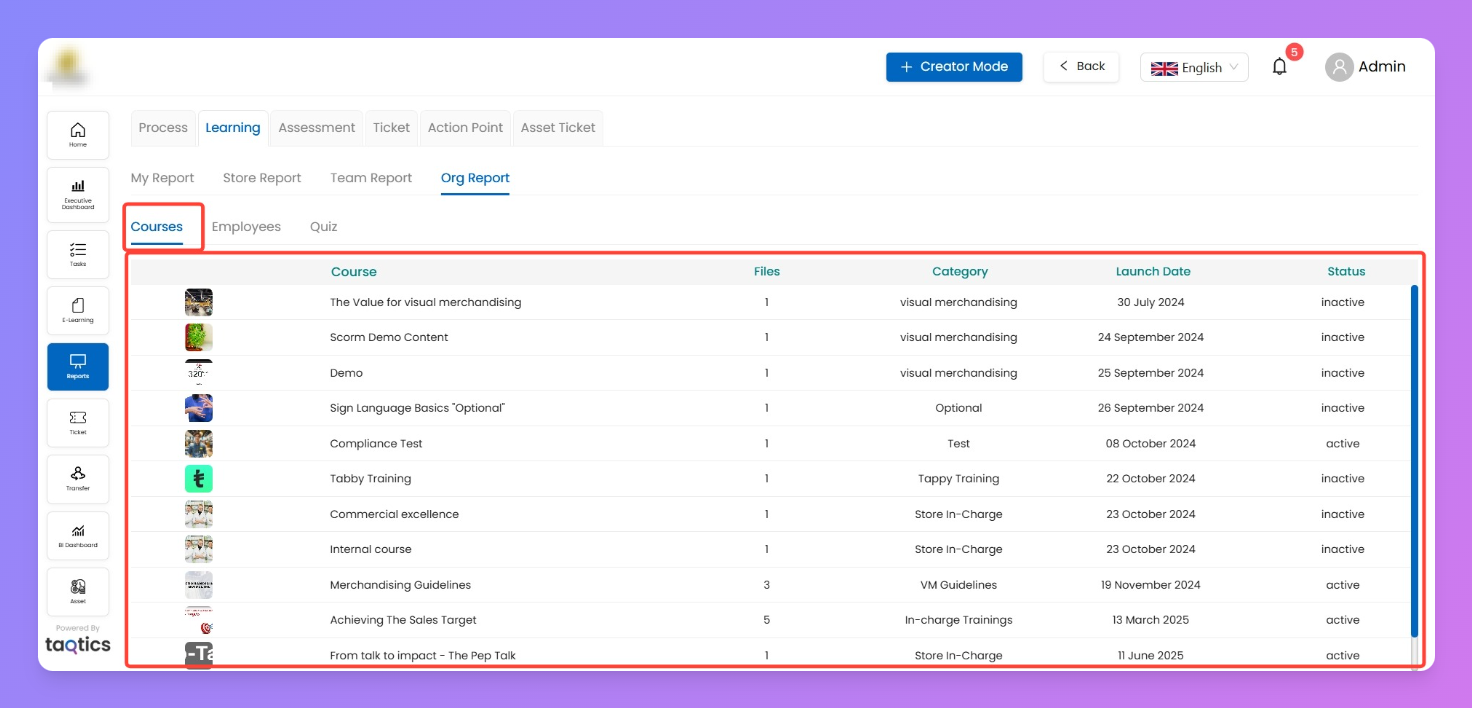
This is the default tab. It lists all courses published in the organization.
Columns you’ll see:
- Course — title of the course
- Files — number of files/modules in the course
- Category — course category (e.g., Visual Merchandising, Store In-Charge, etc.)
- Launch Date — date course was launched
- Status — whether course is Active or Inactive
Actions:
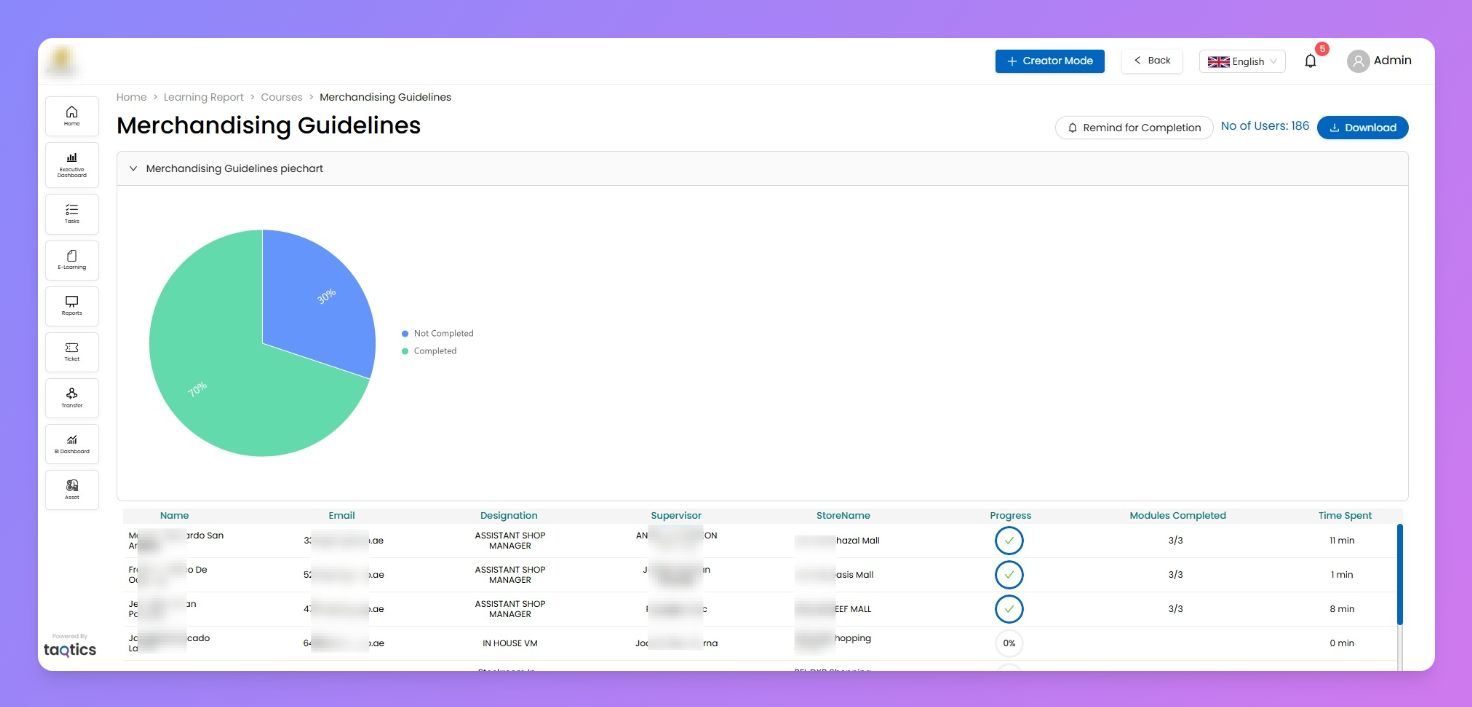
- Click on a Course → opens course-level report with:
- Pie Chart — split of Completed vs. Not Completed learners
- Employee List — shows who has completed the course, progress %, modules completed, and time spent
- Download → export report in CSV
- Remind for Completion → send reminders to users who haven’t finished the course
Org Report → Employees
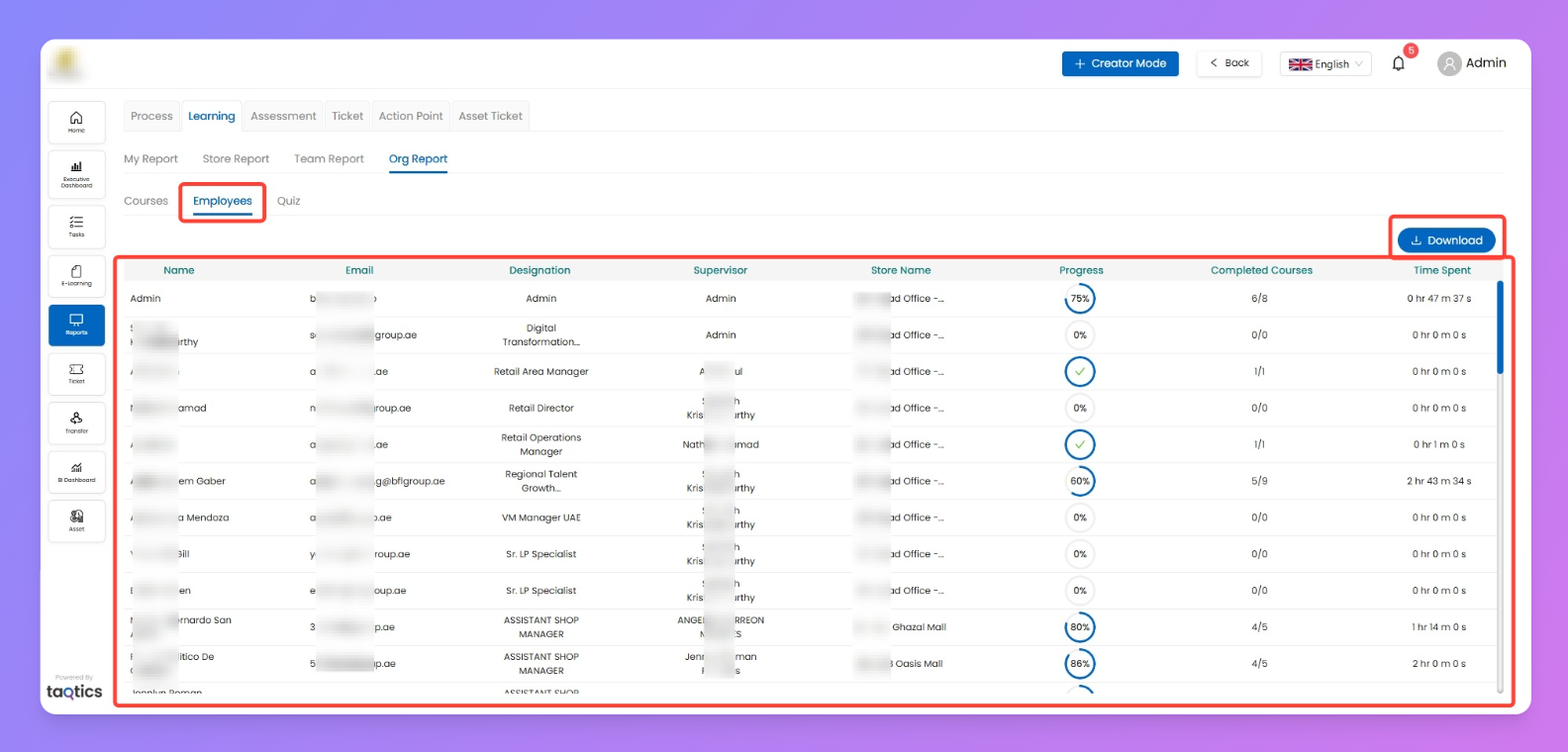
Switch to the Employees tab to see a directory-style report of all learners in the org.
Columns you’ll see:
- Name — learner’s name
- Email — registered email ID
- Designation — role of the learner
- Supervisor — reporting manager
- Store Name — store assigned to the learner
- Progress — % completion across all courses
- Completed Courses — ratio of finished vs. assigned (e.g., 6/8)
- Time Spent — total training time logged
Actions:
- Download → export full employee learning report
- Click on learner’s row to drill into their detailed report (similar to Store/Team flow)
Org Report → Quiz
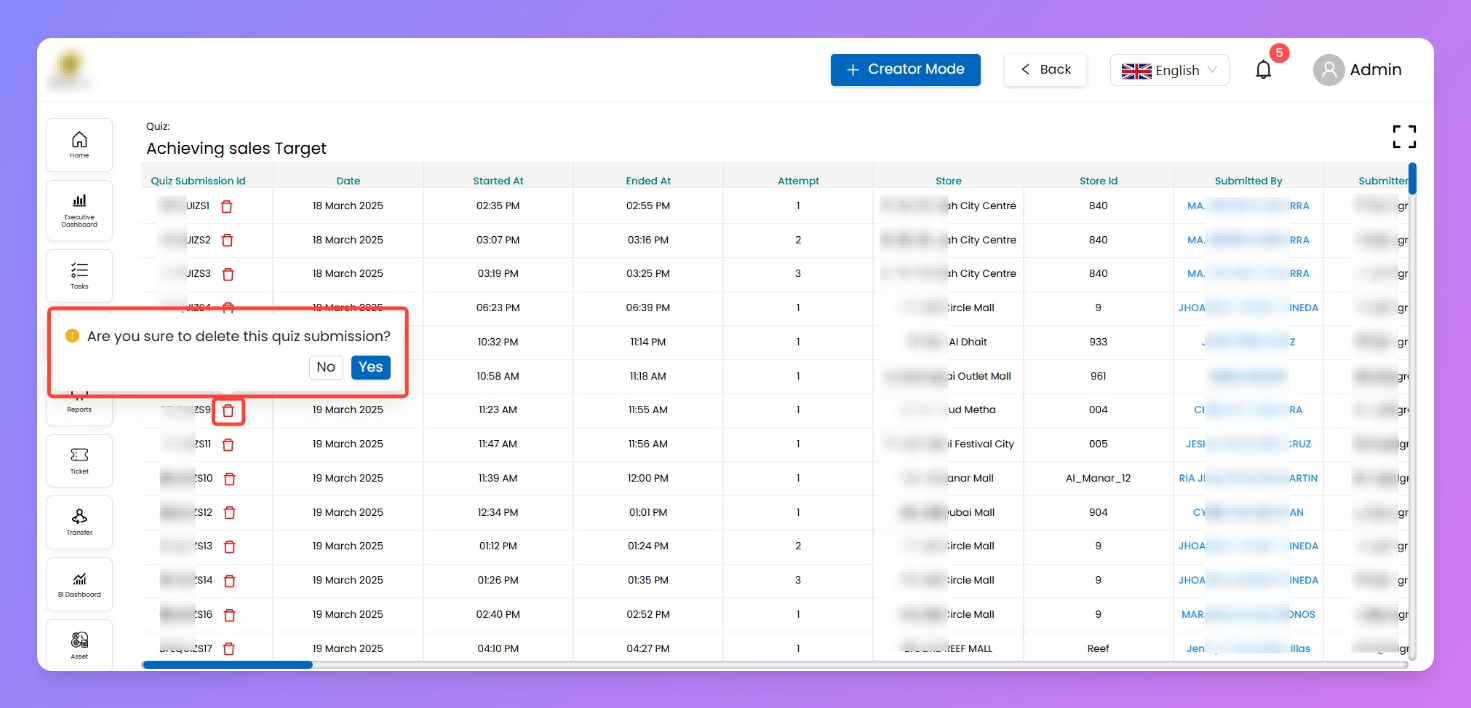
This tab tracks all quiz submissions across courses.
Columns you’ll see:
- Quiz Submission ID — unique ID per attempt
- Date / Started At / Ended At — timestamp of attempt
- Attempt — attempt number (1st, 2nd, etc.)
- Store / Store ID — store of the learner
- Submitted By — name of learner
- Submitter Email — learner’s email
- Employee ID — employee system ID
- Time Taken — time spent completing the quiz
- Total Score — score obtained
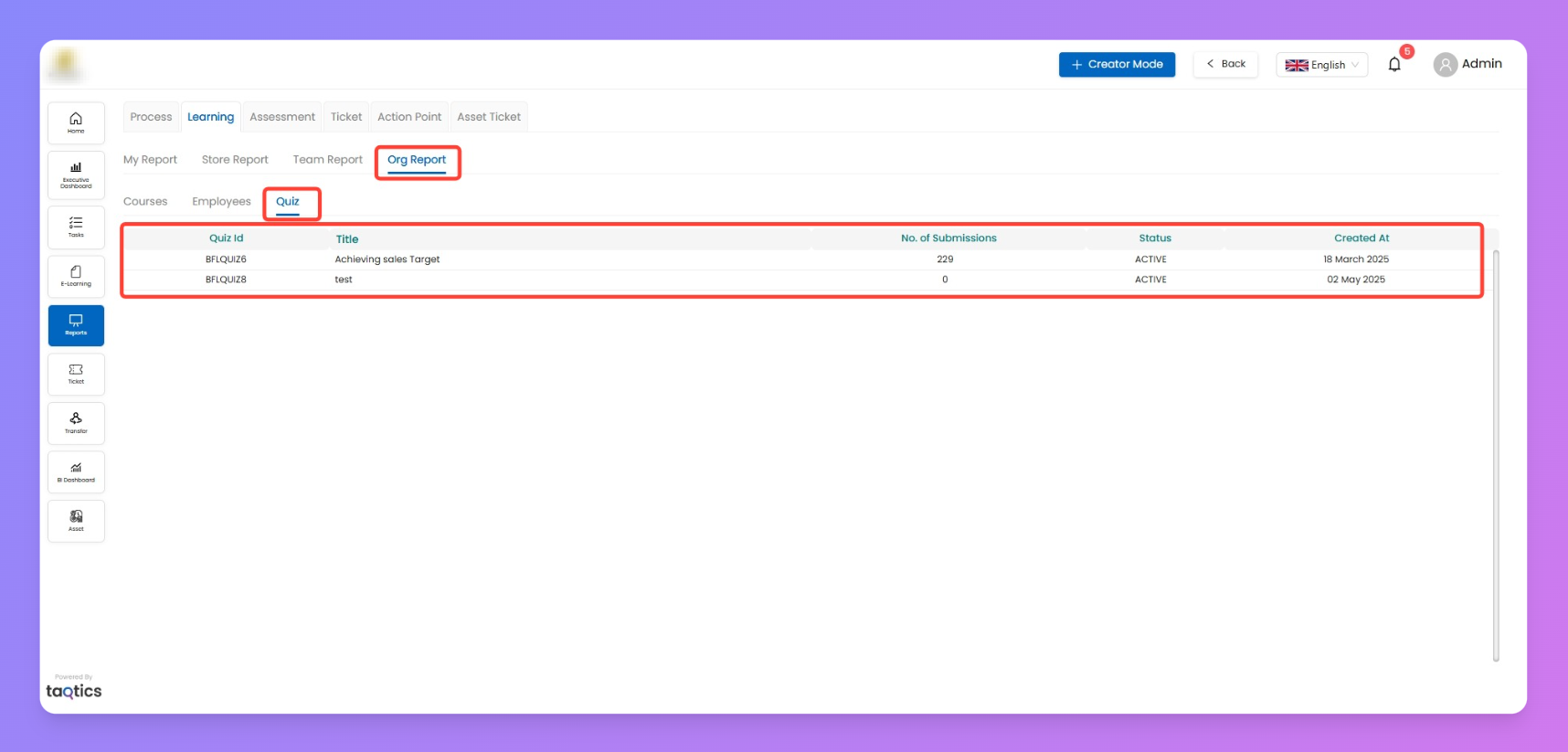
Actions: Click on any Quiz
- Delete Submission → if you want a learner to retake a quiz, you can delete their submission (trash icon).
- Once deleted, the learner will have to redo the quiz.
- Download → export quiz records for analysis.
Behaviour & Notes
- Navigation flow: Org Report → (Courses / Employees / Quiz)
- Data includes all assigned courses and quizzes across the organization.
- Course tab gives a content-centric view, Employees tab is people-centric, Quiz tab is assessment-centric.
- Reminder notifications can be sent from course-level view to push completion.
Use cases
- Compliance → check if mandatory courses (e.g. compliance test) are completed by all.
- Assessment management → delete and reset quiz attempts for learners who need a re-try.
- Leadership overview → see how training programs are performing org-wide.