
Learning → Team Report
Short description: Team-level learning dashboard — shows training progress of all employees reporting to you (based on the Supervisor field in Manage Users).
Who Appears in Team Report?
This page reflects the reporting hierarchy you’ve set in Manage Users.
- While creating a user, you assign them a Supervisor.
- This builds the User Hierarchy — e.g., if X is a manager and A, B, C report to X, then when X logs in, they’ll see A, B, C inside their Team Report.
- The hierarchy can also be viewed/expanded in the User Hierarchy tab.
💡 Note: Managers only see their direct reports in this page. To check deeper levels (e.g. your team’s team), you’ll need to click into those users separately.
Team Report Overview
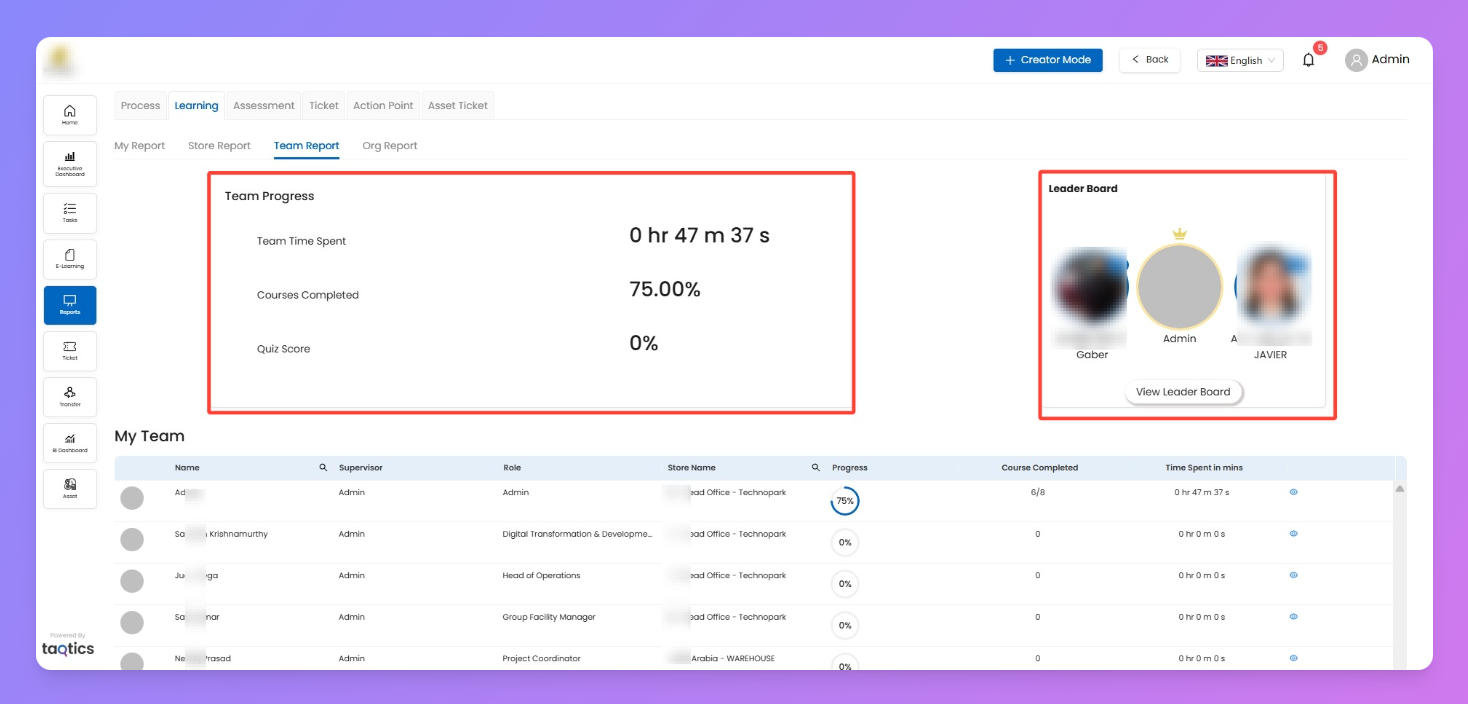
When you switch to Team Report, the page is split into two sections:
- Team Progress Summary (top panel)
- Team Time Spent — total learning time logged by your team.
- Courses Completed — overall completion % across all team members.
- Quiz Score — aggregated average quiz score.
- Leaderboard (top right)
- Shows top-performing employees in your team.
- Ranks based on progress, completions, and time spent.
- Use View Leader Board to expand and see the full list.
My Team (Employee Grid)
Below the summary, you’ll see a list of employees reporting directly to you.
Columns you’ll see:
- Name — learner’s name
- Supervisor — their reporting manager (confirms hierarchy)
- Role — designation of the learner
- Store Name — store where the learner is assigned
- Progress — completion % across all assigned courses
- Courses Completed — ratio of finished vs. assigned (e.g. 6/8)
- Time Spent in mins — total training time logged
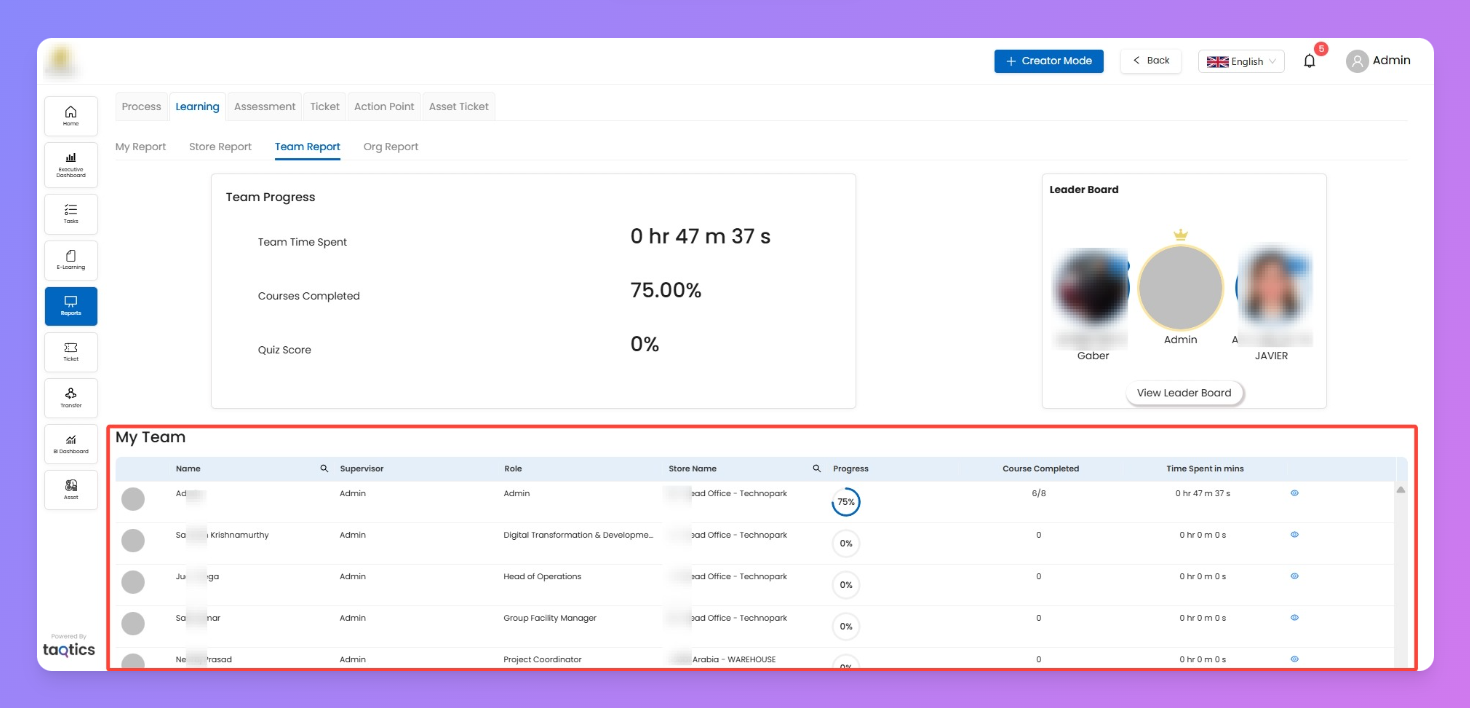
👁 Eye icon → click to view a person’s detailed learning report (same as learner detail view in Store Report).
Actions
- Click learner’s row/eye icon → opens their course-level detail (like in Store Report).
- Leaderboard → check top performers and compare across your team.
- Export CSV → download the full team report for offline tracking.
Use cases
- Manager coaching → spot employees with low progress or zero completions.
- Performance recognition → use the leaderboard to highlight top learners.
- Time vs. completion check → if someone logs time but has poor progress, it may signal difficulty with content.