
Adding different Question Types
Once you’ve added a Title and Description to your Audit, it’s time to bring it to life with the right questions.
Taqtics gives you a bunch of question types to pick from — whether you’re digitizing your daily checklists, capturing data from the ground, or just replacing that old paper form. It’s super easy to plug in the questions that fit your workflow.
Scroll down to explore all the question types we offer and find what works best for your setup. You’ll also see what each question looks like and how to set it up in Creator Mode.
Text and Number based questions
These are your simple input fields where users manually type their responses.
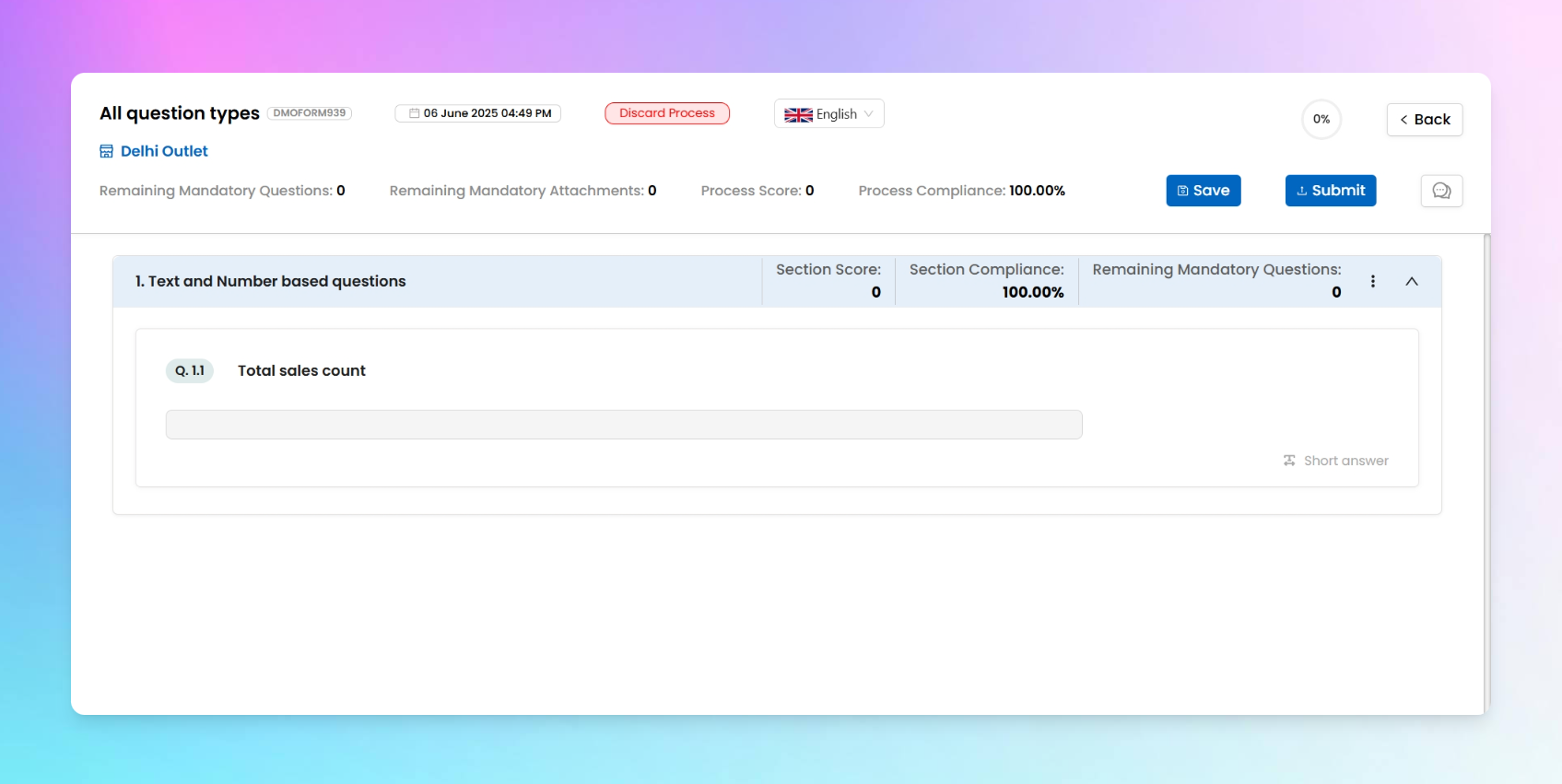
1. Short answer
This one’s your go-to for collecting small, typed-in responses. You can decide what format of answer you want from your team — whether it’s:
- Alphanumeric (e.g., "Shelf A3", "Batch 24X")
- Text (a mix of letters, spaces, and symbols — general free text)
- Number (e.g., "150", "98.6")
- Email (e.g., name@brand.com)
- Phone (e.g., +91-98xxx43210)
It’s super versatile and fits into tons of daily use cases — like logging a reading, writing a name, or noting a quick status.
ℹ️
Enhancement specific to Short answer
Along with the general add-ons that come with all question types in Taqtics, this question also supports a unique enhancement — Barcode.
Bar Code
Want to save typing time? Turn on the Barcode enhancement so if users want they can scan barcodes directly into the answer field. This is perfect for stock codes, product IDs, or even shelf labels.
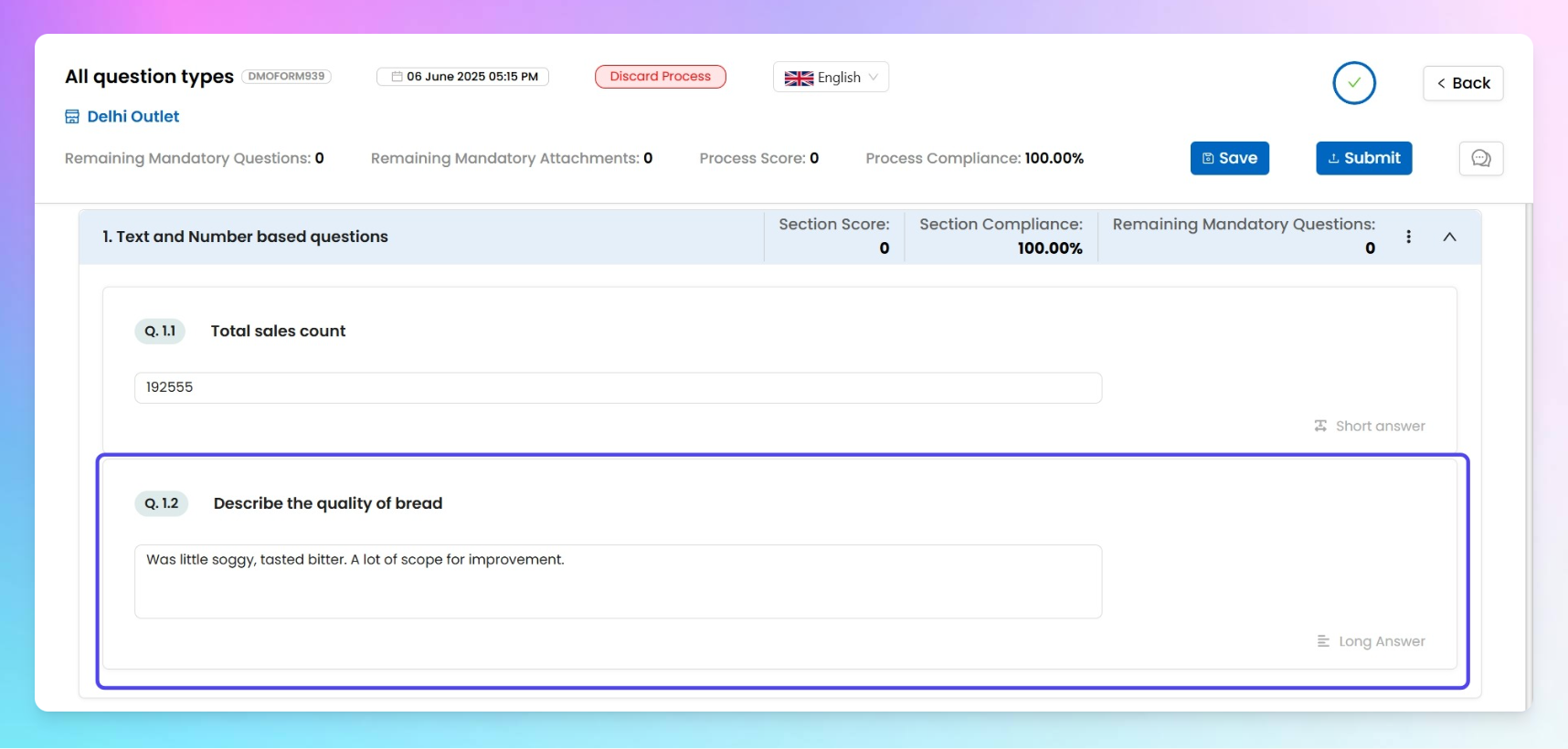
2. Long answer
Perfect for when a simple “yes” or a short note just won’t cut it. Long Answer lets your team describe things in more detail — whether it’s a breakdown of what went wrong, a step-by-step update, or just extra context. The response box here is bigger by default, giving users more space to write everything out comfortably.
Use it for responses where more words = more clarity.
ℹ️
Enhancement specific to Long Answer
Along with the general add-ons that come with all question types in Taqtics, this question also supports a unique enhancement — Barcode.
Bar Code
Want to save typing time? Turn on the Barcode enhancement so if users want they can scan barcodes directly into the answer field. This is perfect for stock codes, product IDs, or even shelf labels.
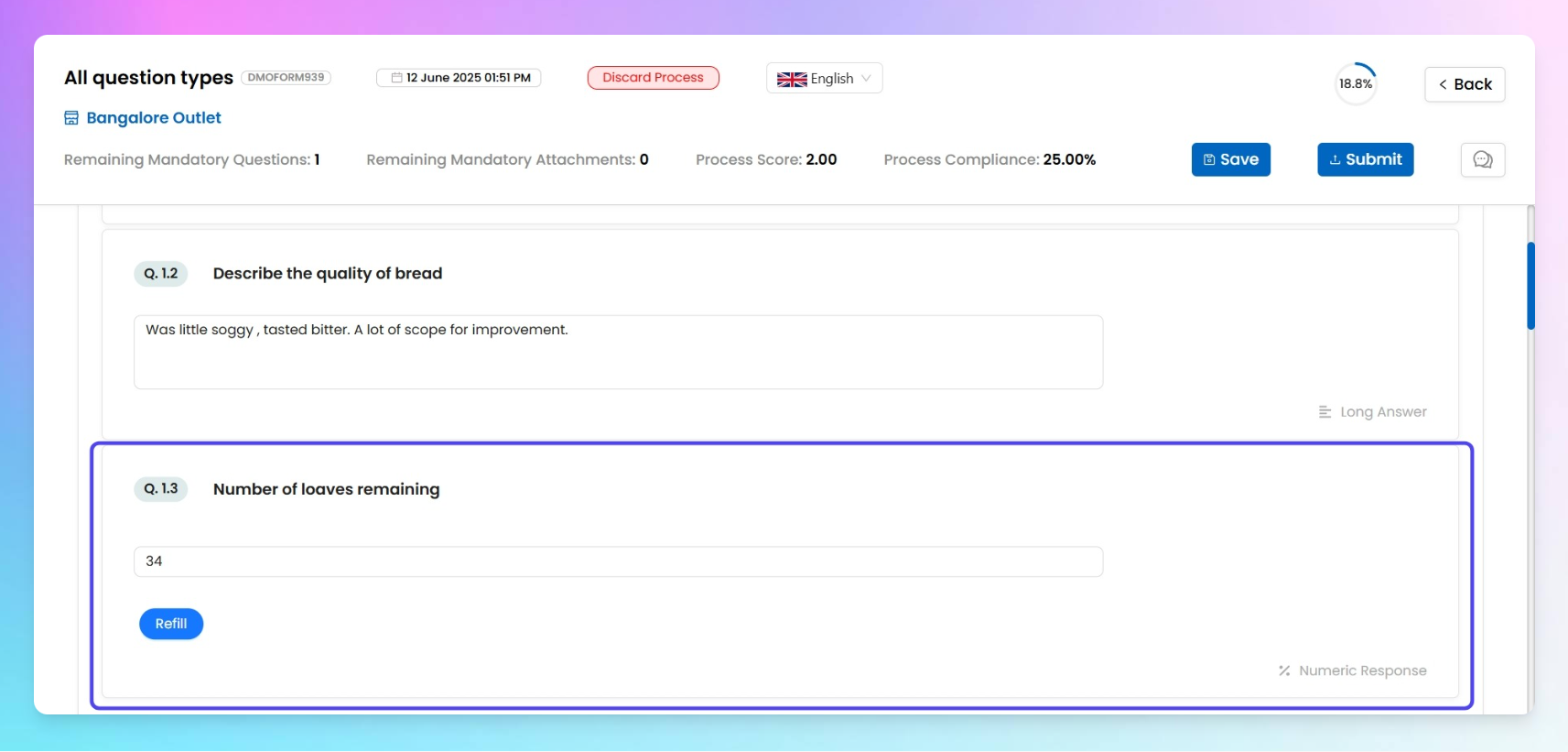
3. Numeric response
This question type is meant for capturing only number-based inputs — whether it’s units sold, stock left, or hours worked. No alphabets, no special characters — just numbers.
You also get a cool “Add Validation” feature that lets you define logic-based rules for numeric inputs. Here’s how it works:
- Pick a condition like Less than, Greater than, Equal to, or Out of range from the dropdown.
- Enter a value, like
100.
- Then define the tag or keyword that should show up for the submitter if they enter a value that meets your condition — for example, if someone enters
5000, you can display excess automatically.
You can stack multiple validations — like:
- Less than 100 → show Refill
- Greater than 1000 → show Excess
Super handy for setting thresholds, flags, or status markers based on quantity!
Choice-Based questions
These are best when users must select from predefined options.
1. Single Answer
This one’s perfect when you want users to pick just one option from a list — think Compliant / Non-Compliant, Yes / No, or anything else that needs a single-click decision.
Along with typing your question, you can assign marks to it (like 2 marks total), and give each option a percentage weightage — like:
- ✅ Compliant → 100%
- ❌ Non-Compliant → 0%
The final score is calculated based on the option’s percentage times the question’s mark. So in the above case, picking “Compliant” on a 2-mark question gives 2 points; “Non-Compliant” gives 0.
ℹ️
Enhancement specific to Single Answer
Along with the general add-ons that come with all question types in Taqtics, this question also supports a two unique enhancement —
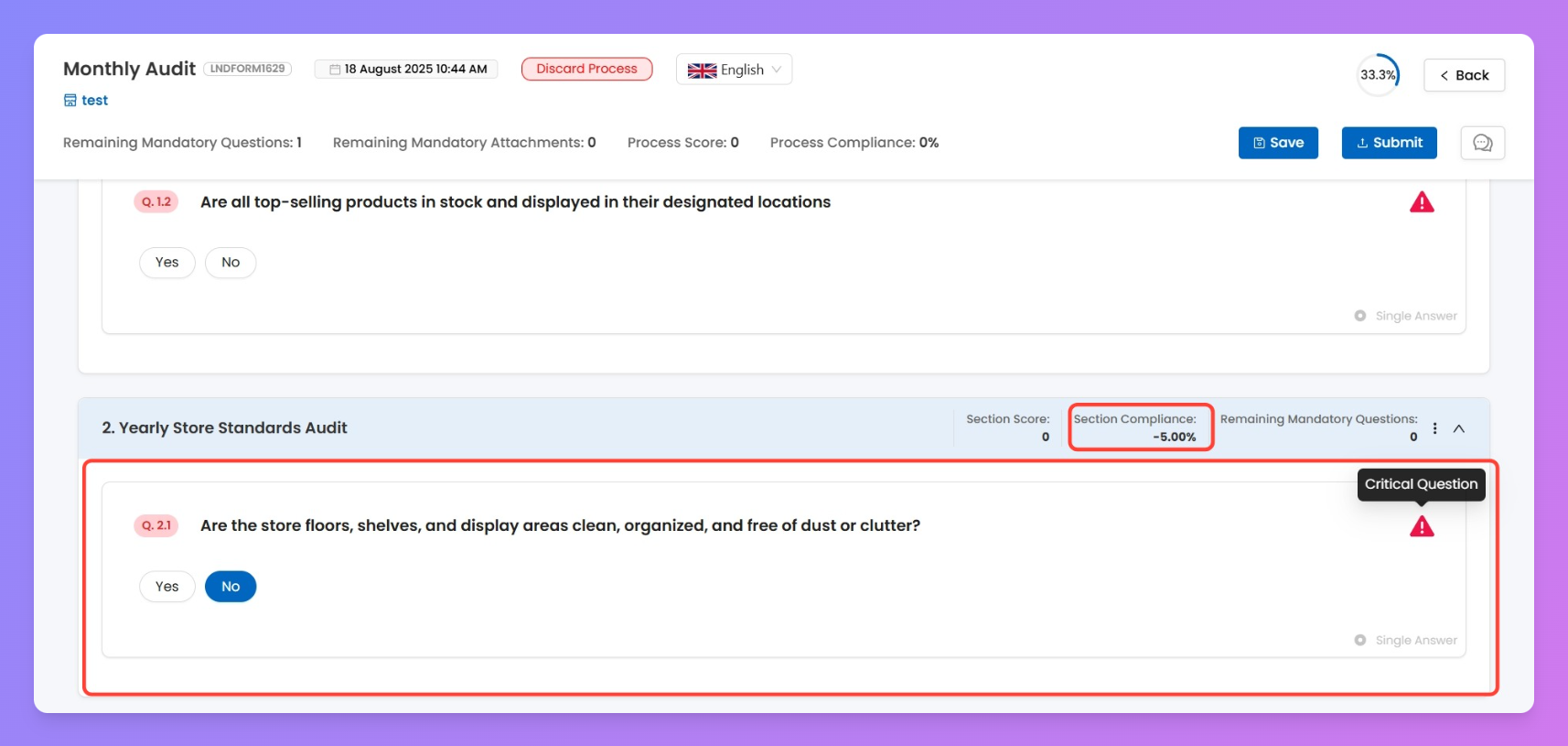
- Critical Question
- Turn on “Critical Question” while adding or editing a Single Answer.
- Set custom triggers for response options (like “No” or a numeric threshold).
- When a trigger is met (e.g., a “No” on a hygiene question), you can automatically update the overall Audit score or section score—flagging that audit for urgent attention.
It lets you mark important check-items (e.g., “Are floors clean and free of clutter?”) as high priority within your audit.
How it works:
- Default Response
You can pre-select an option (say “Compliant”) to show by default when the form opens. Don’t worry — the user can still switch it before submitting.
- Advanced Comment
(Will update this one once you’re ready to explain it )2. Multiple answer
This one’s for when more than one option can be right. Whether you're asking “What tools did you use today?” or “Which tasks are done?”, this is your go-to.
Just like Single Answer, you can:
- Set marks for the question (like 5 marks)
- Assign percentage scores to each option (e.g. “Task A – 30%”, “Task B – 70%”)
The final score will be based on the sum of the weightages of all selected options — all mapped to the total marks of the question.
So if the user selects “Task A” and “Task B”, they’ll get the full score. If they only pick “Task A”, they’ll get 30% of the total marks.
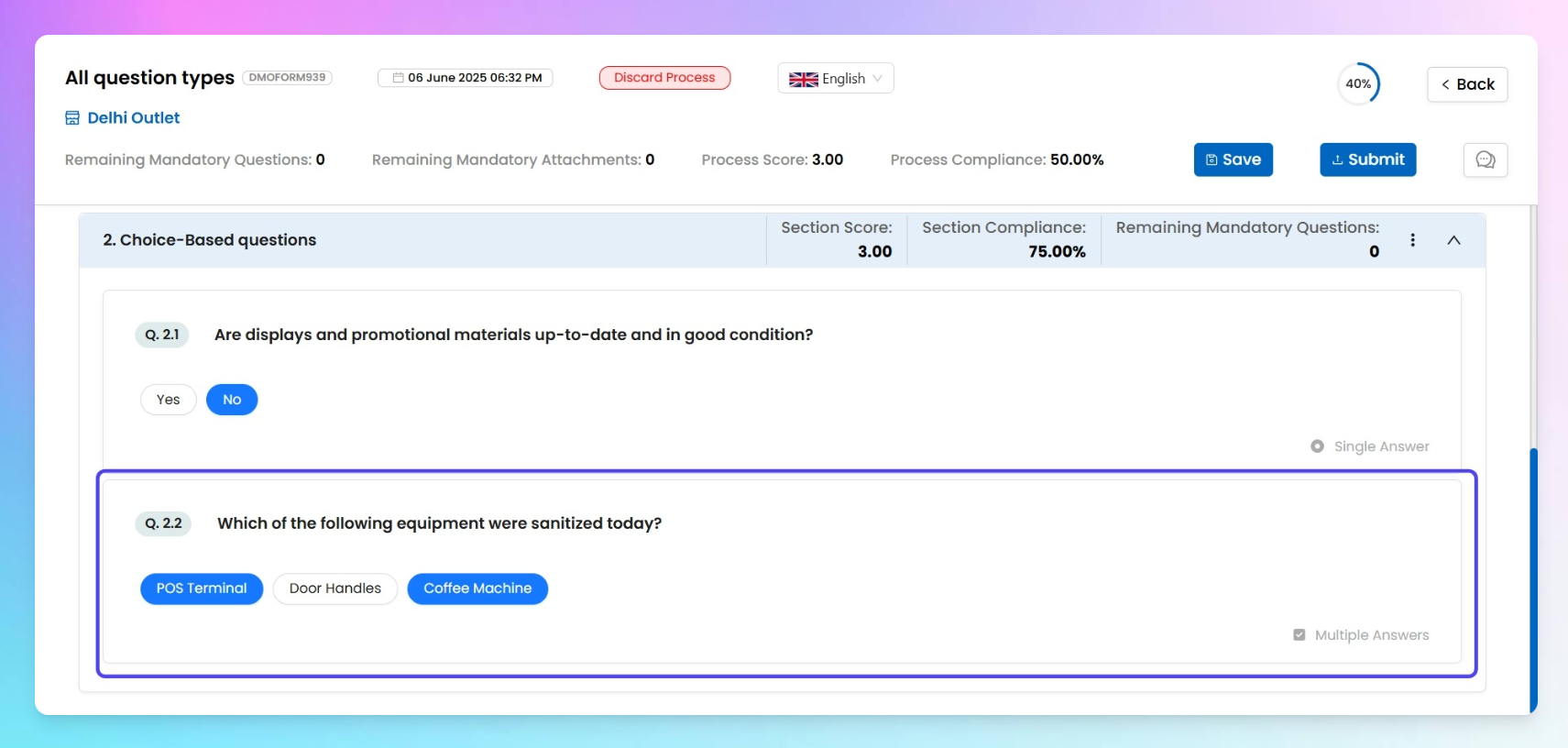
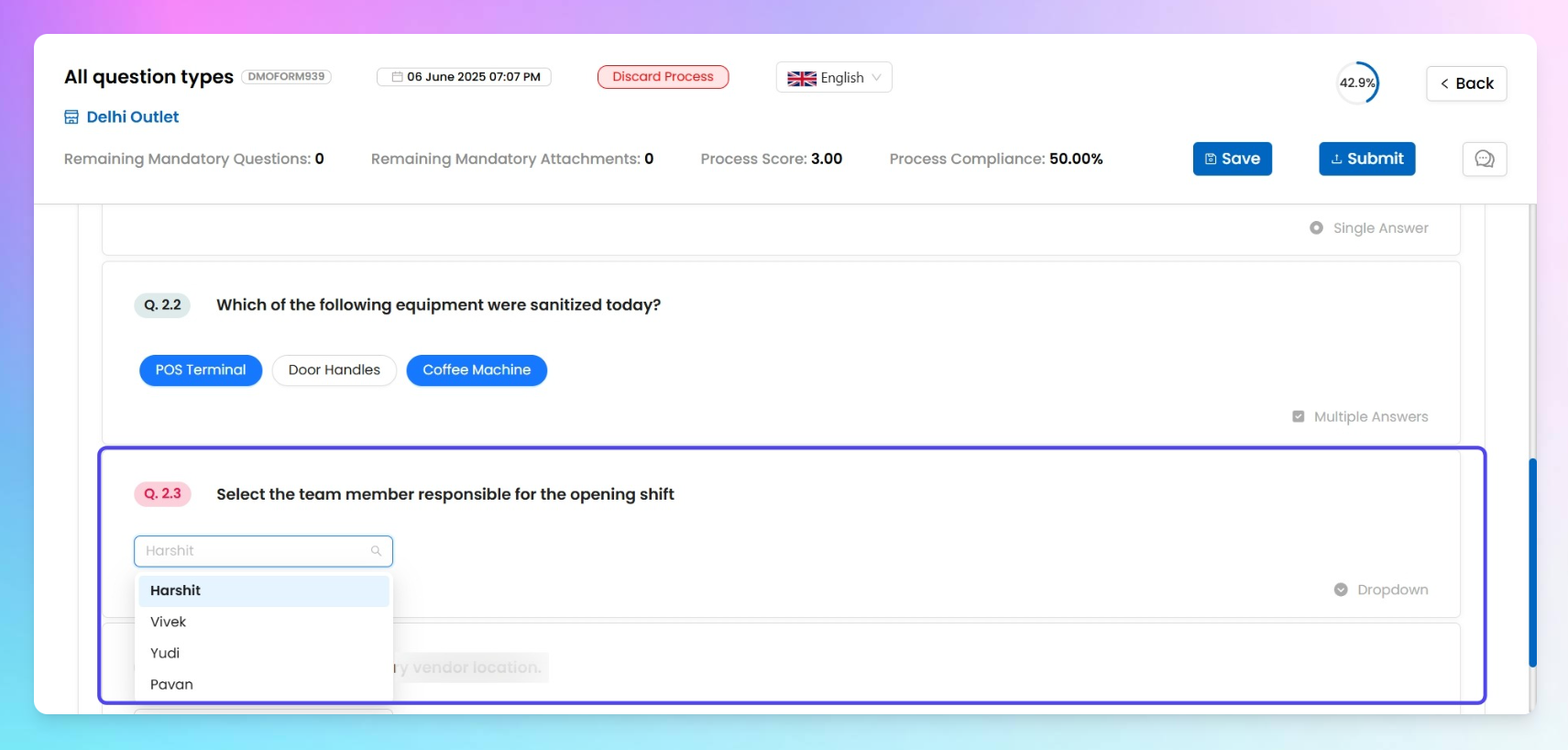
3. Dropdown
Sometimes you just wanna keep it clean and scrollable — that’s where the Dropdown comes in.
You can:
- Write your question like usual (e.g., “Select today’s store shift” or “Choose your department”)
- Add options in two ways:
- Click
+Add Newto enter one by one - Or go the lazy genius ✨ way — hit Set Options and paste a comma-separated list (like
Morning, Afternoon, Night)
This one's purely for selection, no scoring logic here. It’s just a neat dropdown with options to choose from.
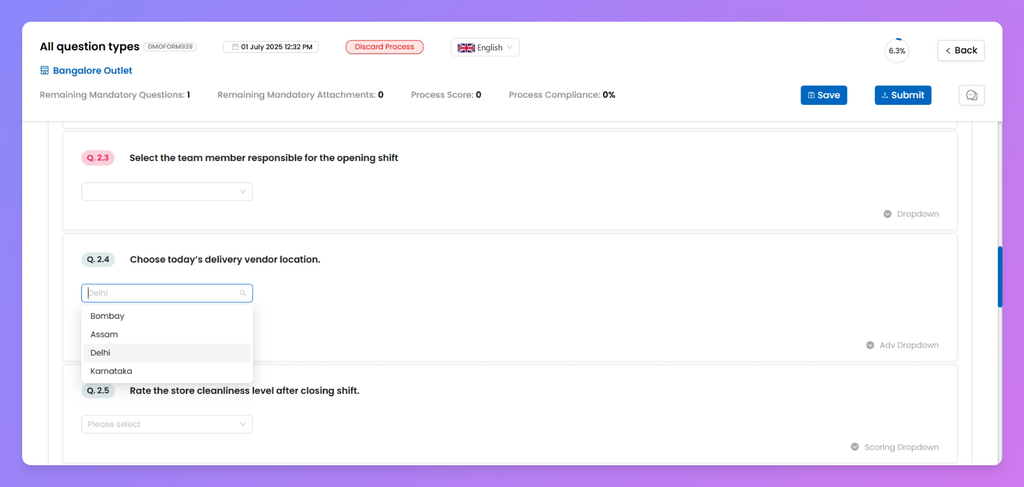
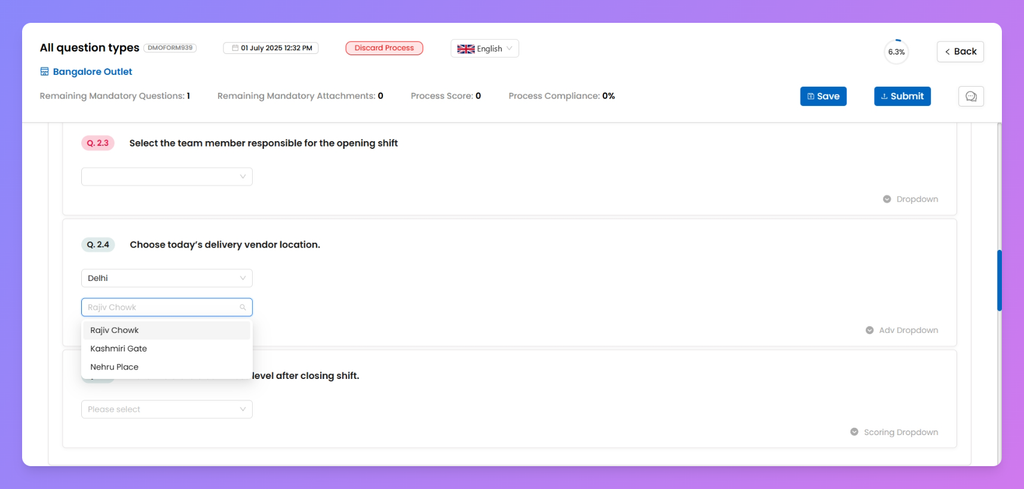
4. Adv dropdown
Okay, this one's not your basic dropdown — it’s got some brains.
Instead of typing out options manually, you just:
- Type your question (like “Select Product Category” or “Choose Store Zone”)
- Then pick from a pre-configured tag — yeah, the kind you’ve already managed and saved in Creator Mode’s Manage tags
These tags hold all the dropdown values. So when you pick a tag name (like Product Type), your dropdown options (like Beverages, Snacks, Frozen Foods) are auto-loaded based on that tag’s values.
You can manage these tags and values directly from the Creator.
5. Scoring Dropdown
Think of this as your regular dropdown… but with a scoreboard attached
You type out your question like usual, but here’s the cool bit:
Each option in the dropdown has a score tied to it — so when someone picks one, the form automatically calculates the score based on what they chose.
So yeah, it’s not just about selecting an answer — it’s about picking the right one.
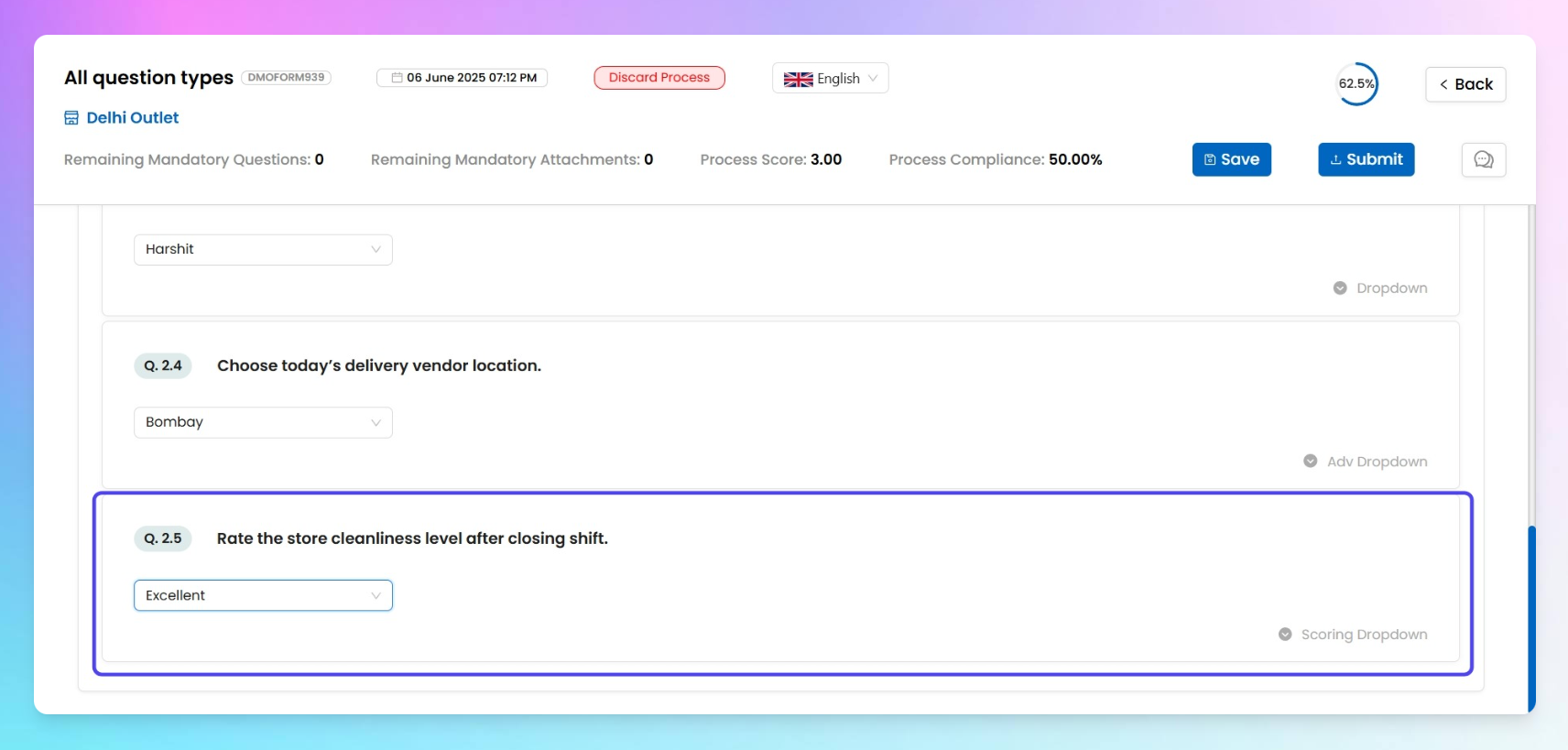
Table-Based questions
Use these when capturing structured, row-column data.
1. Grid
This is the simplest table format. Use it when you want users to enter responses across rows and columns — like recording stock availability for menu items.
You can configure the response type of question
- Text
- Alphanumeric
- Number
📌 Example Setup:
- Columns: Ingredient Name, Quantity Available
- Rows: Milk Packets, Bread Loaves, Juice Bottles
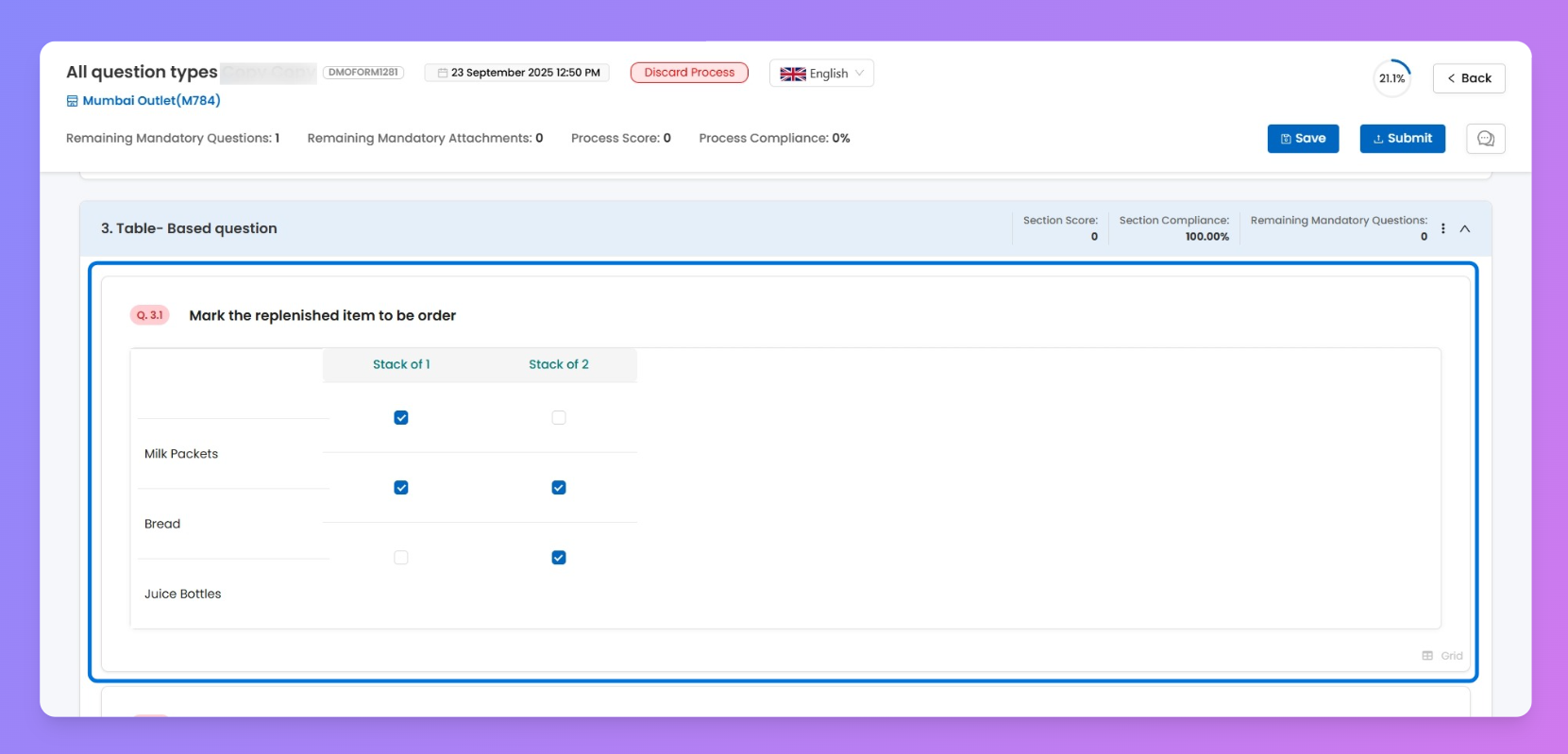
👉 Note: You cannot apply BODMAS formulas here.
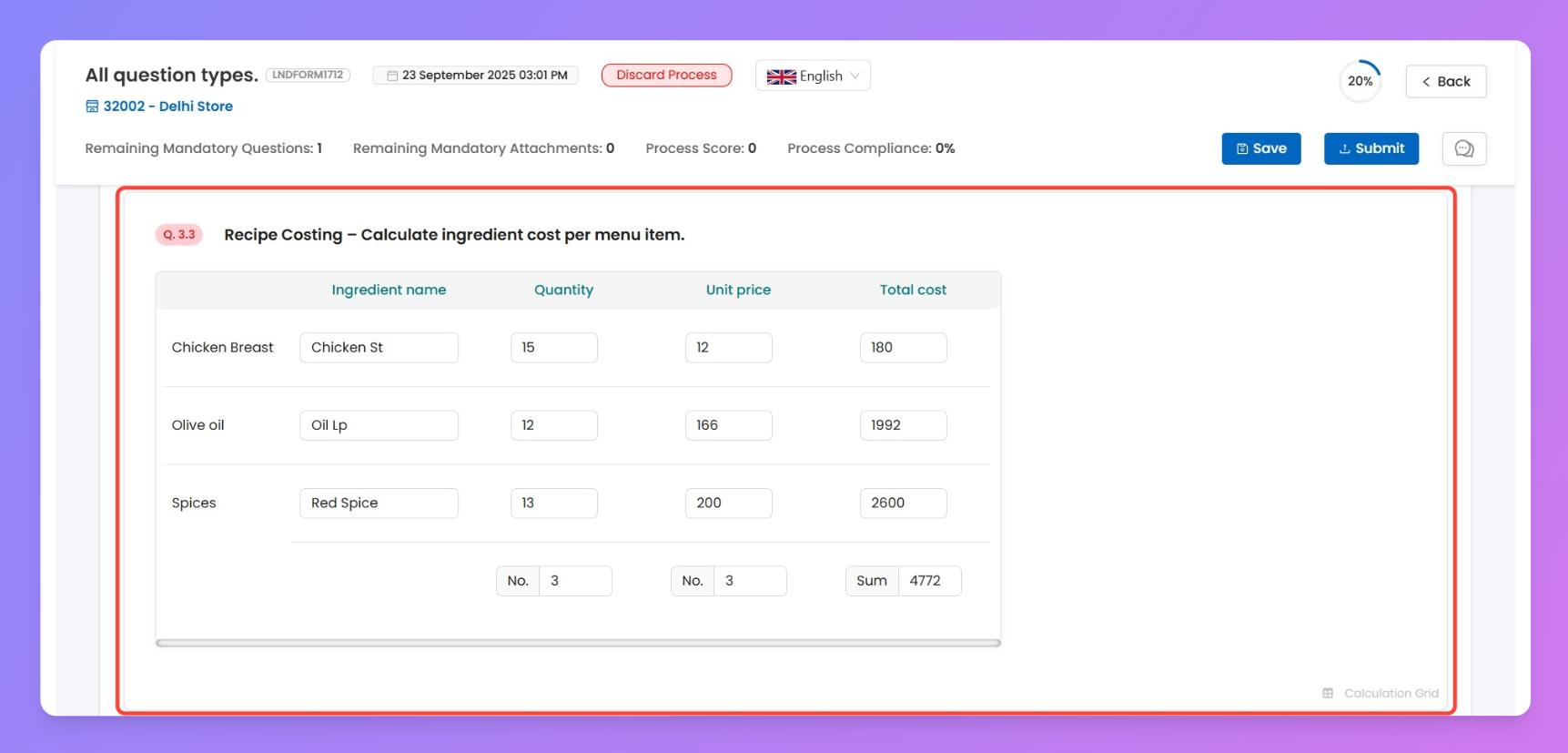
2. Calculation grid
This extends the normal grid with advanced features. Perfect for cases like recipe costing where you want calculations to auto-fill.
For each column, you can configure these input types:
- Text
- Alphanumeric
- Date
- Number
- Time
- Dropdown
- Barcode
- Attachment
📌 Example Setup:
- Columns: Ingredient, Quantity Used, Unit Price, Total Cost (auto)
- Rows: Chicken Breast, Olive Oil, Spice Mix
ℹ️
Enhancement specific to Calculation Grid
Every types of questions will have these general add-ons with them, you can go through each of them to understand about their function
Column lock
Fix certain columns (e.g., Unit Price) so only relevant data can be edited.
Row Info
Add helper notes for each row to guide the user.
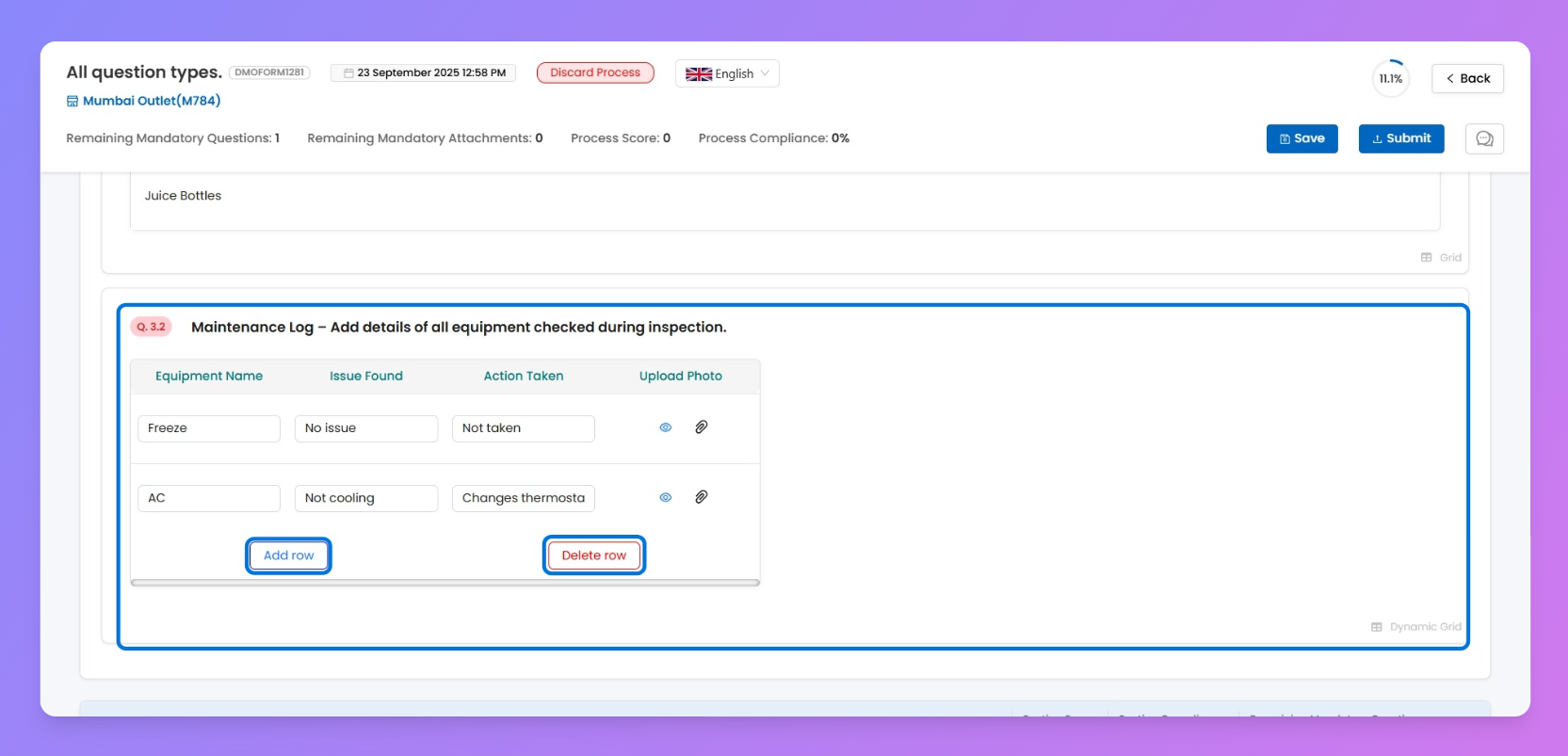
3. Dynamic grid
Use this when you don’t know how many rows a user might need — like logging kitchen equipment checks or daily wastage.
- You set default rows, but the end-user can add unlimited new rows.
- Supports formulas (BODMAS) just like Calculation Grid.
For each column, you can configure these input types:
- Text
- Alphanumeric
- Date
- Number
- Time
- Dropdown
- Barcode
- Attachment
📌 Example Setup:
- Columns: Equipment Name, Issue Found (Yes/No), Action Taken, Upload Photo
- Default Rows: 1 (user can keep adding more)
Functional or Utility-Based Questions
These help capture operational details like timestamps, signatures or locations.
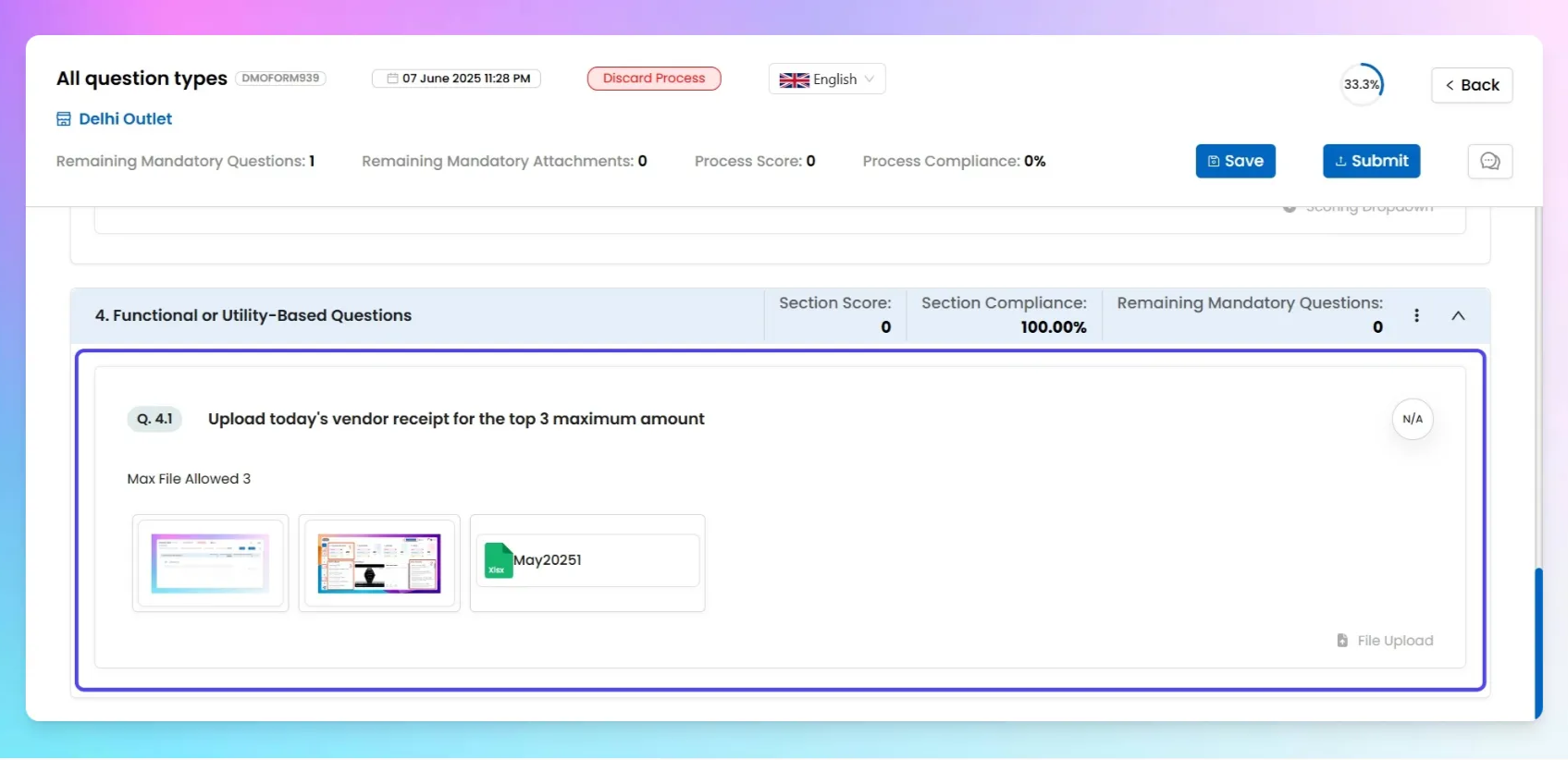
1. File upload
This one’s simple but powerful: you ask a question and the user uploads a file as a response. 📎
Super useful for uploading images, PDFs, or any supporting docs you need during a task or Audit.
👇 You can allow users to upload files directly while submitting the Audit form. Great for photo proofs, reports, receipts, etc.
💾 You can upload any number of files, and there’s no size limit — upload away!⚠️ You can upload up to [X] files, with each file not exceeding [Y MB] in size.(Replace [X] and [Y] with actual limits when confirmed)
2. Date
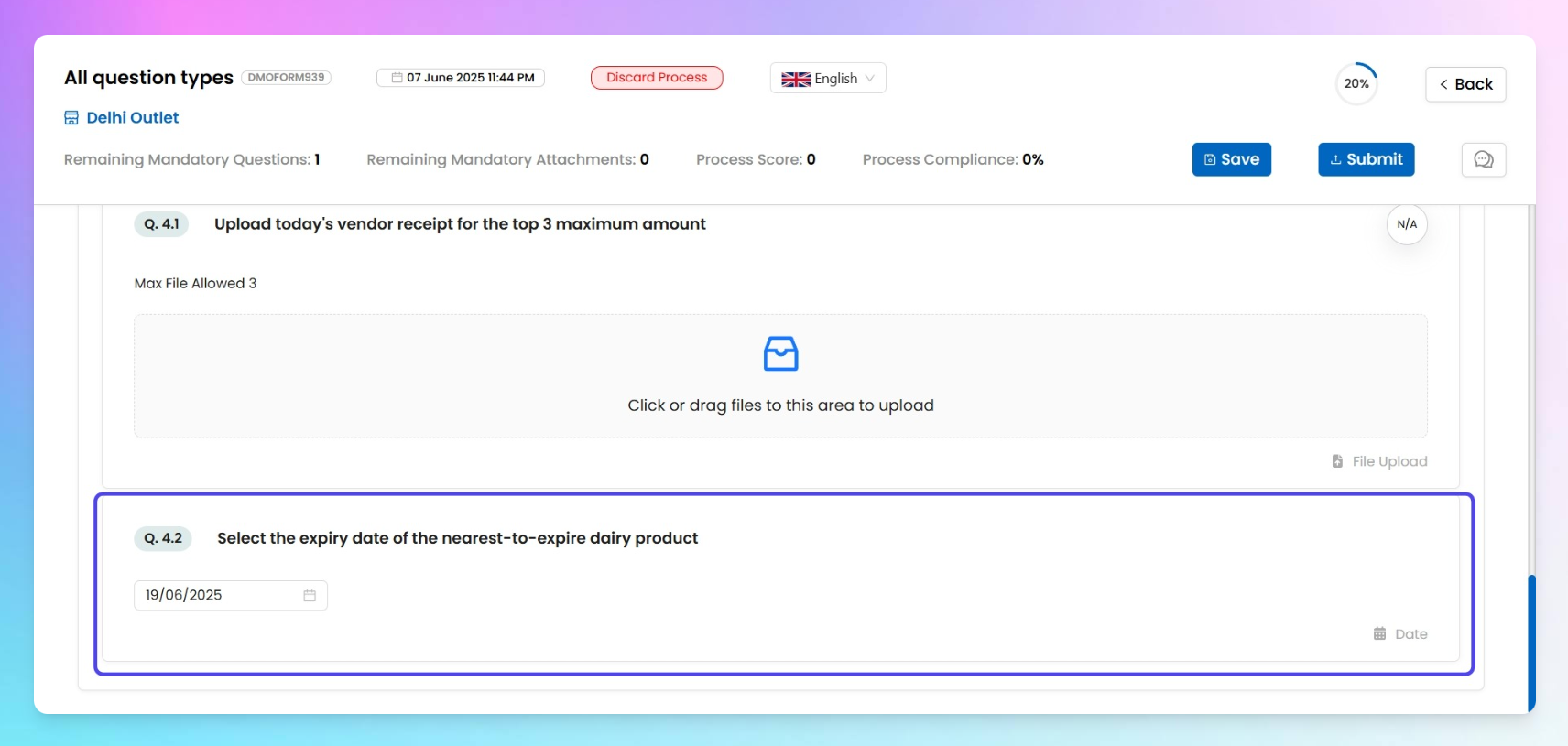
🗓️ Want to capture a specific date — like an installation date, expiry date, or visit date? This question's got you covered.
The submitter will see a simple calendar picker, so instead of typing the date, they just select it. Easy, clean, and prevents all those messy "what format is this?" moments.
✅ Why it's usefulIt ensures the date is always picked in a pre-defined format — no weird slashes, dots, or typos.And when you're reviewing the data later? It’s neatly structured and easy to read.
3. Time
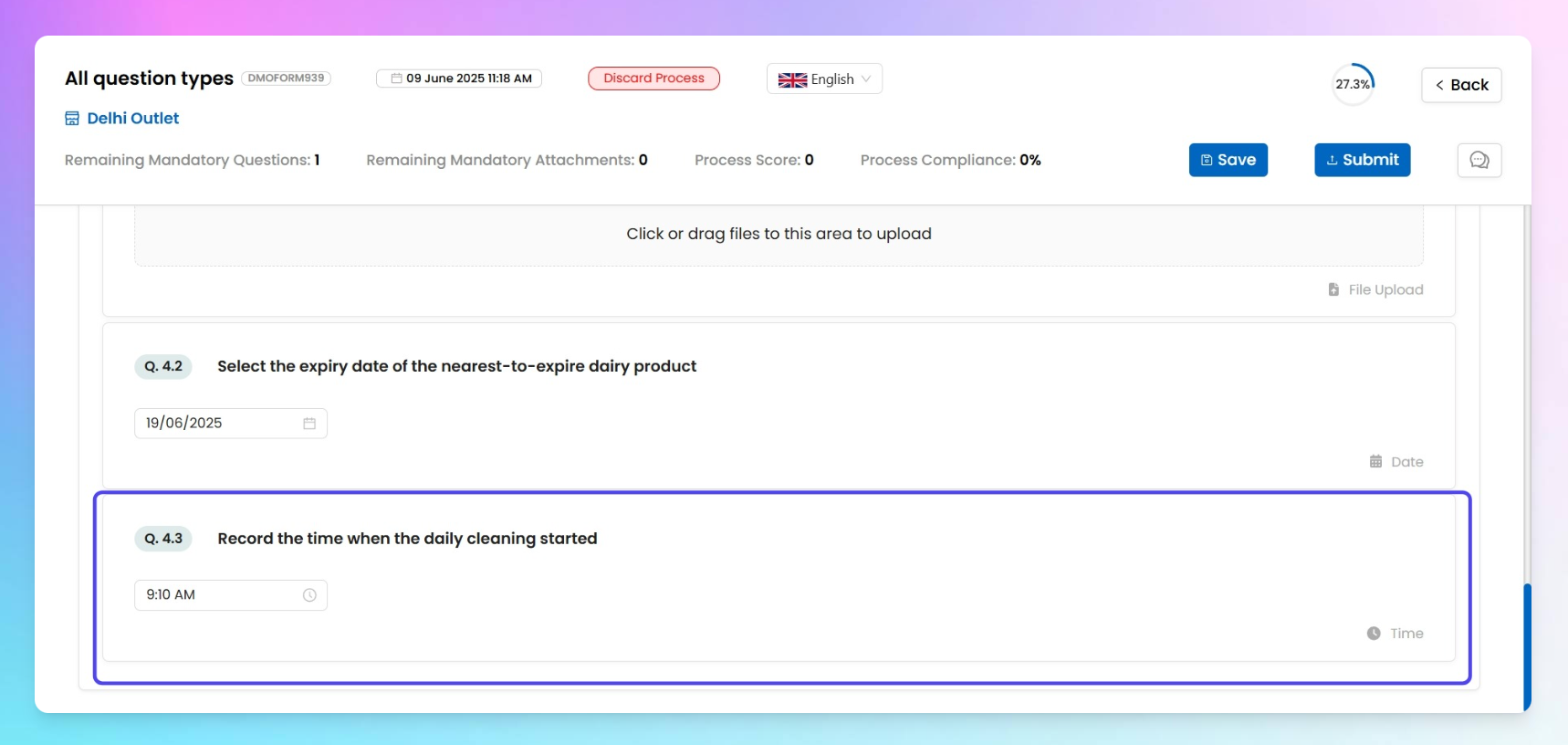
When you want someone to log when a task was done or a shift began? Drop in a Time question.
When the user clicks on this, they’ll see a clock-style picker — so instead of typing it out, they can just select the exact time in a neat and tidy format.
✅ Why it's usefulPrevents confusion from manual time entries. You’ll get consistent, well-formatted time data every time. No more guessing if "9:30" means AM or PM — the picker handles it all.
4. Stopwatch
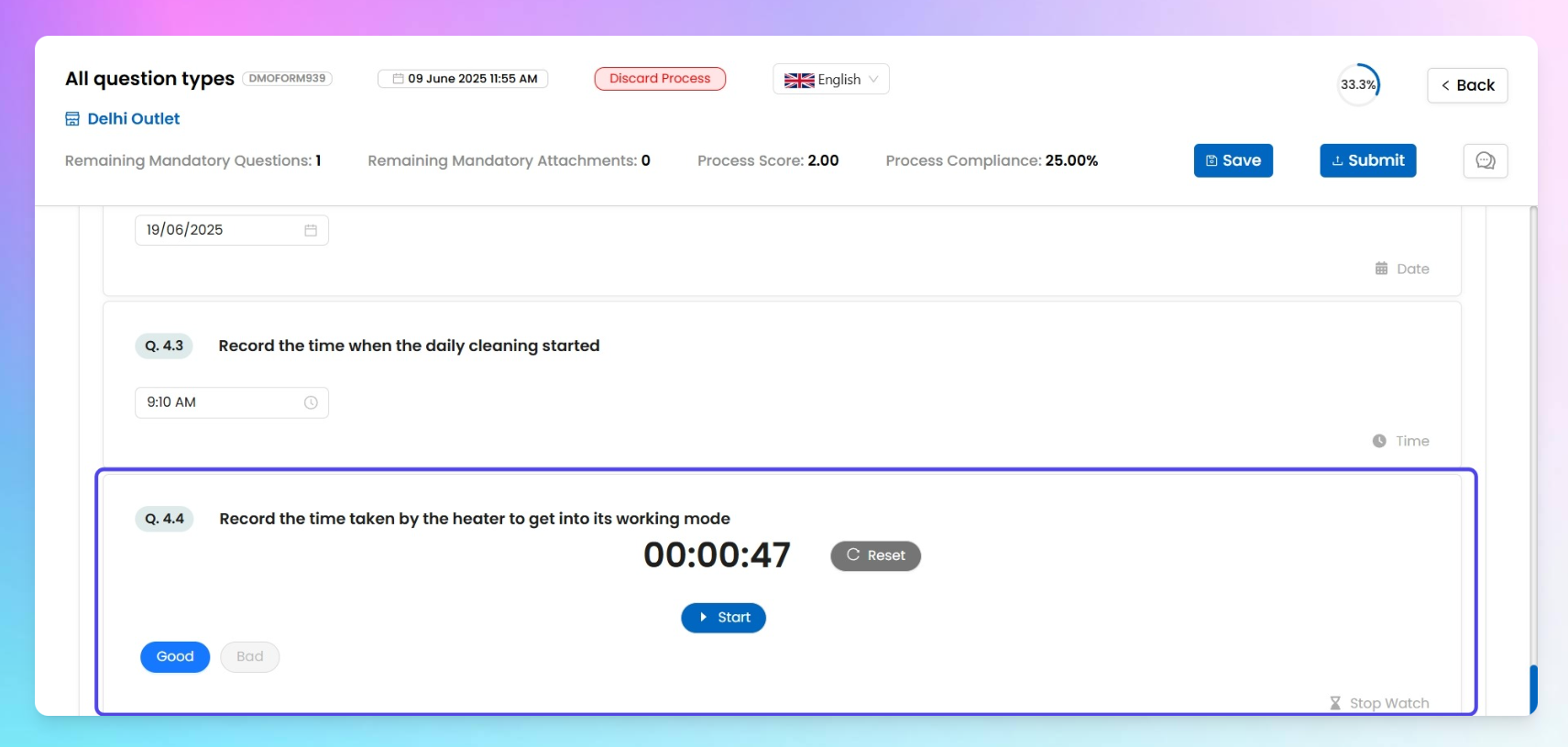
This question type is meant for capturing how much time a task takes — down to the second. Think equipment startup time, water boiling duration, or anything where speed matters.
You also get a cool “Add Validation” feature just like Numeric Response, that lets you define logic-based rules for time-based inputs. Here’s how it works:
- Pick a condition like Less than, Greater than, Equal to, or In between from the dropdown.
- Enter the time value in seconds or minutes (like
50 seconds).
- Then define the tag or keyword that should show up for the submitter if the timer result matches your condition — for example, if something takes more than
120 seconds, you can automatically show Needs Maintenance.
- You can stack multiple validations — like:
- Less than 50 sec → show Good Condition
- Greater than 120 sec → show Needs Maintenance
You can also assign option-wise percentage scoring and set a total score weight for this question.
Super handy when you want to check whether something is operating within healthy time limits or needs attention.
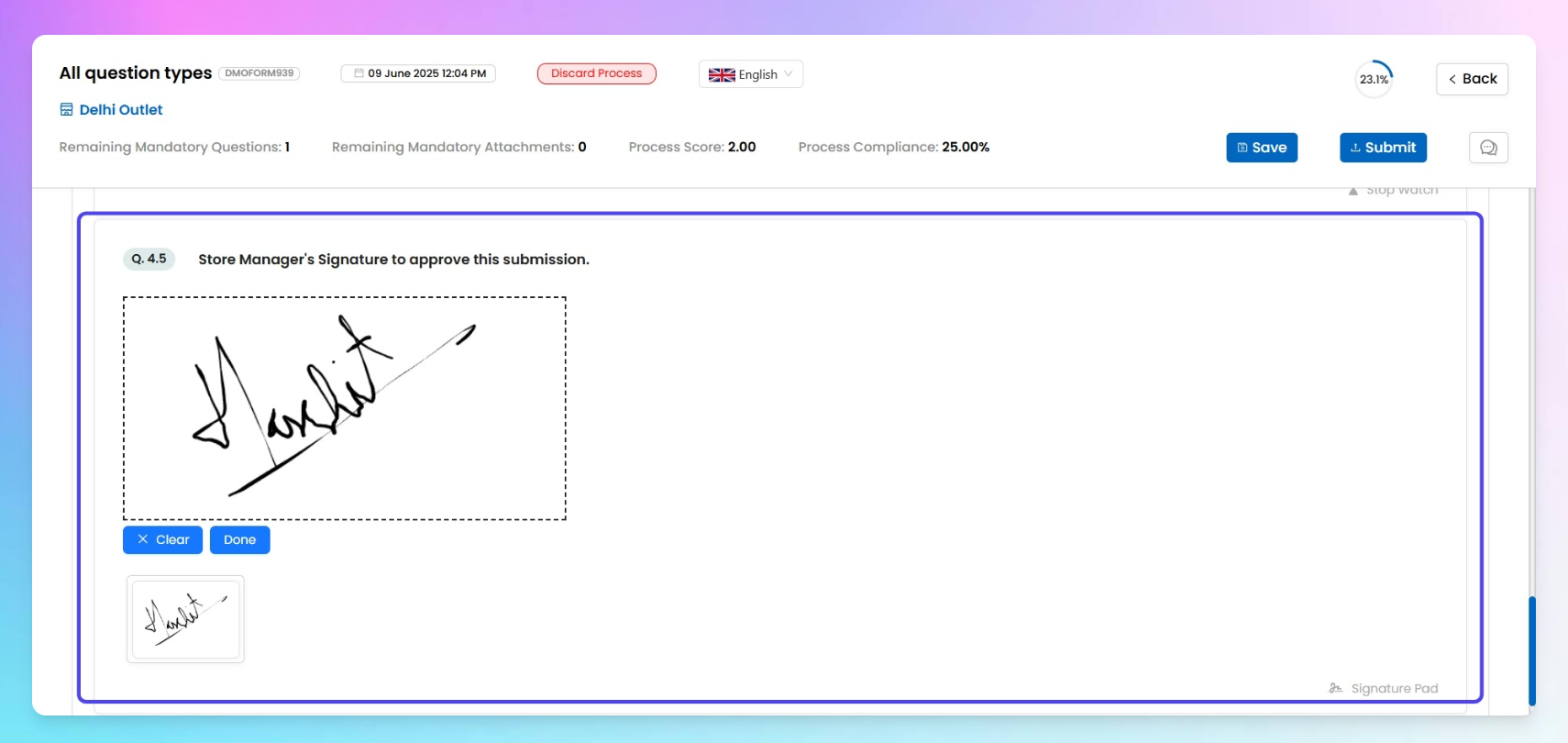
5. Signature
This question type lets the submitter sign directly on a digital whiteboard, using their finger or mouse.
Once submitted, the signature gets captured as an image and becomes part of the filled Audit record — just like a real-world sign-off. ✅
No extra configuration needed. Super useful for getting acknowledgements or approvals on tasks.
6. Current location tag
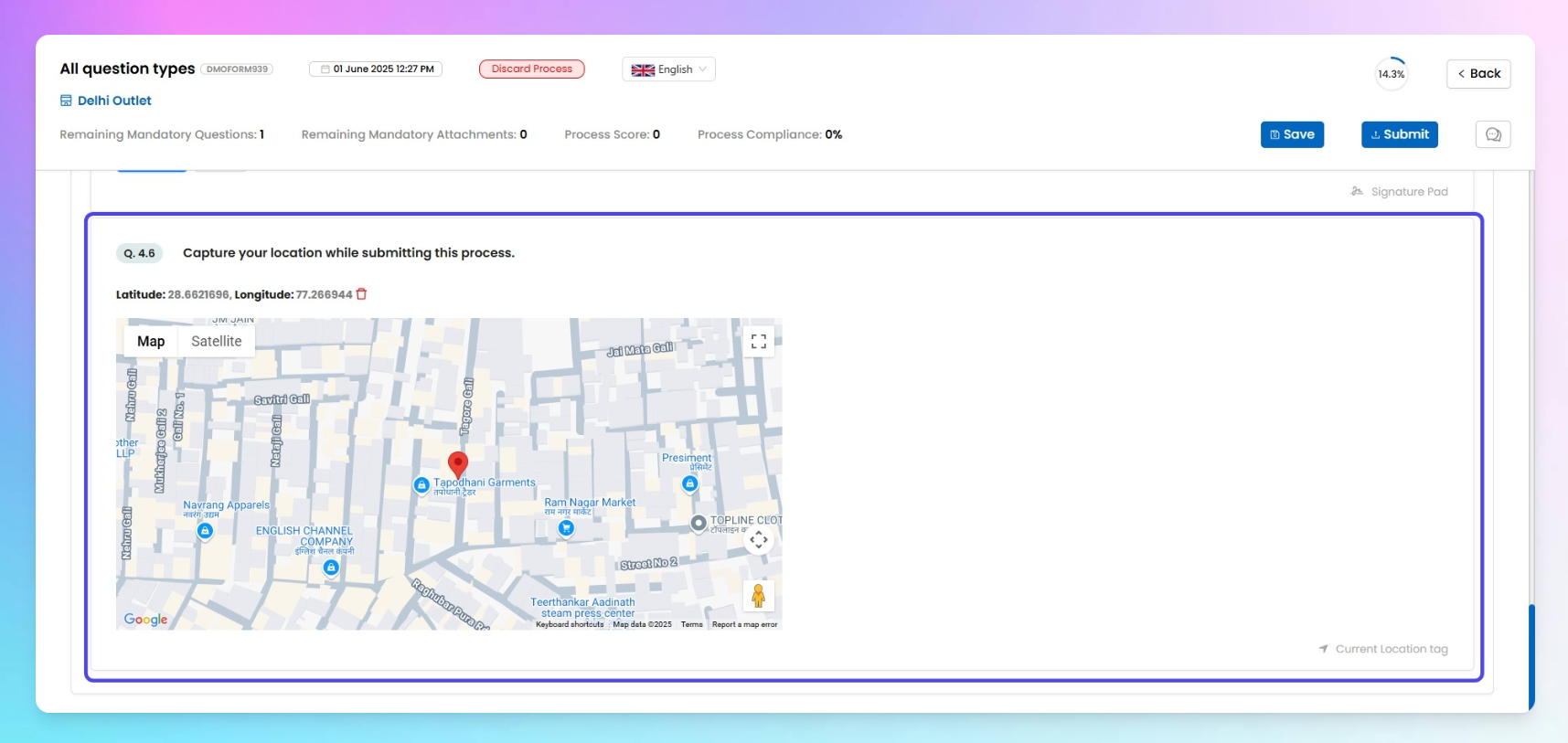
This question type lets the user fetch their real-time location with just one tap.
What gets captured:
- Auto-filled address using Google Maps API.
- Latitude & Longitude — both get auto-tagged and shown on the form
⚠️ Make sure the device’s location permission is turned on — otherwise, we can’t fetch the accurate spot!
7. System user
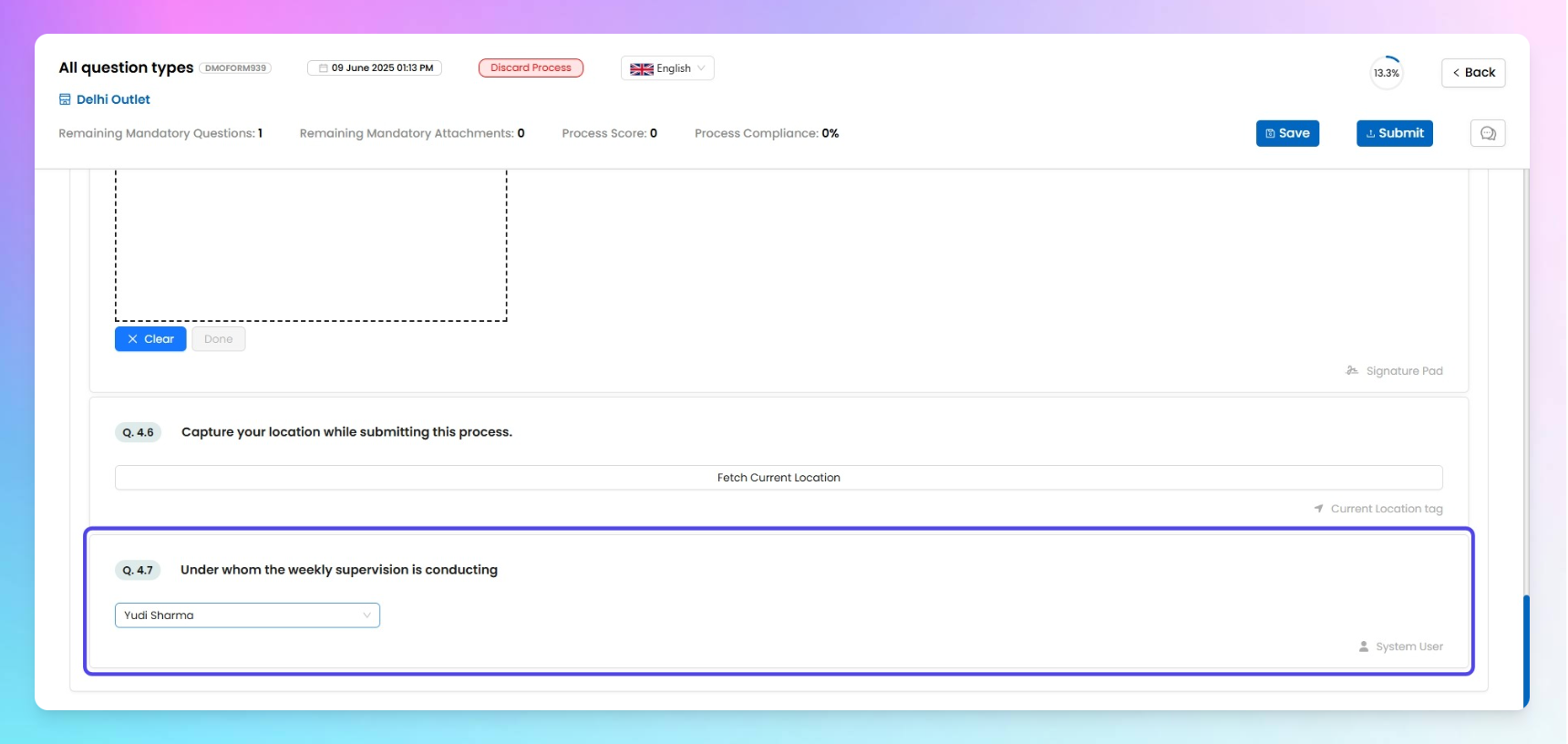
This question type lets the submitter select a user from your org’s Taqtics account.
- A dropdown will show all users in your system.
- Submitter can scroll or search and pick anyone from the list.
Great for tagging responsible team members, assigning follow-ups, or just recording who’s involved in a particular task.
8. System Store
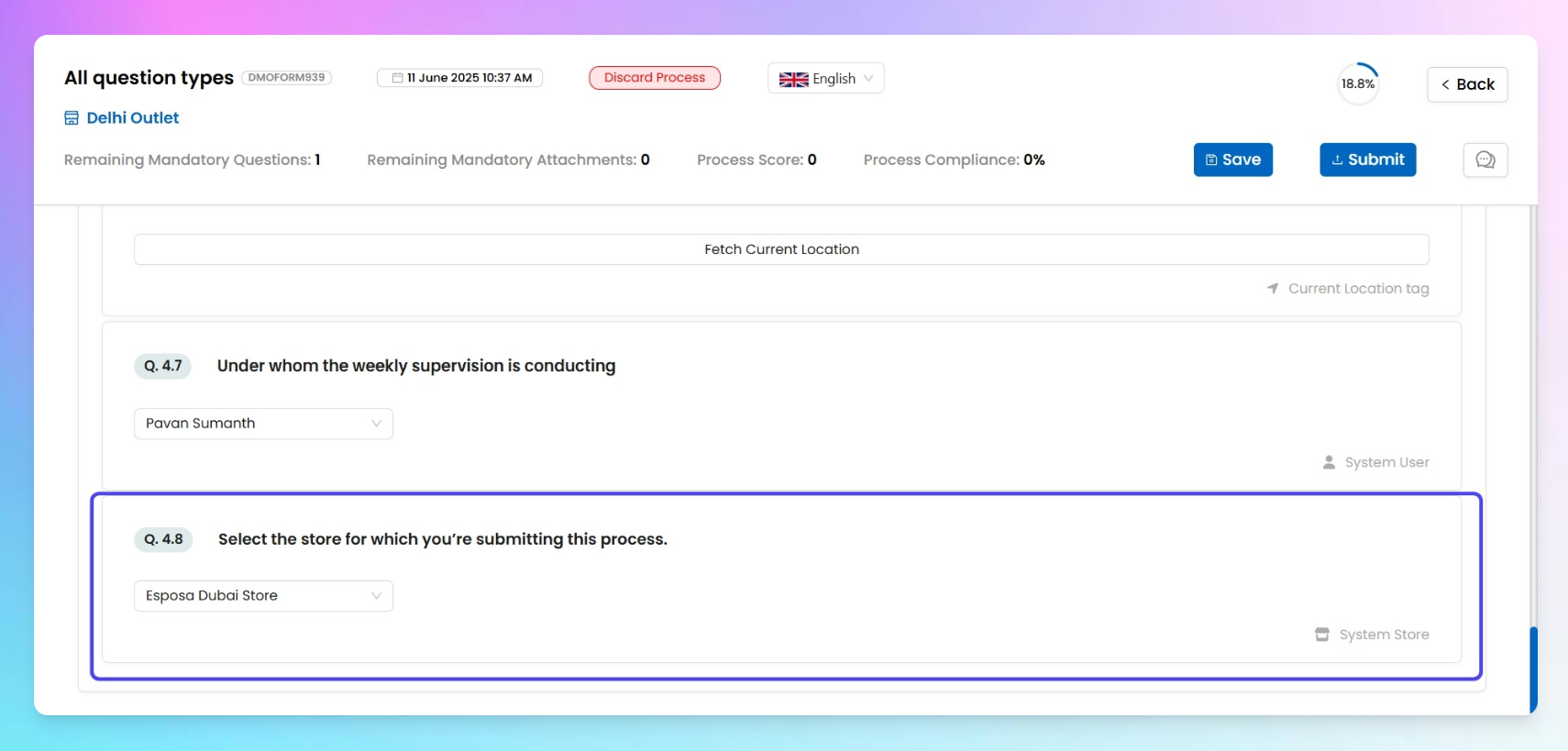
This question type lets the submitter select a store from your org’s list of mapped stores— great when your Audit needs to capture where something is being done.
By default, the dropdown shows all stores under your account, so the submitter can pick any.
ℹ️
Enhancement specific to system score
Along with the general add-ons that come with all question types in Taqtics, this question also supports a unique enhancement — Enable Hierarchy.
Enable Hierarchy
Turn this on if you want the dropdown to show only those stores mapped to the submitter’s role/designation.For example, if an Area Manager is mapped to stores in Delhi, Chandigarh, and Assam — only those will show up while filling the form.This keeps the dropdown clean, relevant, and avoids accidental selection of unrelated stores.