
What are Add-ons with Questions ?
Most question types in Taqtics come with a bunch of common enhancements to make your forms more powerful, helpful, and foolproof. You can mix and match these with specific question-level enhancements like Enable Default response in Single Answer type question too.
Below are all the general add-ons you can apply while setting up your questions:
Attach a file with question 📄
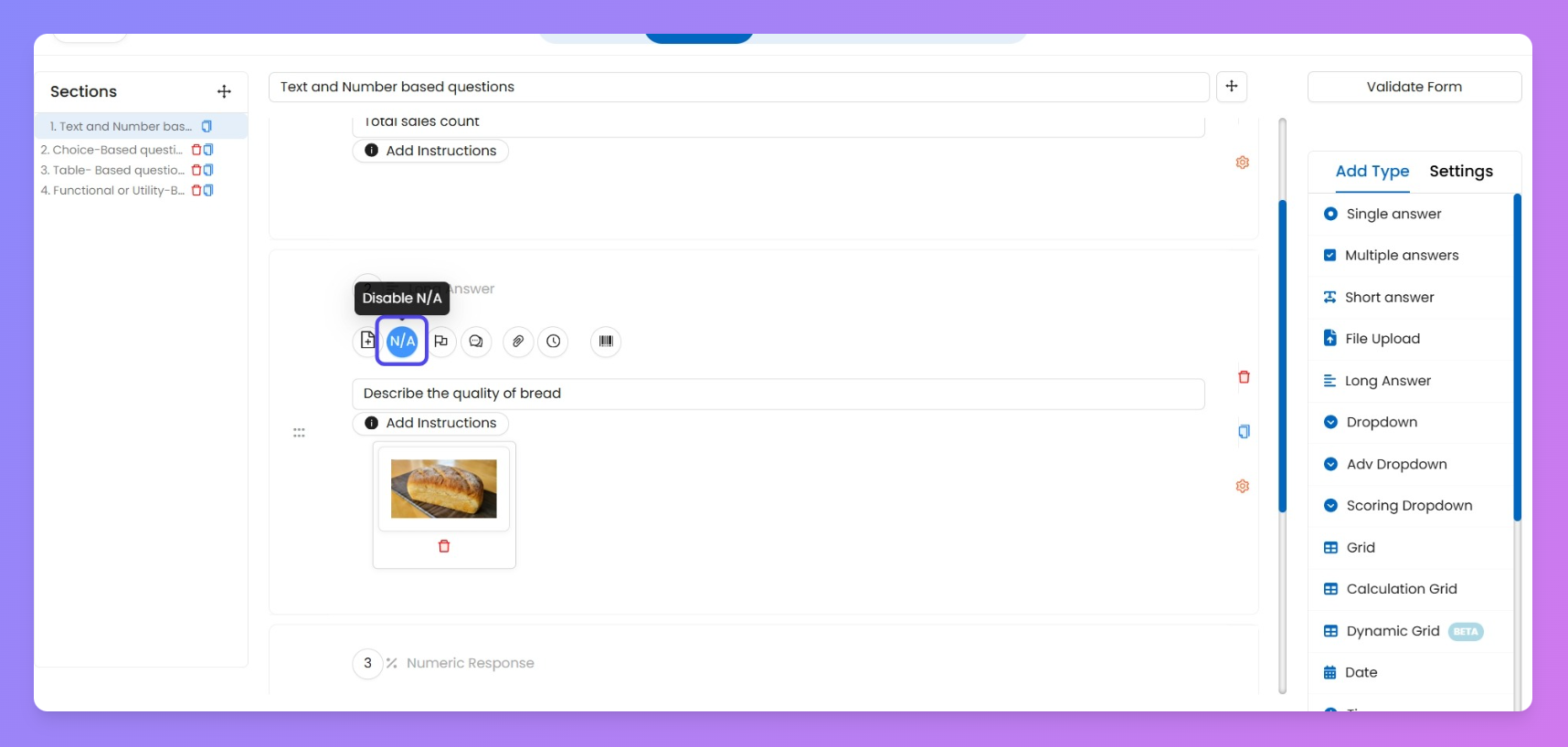
This lets you attach a reference image or file to your question — super useful when you want the submitter to visually understand what’s expected.
Just click on the 📎 (attachment) icon while creating the question, and upload your file. This file will appear right next to the question during form submission, acting like a visual guide.
For example, if you’re asking about the shape or quality of a bun, the reference image will help the store staff know exactly what “perfect” looks like.
Mark as N/A 🚫
This enhancement gives the submitter the option to mark a question as “Not Applicable” when a question doesn't apply to their specific case or situation.
Once enabled, a small NA button will appear next to the question. The submitter can simply tap it, and the system will skip that question without flagging it as incomplete.
For example, if you’ve asked for fridge temperature but that outlet doesn't have a fridge, they can hit NA and move on. ✅ No confusion, no forced answers.
Trigger Action Point ⛳
This enhancement lets you link a follow-up task (aka Action Point) to any question — so your team can act on what’s been flagged right away.
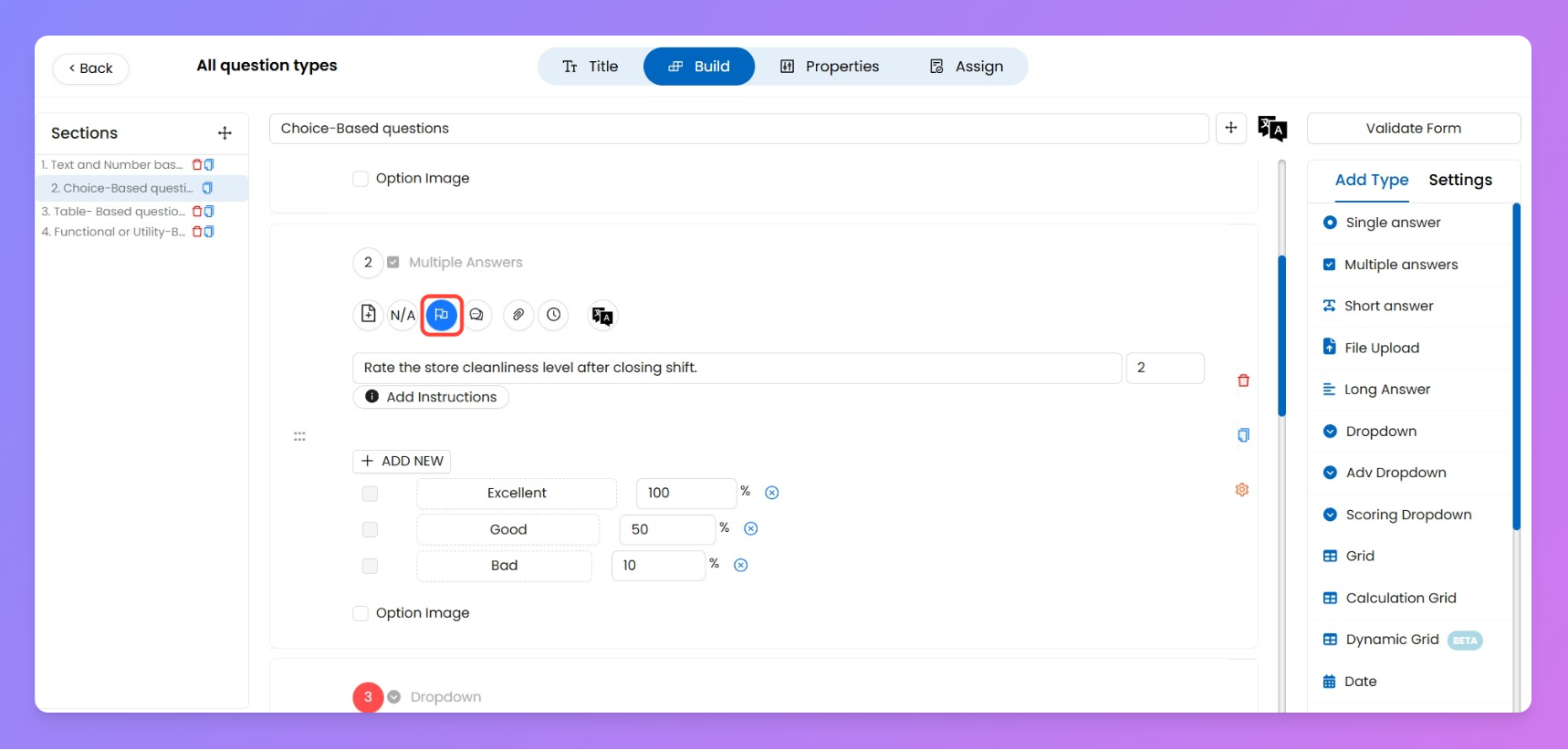
There are two ways action points can be triggered:
- Manual: The submitter adds a task while answering.
- Auto: The system auto-generates a task when specific options (like “Non-Compliant”) are selected. This is available only on questions with predefined options.
✨ Want to know how Action Points work in detail or how to set them up?
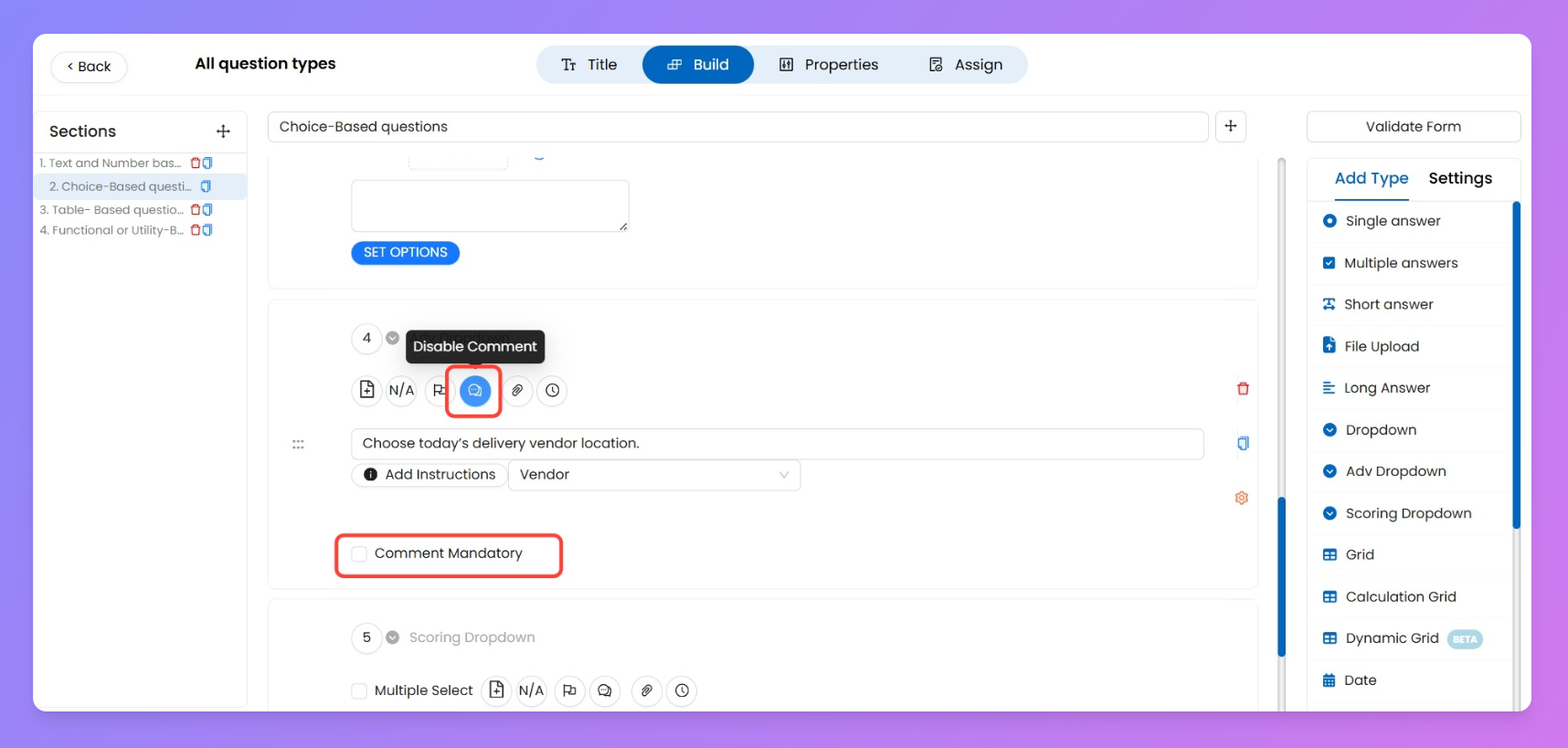
Allow Commenting on answer 💬
Turn this on when you want the submitter to leave a quick note or explanation along with their answer. Super helpful for giving context — like why something’s marked as “
Non-Compliant.”You can also make the comment mandatory by ticking the “Required” checkbox. If left unchecked, the comment stays optional and the user can choose to skip it.
Answer Attachments with answer 🧷
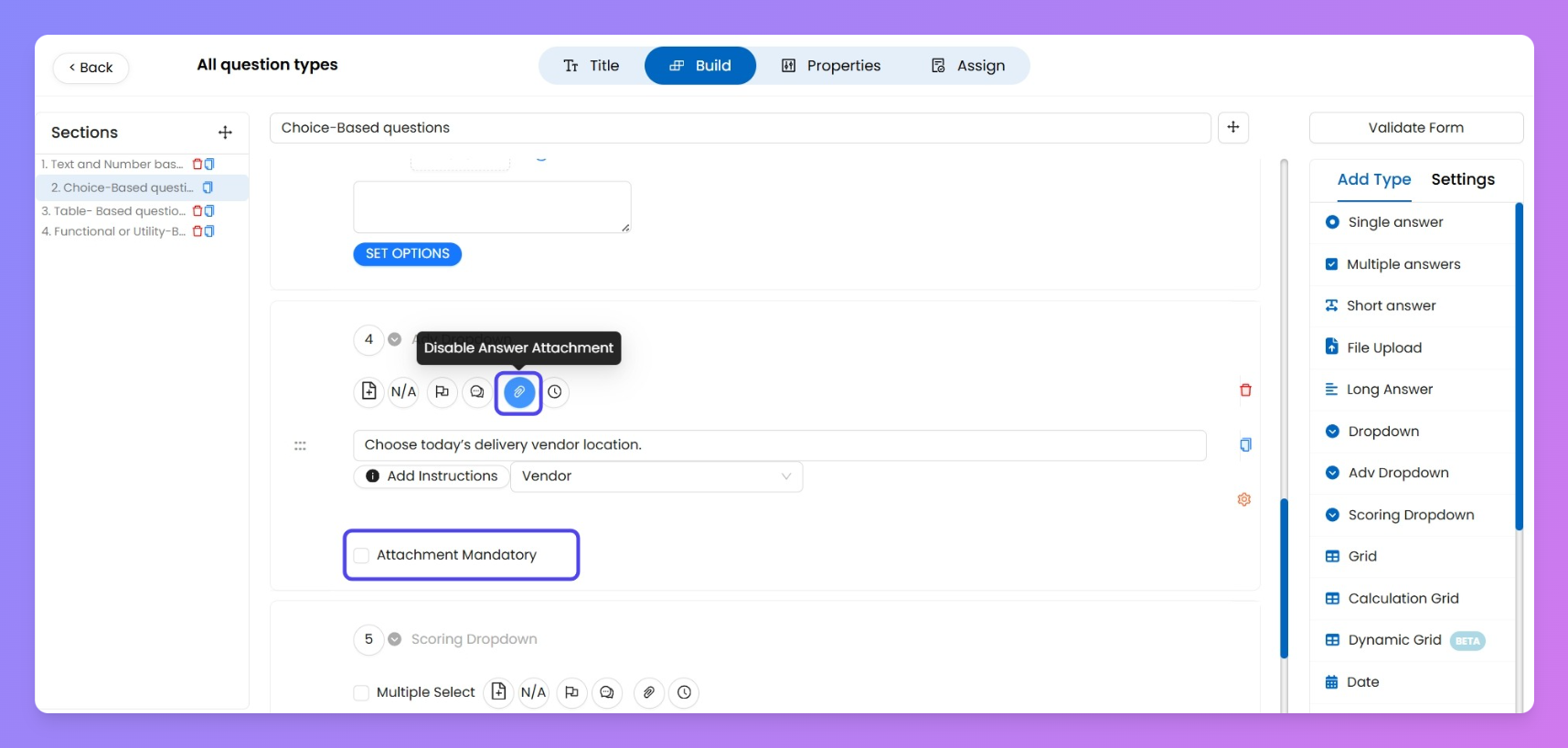
Let the submitter upload a file as part of their answer — could be an image, a PDF, or anything that supports the response. Great for when you need visual proof, receipts, or extra docs.
You can also make the attachment mandatory by ticking the “Required” checkbox. If left unchecked, the user can choose whether to upload or not.
Timestamp 🕓
Track when a question was answered by turning on the timestamp toggle. This helps you verify if the process was filled out at the intended time or all at once in a rush.
Super useful when a checklist is meant to be filled throughout the day — you can spot whether it was actually done in parts or just backfilled in five minutes.
The recorded timestamps will also be visible in the
process reports.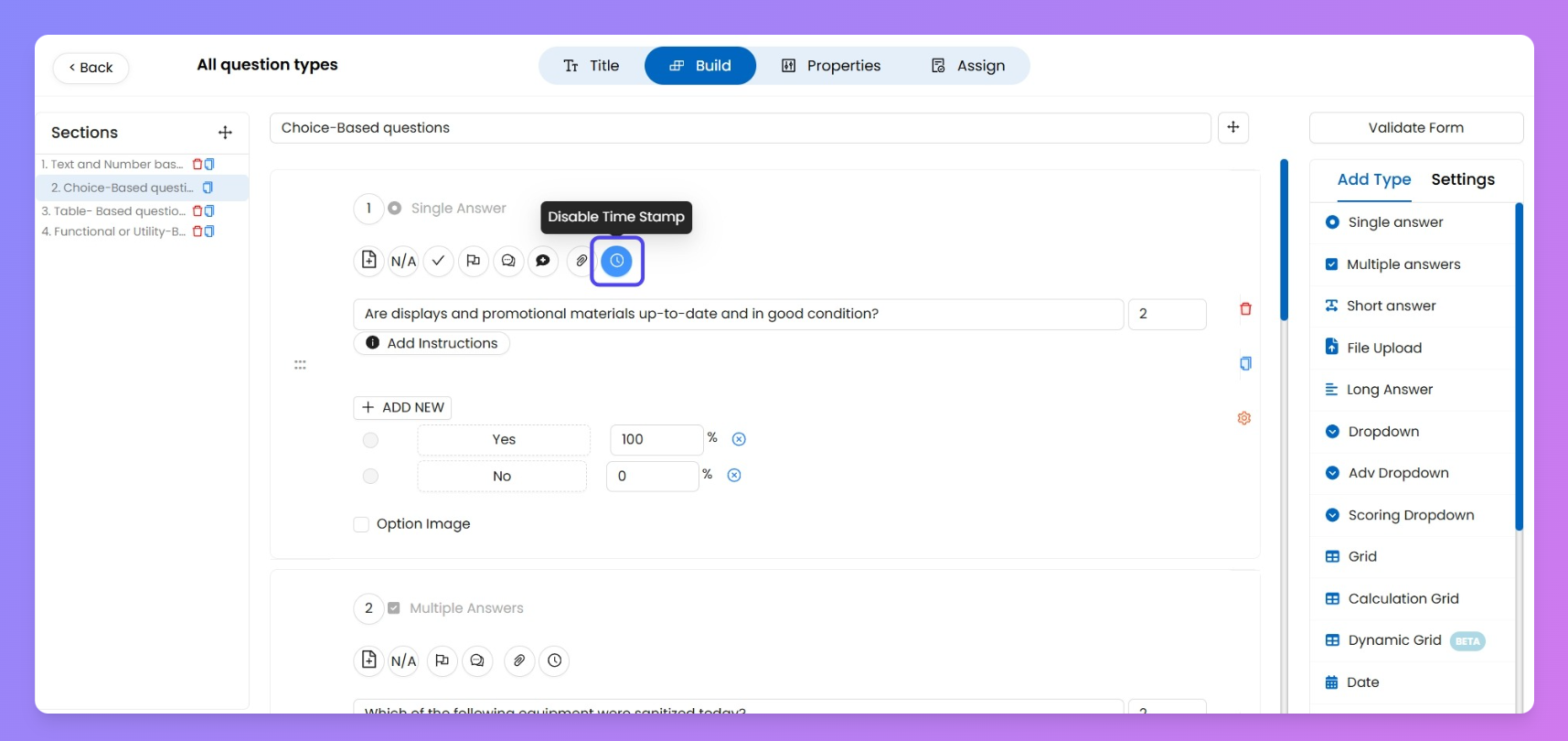
Add instruction ℹ️
Give your submitters a little extra context with the Add Instruction option.
You can write a short note or guideline to appear along with the question — super handy when the question needs clarification or a visual cue. You can even attach an image to the instruction if needed.
Think of it as a quick “heads-up” before they answer.