
Taqtics lets you assign scores to specific question types and set up logic to auto-calculate marks based on selected options or inputs. This comes in handy when tracking store compliance, staff performance, or process adherence — especially in audits or evaluations.
What is Question Scoring in Taqtics?
Scoring in Taqtics means assigning weightage to certain questions and calculating marks based on user responses — either through option-based scoring or input-based logic.
Taqtics allows you to:
- Give questions a weightage (e.g., importance of 5 marks).
- Give each answer option a score % (e.g., ✅ = 100%, ⚠️ = 50%).
The system then auto-calculates how many points the user earned for each question based on their selected answer.
You can even automate calculations using inbuilt formulas with our BODMAS (math logic) setup.
The question that supports BODMAS scoring Setup
To enable scoring logic, you must first use a Short Answer question — but with the Number response format enabled.
This is the only question type from where all scoring logic setup (BODMAS or
Range Validation) begins.Everything else plugs into this.
Types of BODMAS scoring logic in Taqtics
Once you’ve created a Short Answer (Number) question, there are two logic styles you can configure inside:
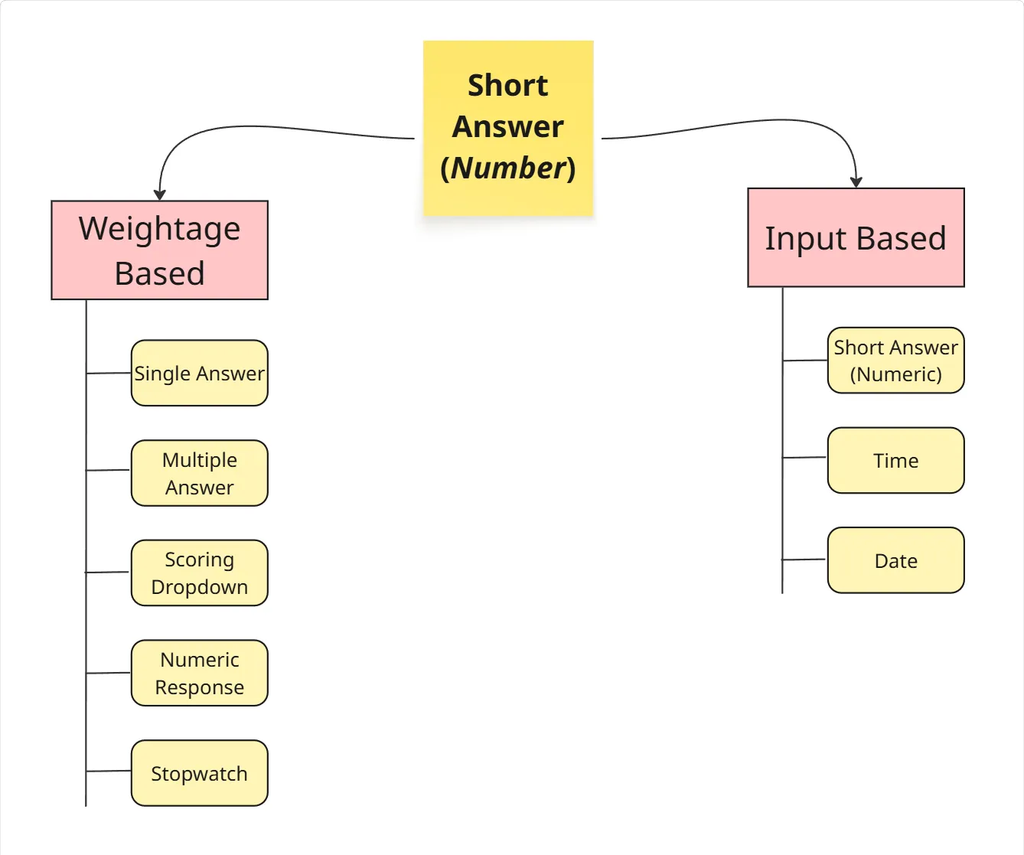
1. Weightage-Based Scoring
Used when scoring is based on selected options.
How it works:
- Give questions a weightage (e.g., importance of 5 marks).
- Assign percentage values to each selectable option(e.g., 100%, 50%).
The total score = question weight × selected %.
5 marks × 100% = 5 marks and 5 marks × 50% = 2.5 marks
Supported Question Types:
These questions are added to the logic from within the Short Answer (Number) setup. You’ll see them as selectable items once you choose "Weightage-Based" under BODMAS.
2. Input-Based Scoring
Used when scores depend on actual values entered by the user.
How it works:
The system reads numeric, time, or date values directly from user input and uses them in a custom formula.
E.g.,
(checkout time - check-in time) to calculate total shift duration.Supported Input Question Types:
Only the Short Answer (Number) type supports full BODMAS logic. The others (Time, Date) must be referenced indirectly inside this question.
(I) Taqtics BODMAS Configurations
Taqtics includes pre-built functions like
AVERAGE(), COUNT_NA(), and more inside the scoring setup screen. (1) Two Sides of the Calculator:
The calculator is split into two functional zones:
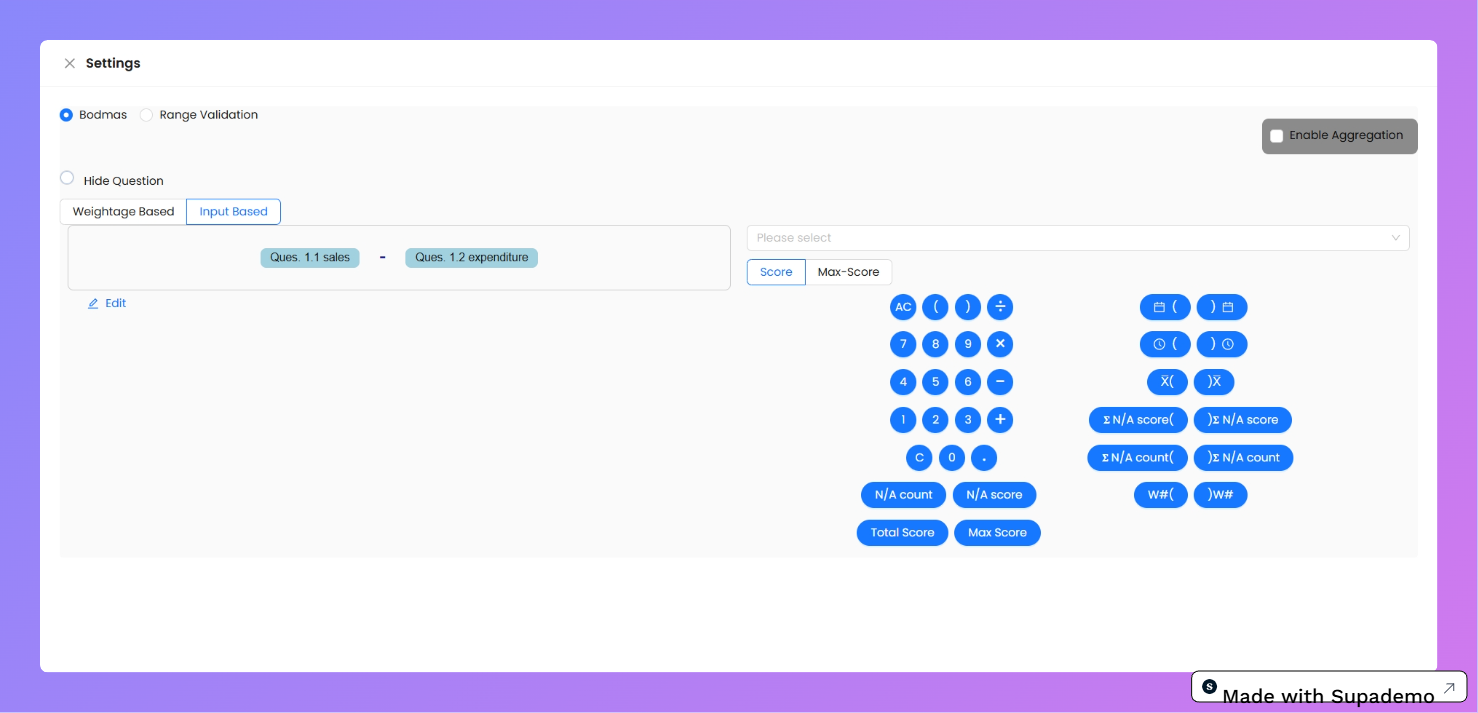
Left Side: Basic Math + Process-Level Functions
These are general-purpose keys and process-wide logic buttons.
Includes:
- Numbers:
1–9,0,.(decimal)
- Symbols:
+,–,×,÷,(,)
- Actions:
AC– Clear one item at a timeC– Clear entire formula
Functions (Process/Audit Level):
These work across your entire checklist, not just a question or section:
NA Count→ Total NA responses
NA Score→ Total score received on NA-marked questions
Total Score→ Combined score of all scored questions
Max Score→ Total possible score
Right Side: Advanced Logic (Section/Question Level)
These are more flexible, targeted functions for creating logic based on specific questions or sections.
Includes:
Σ Calendar [] Σ Calendar– Capture date values from date-type questions
Σ Time [] Σ Time– Pull time values from time-type questions
Σ Average [] Σ Average– Avg score over a set of questions
Σ NA Score [] Σ NA Score– Score for NA-marked in a section
Σ NA Count [] Σ NA Count– Count NA for selected questions/sections
Σ Weightage [] Σ Weightage– Counts the number of questions with same weightage
These all come in the form:Σ FUNCTION [enter your-question-or-section-here]Note: You must use both[and]to wrap your selection.
(2) Hide Question (Inside BODMAS)
Need to calculate scores silently in the background? Use the Hide Question option.
What it does:
- Hides that question from the user during process submission.
- Keeps it active in the backend for scoring — still visible in reports!
- Super useful for confidential logic like internal weightage, penalties, or backend multipliers.
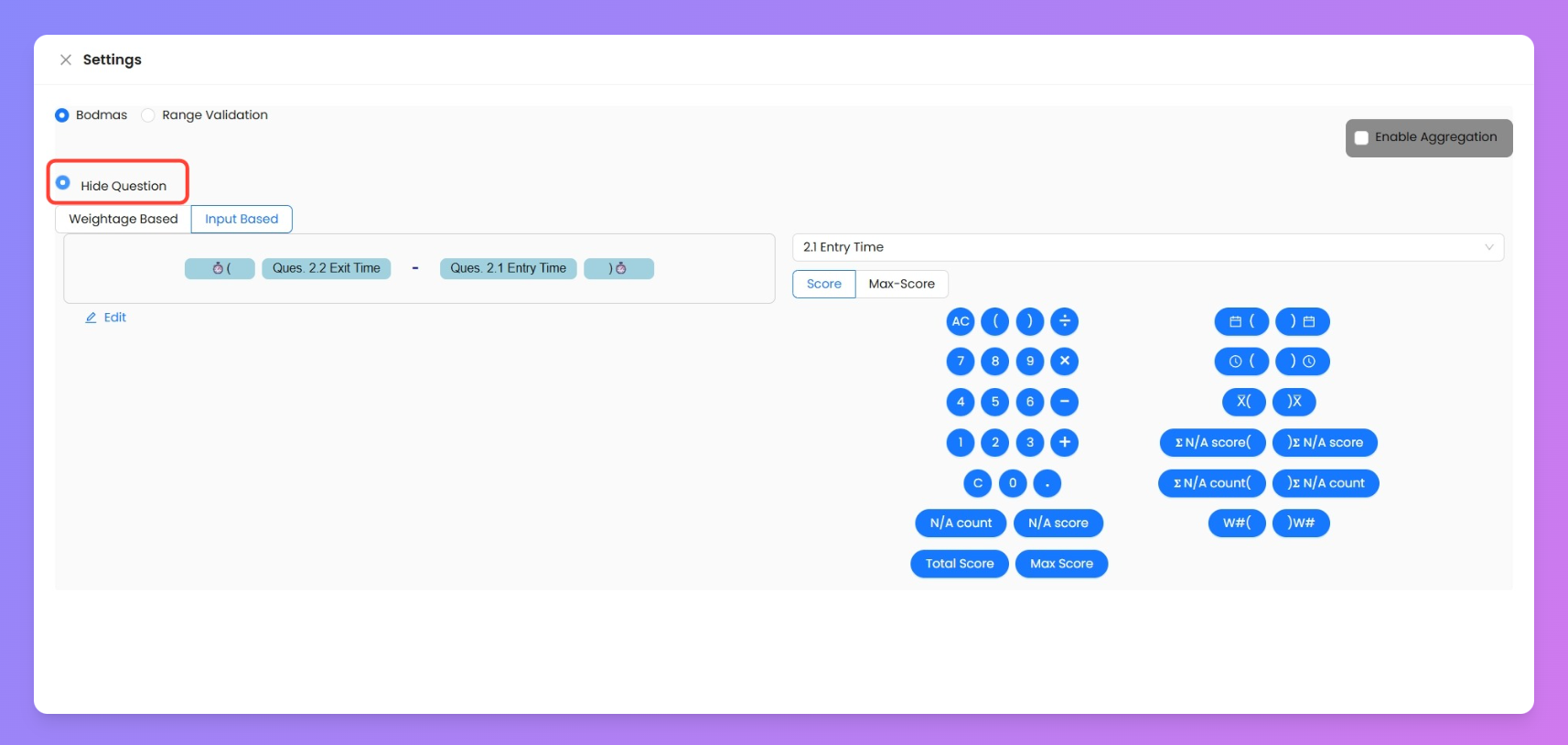
Example: You want to apply a hidden penalty if stock variance crosses a limit — configure it here, keep it out of sight, and reflect it only in the results.
(II) Range Validation (Set allowed limits for number answers)
Range Validation helps you set rules on what number values can be accepted in a question.
Use this when you want to restrict users from entering numbers outside a specific range.
How it works:
- Use a Short Answer question and set the response type to Number.
- Tap on ⚙️ Settings.
- Select Range Validation (you can’t enable both BODMAS and Range at once).
- Enter:
- ✅ Minimum Value (e.g.,
10) - ✅ Maximum Value (e.g.,
500)
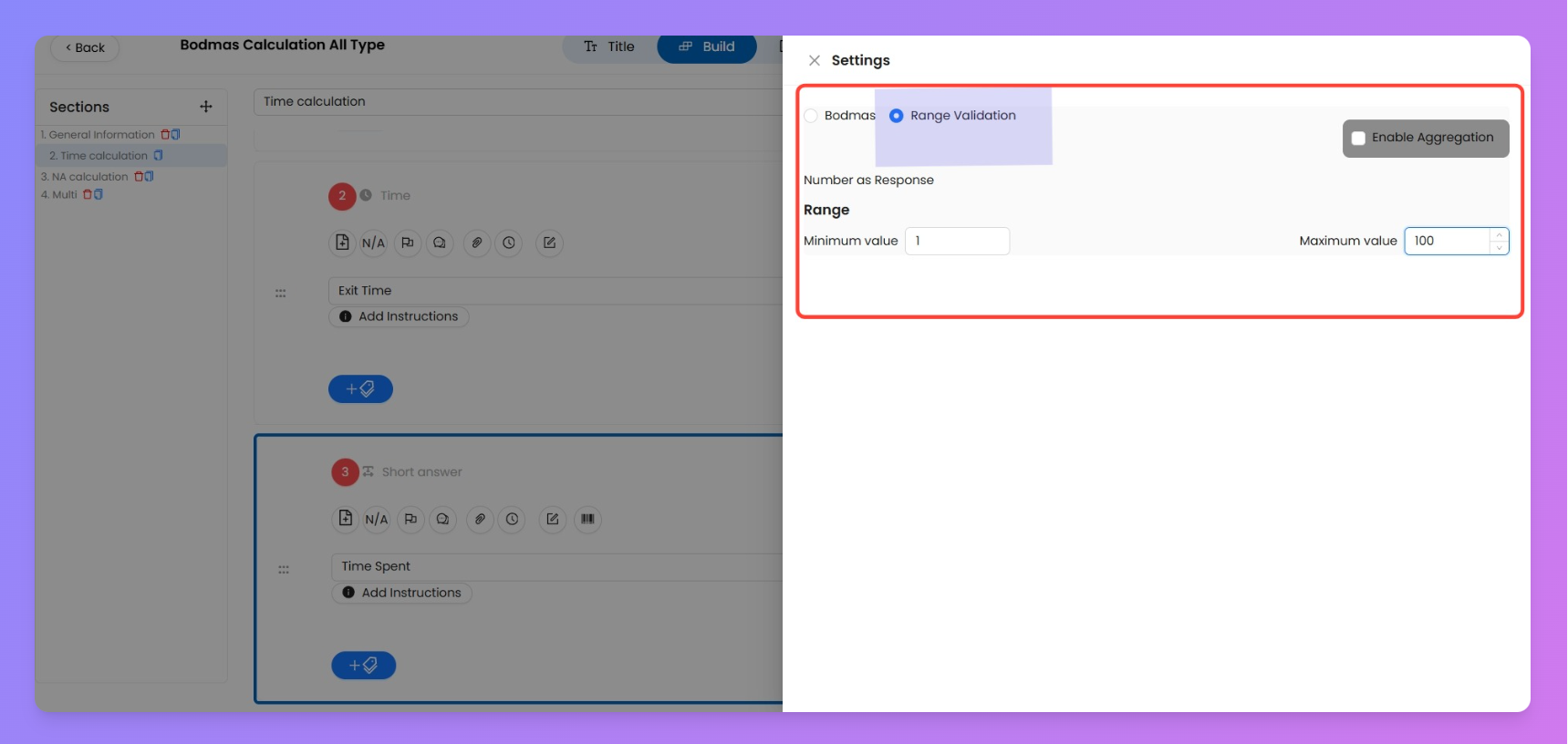
Result:
Users will only be allowed to enter a number within the range. Anything outside won’t be accepted.
💡 Example:You're collecting the daily walk-ins at a store. If you're sure the number is never below 100 or above 1000, range validation ensures accurate and controlled inputs.
Enable Aggregation (Get KPIs from your questions)
Use the Enable Aggregation setting when you want to track real-time insights like total, average, or count based on user responses — right from within a question.
How to do it:
- Open a Short Answer (Number) question
- Tap on ⚙️ Settings.
- Tick ✅ Enable Aggregation.
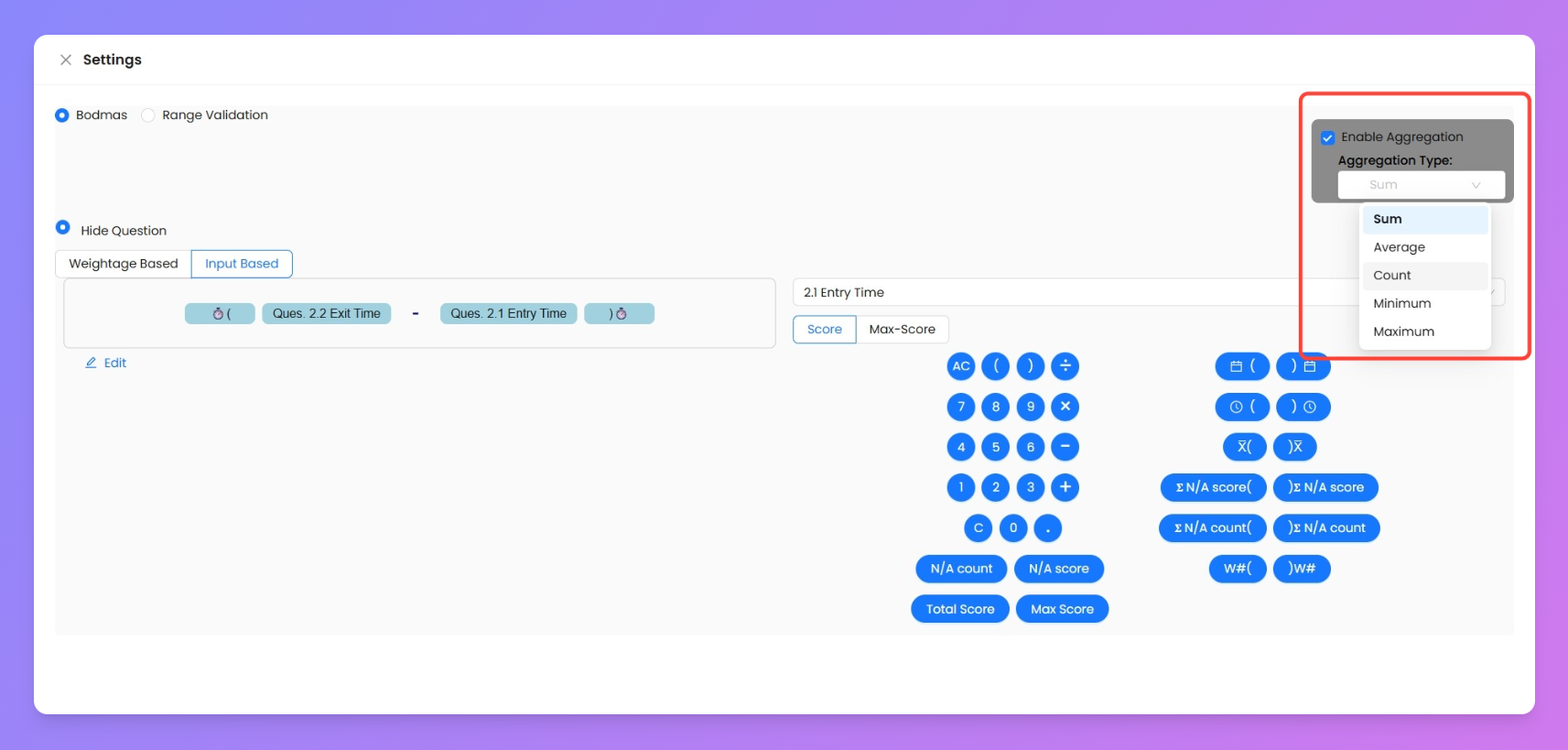
- Select your preferred aggregation logic from the dropdown:
- Sum
- Average
- Count
- Max
- Min
Once configured, the results will automatically show up inside your process report based on actual submissions.
Example Use Case:Track “Daily units of cold coffee sold” from each store.Enable Sum, and your report will give you the total units sold across the month — no extra math needed.
How to Set Up Scoring Logic (Step-by-Step)
Here’s how you can configure scoring inside a Short Answer (Number) question using BODMAS logic.
Step 1: Add a Short Answer Question
- Log in to Taqtics.
- Go to your Process → Build tab.
- Click Add Question → select Short Answer.
- In Response Type, choose
Number.
Step 2: Open Settings
- Hover over the question → click the ⚙️ Settings icon.
- You’ll see two options:
- Range Validation
- BODMAS
❗ You can only select one — not both.
Step 3: Choose BODMAS
- Click on BODMAS.
- Choose your logic style:
- Weightage-Based
- Input-Based
🔗 For more info jump to “Scoring Logic Types”
Step 4: Add Questions to Your Formula
Depending on the logic type selected:
If You Picked Weightage-Based:
Supported question types:
- Single Answer
- Multiple Answer
- Scoring Dropdown
- Numeric Response
- Stopwatch
Use the dropdown to add them into your scoring logic.
If You Picked Input-Based:
Supported question types:
- Short Answer (Number)
- Time
- Date
Select any available questions directly into your formula.
Step 5: Use Calculator Functions (Optional)
Taqtics Calculator includes built-in formula buttons:
AVERAGE()
Σ NA Count
Σ Weightage
🔗 See full list of calculator functions