
Visual Report — Process
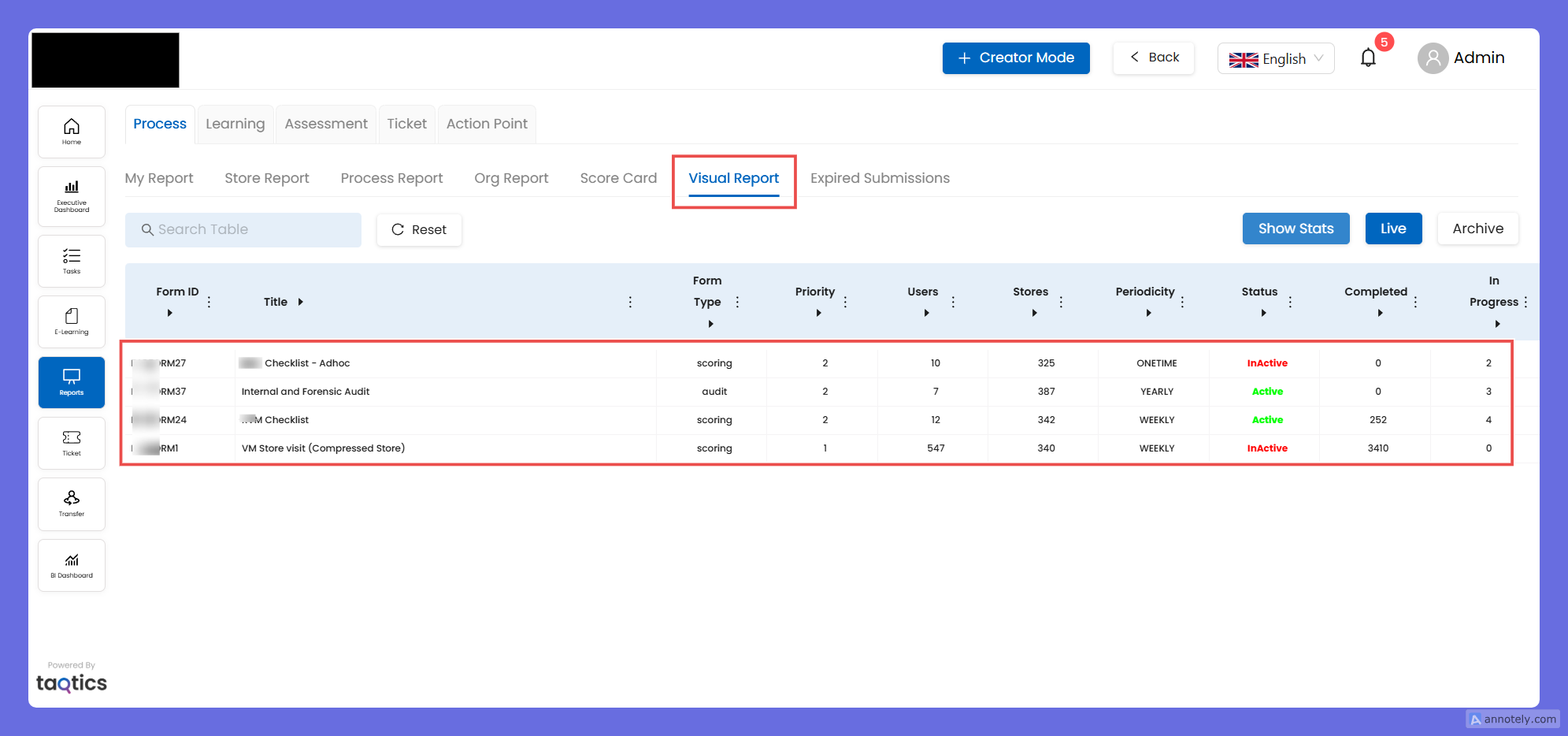
A photo-first viewer for any single process. Use it to review submissions visually, download ready-made PPTs/ZIPs, filter by tags/stores/questions, and raise action points—all from one place.
How to open
- Process → Visual Report (top nav).
- Pick a form from the grid (you can search; Live/Archive filters are available).
- You’ll land on the Visual Report for that form.
Page layout
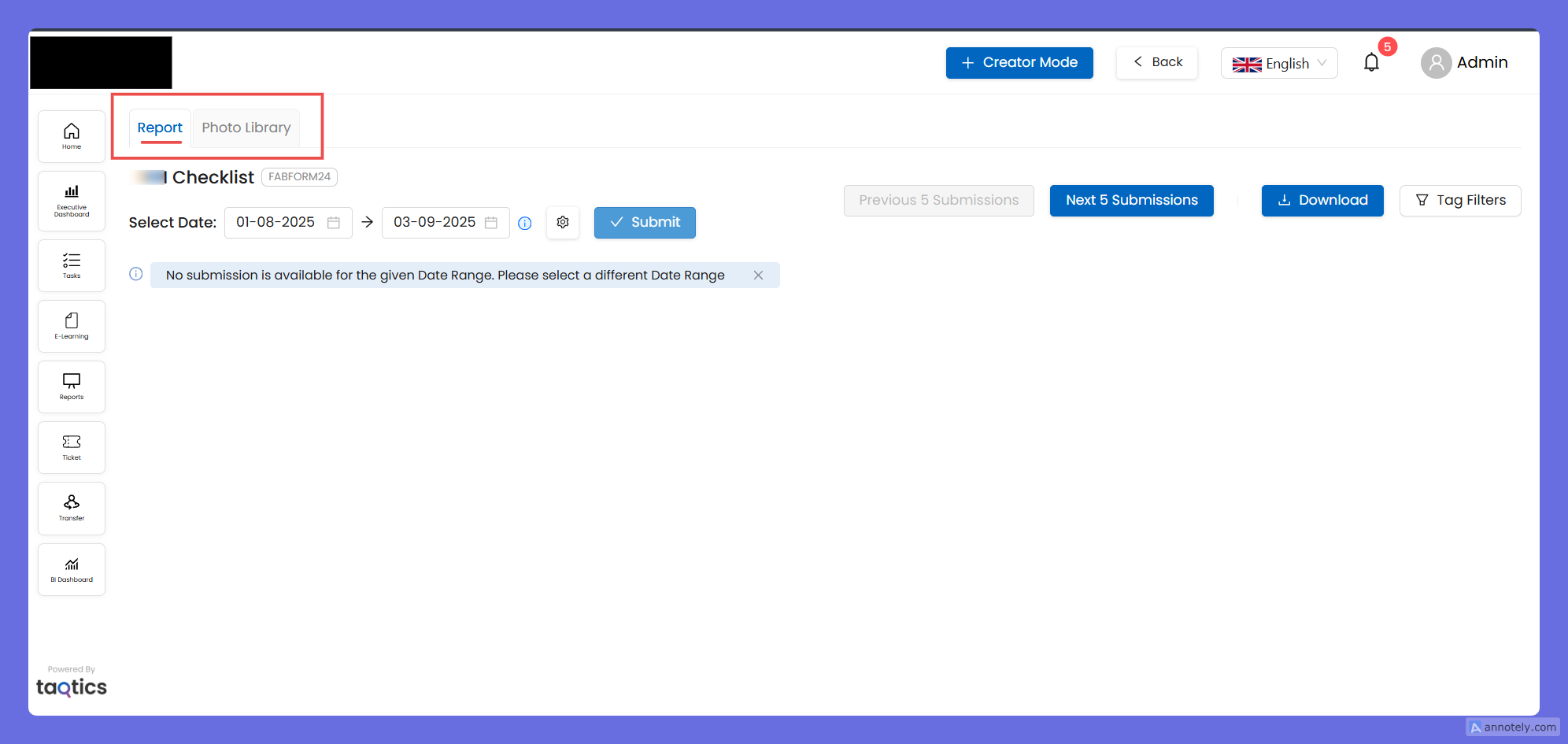
- Tabs: Report (submission-wise viewer) and Photo Library (question-wise gallery).
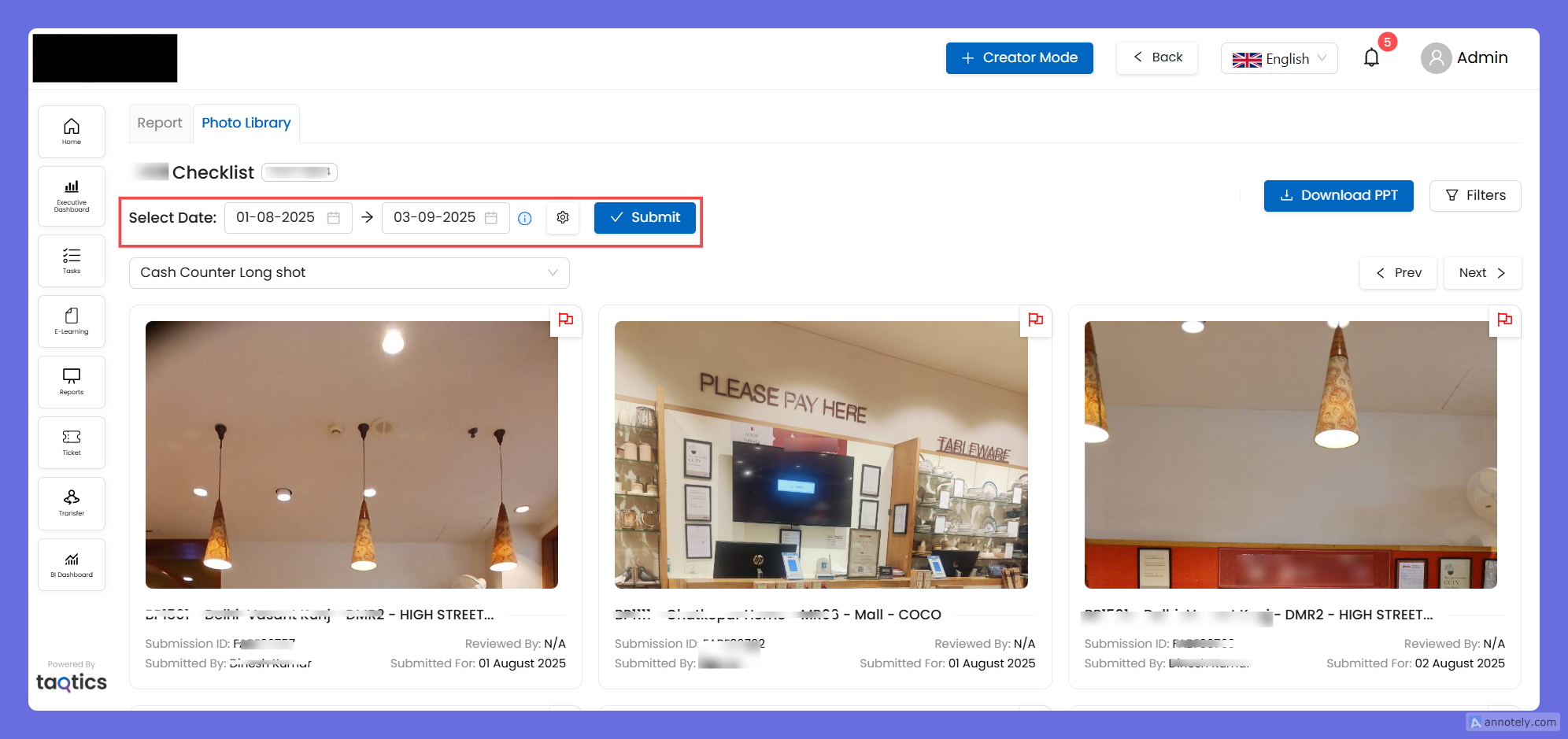
- Date range + Submit: selects the time window for everything on the page.
Report tab (submission-wise)
Purpose: Review one submission at a time (with photos), move through the batch, download, filter, and create action points.
- Submission navigation
- Shows one submission per screen.
- Counters at the top: 0–5 / N (N = Total No. of Submissions in selected date range)
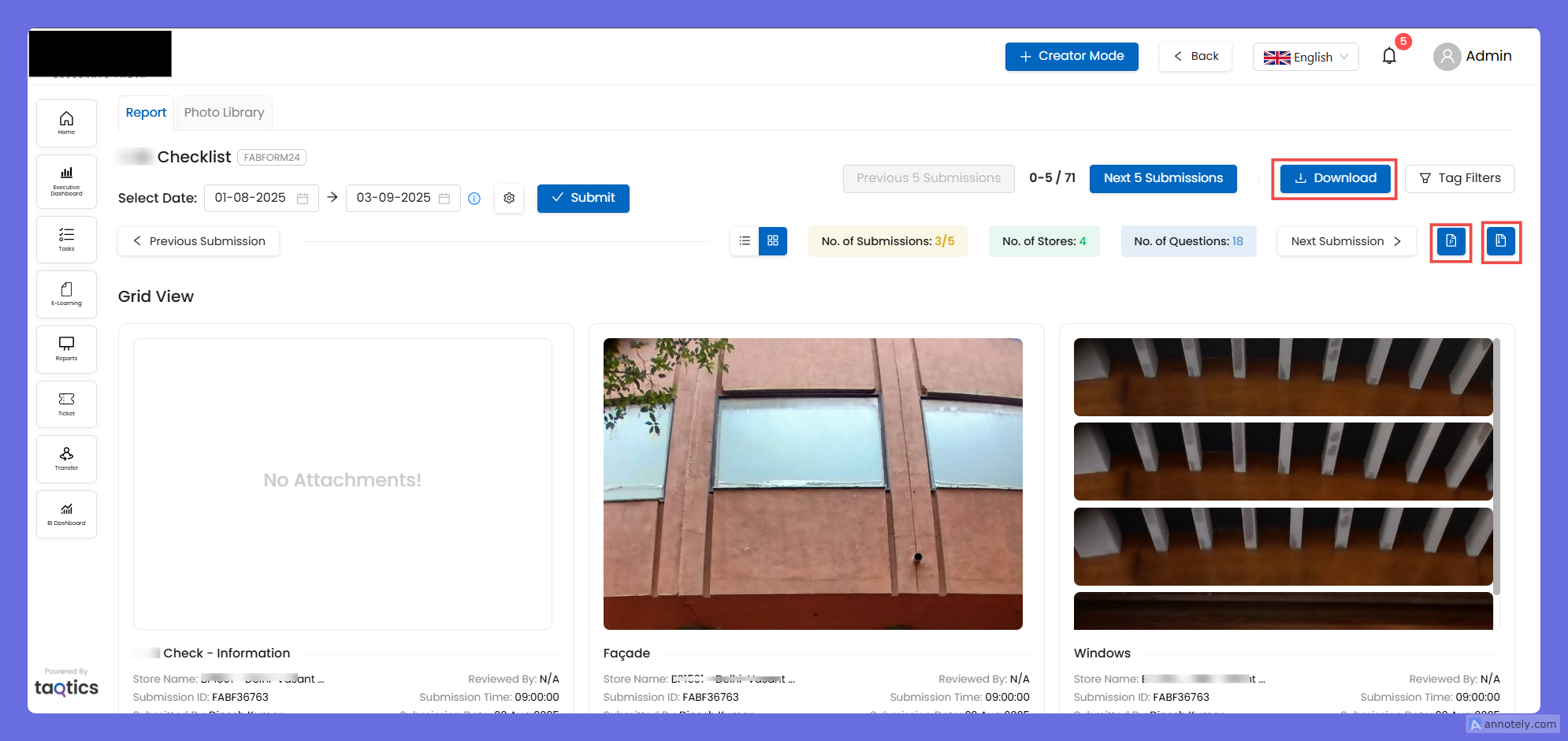
- Use Next Submission to move within the current batch; use Next 5 Submissions / Previous 5 Submissions to load the next/previous batch.
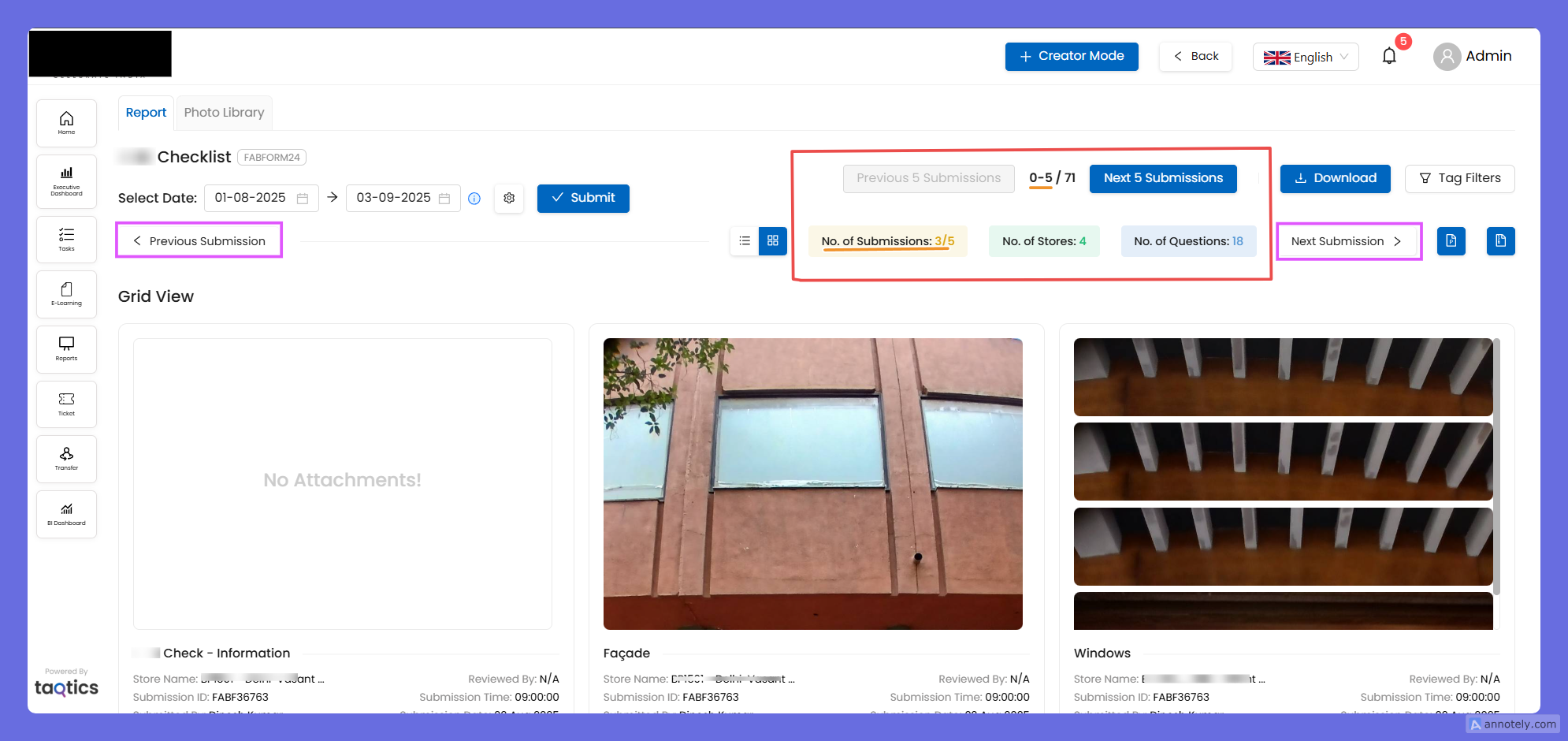
You can increase the batch size through the Settings on this page
- View modes
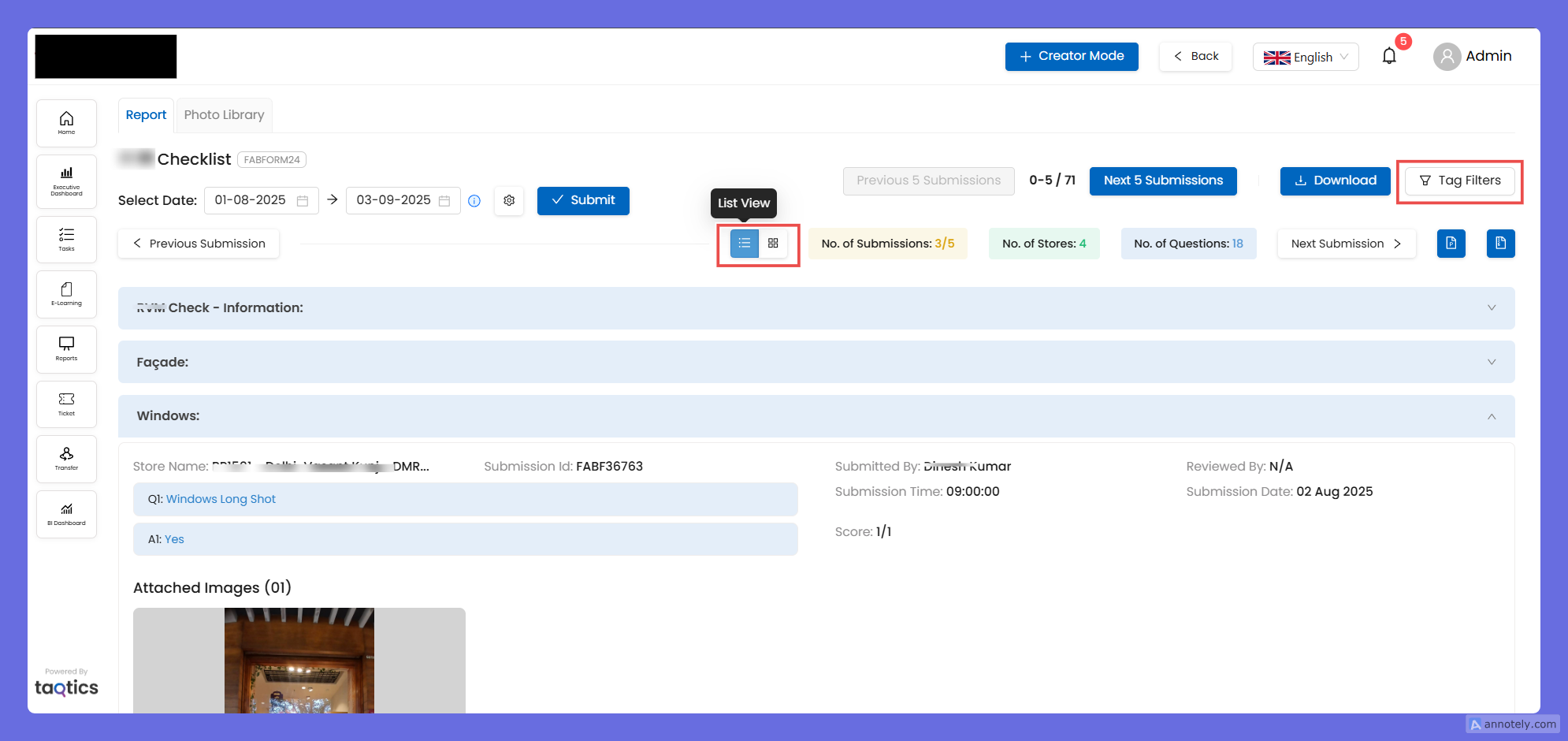
- Grid ↔ List toggle.
- In List, sections appear as collapsible blue bars; expand/collapse to scan answers & photos quickly.
- Downloads
- Download (top button): export all submissions in the date range as PPT or ZIP.
- Mini buttons at the right: export only the current submission (PPT/ZIP).
- Filters (Tag Filters)
- Filter by Store Tags, Select Stores, Question or Question Text, Advanced Dropdowns (if configured), and Submitted By.
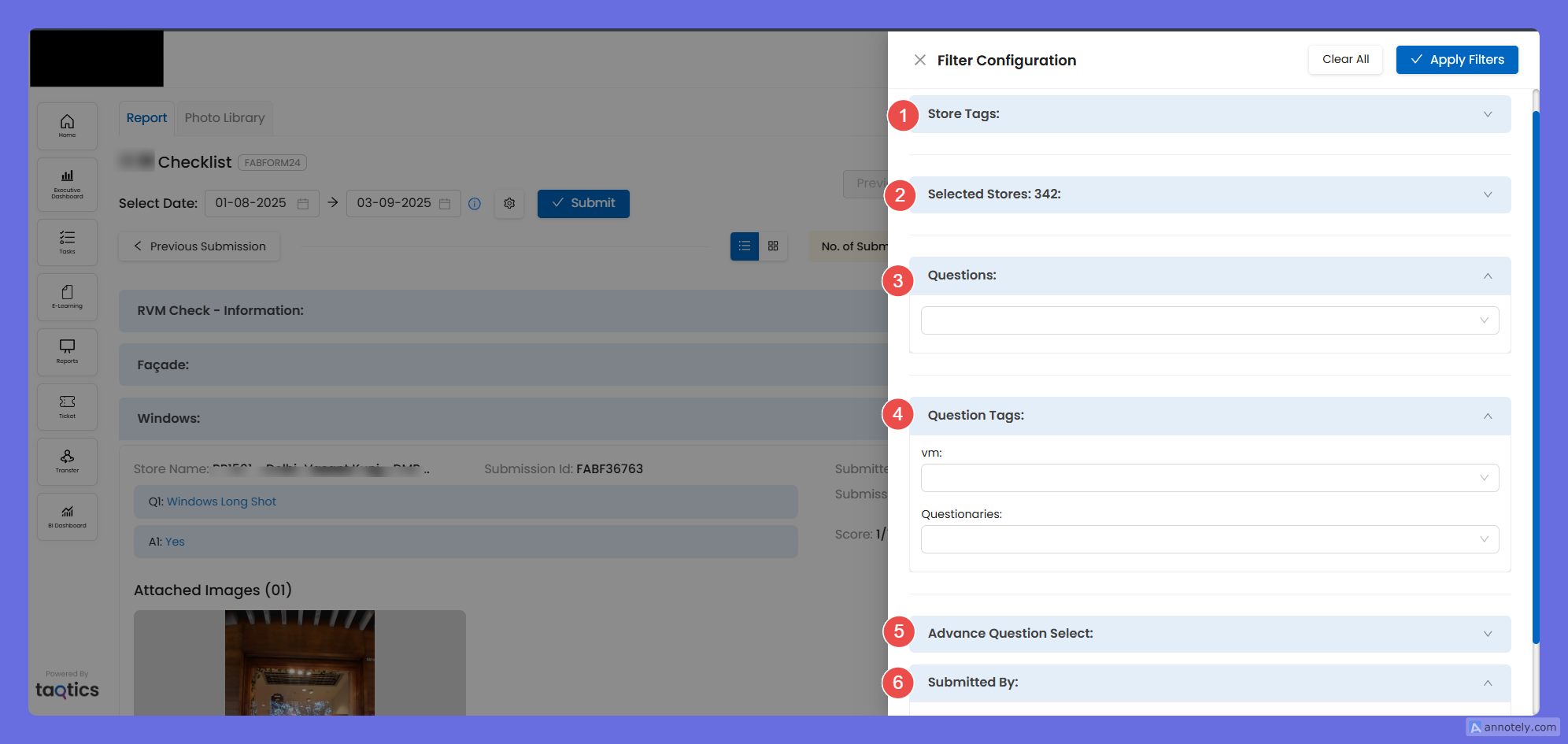
Note: The tag options shown here come from the manage tags inside creator mode
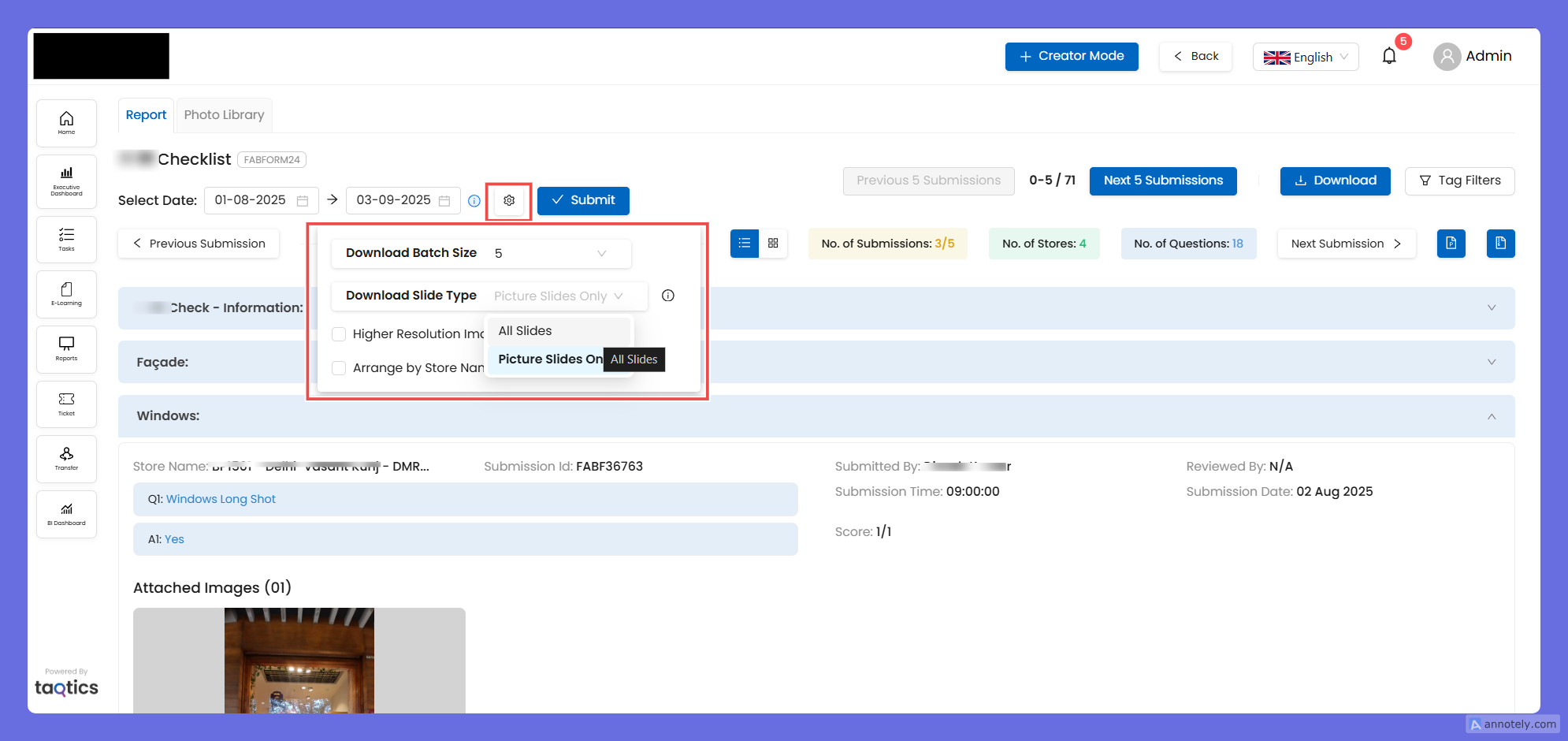
- Settings (⚙️ next to date)
- Batch size (how many submissions load at once): up to 500.
- If attachments are heavy, reduce the batch size for reliability.
- Download slide type: All Slides or Picture Slides Only.
- Arrange by Store Name and Higher-Resolution Images toggles for PPT exports.
- Action Points
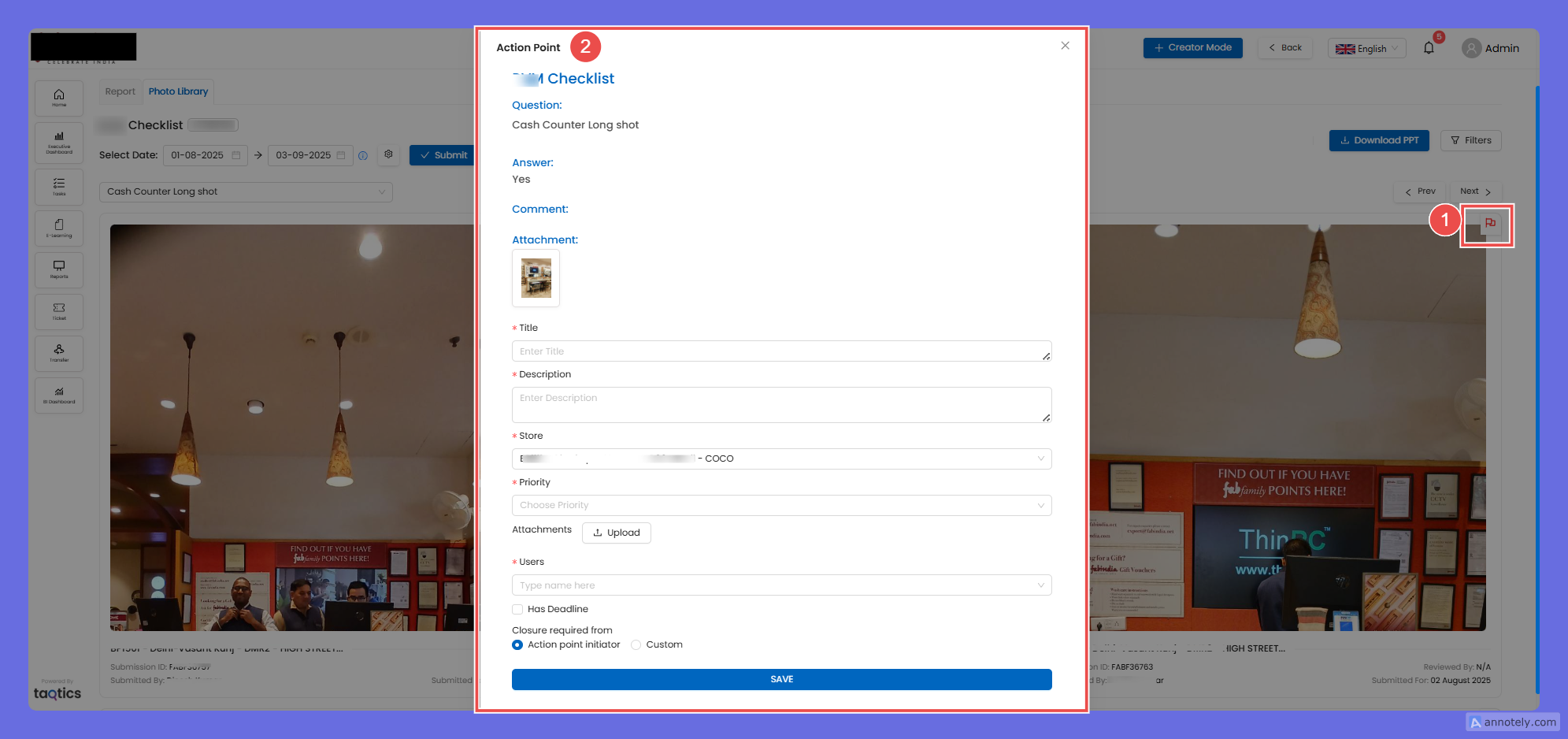
- Click Action Point on any question/photo block to create a task (title, description, store, priority, users, deadline, attachments).
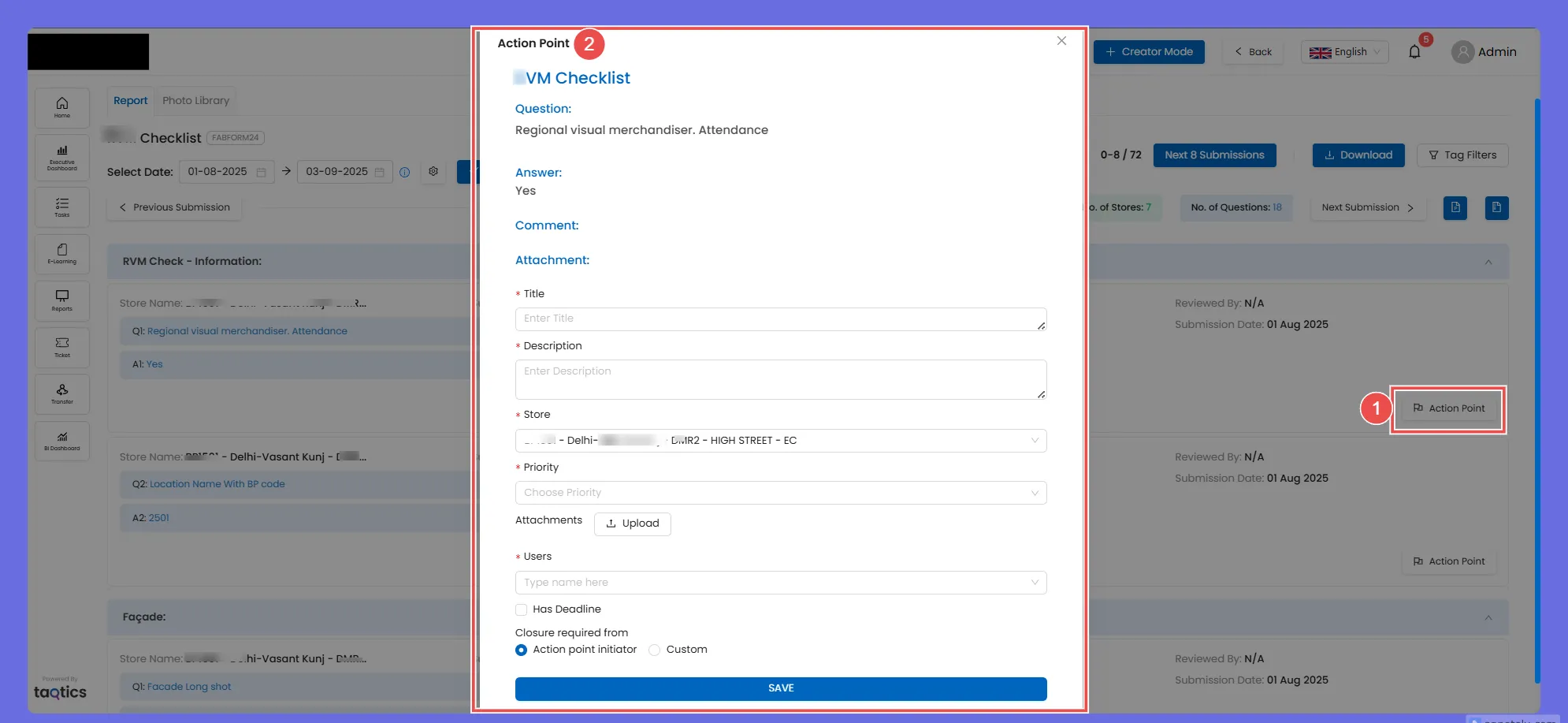
Photo Library tab (question-wise)
Purpose: See photos by question instead of by submission—great for side-by-side visual benchmarking.
- Question picker: choose a photo question from the dropdown; tiles below show all submissions for that question.
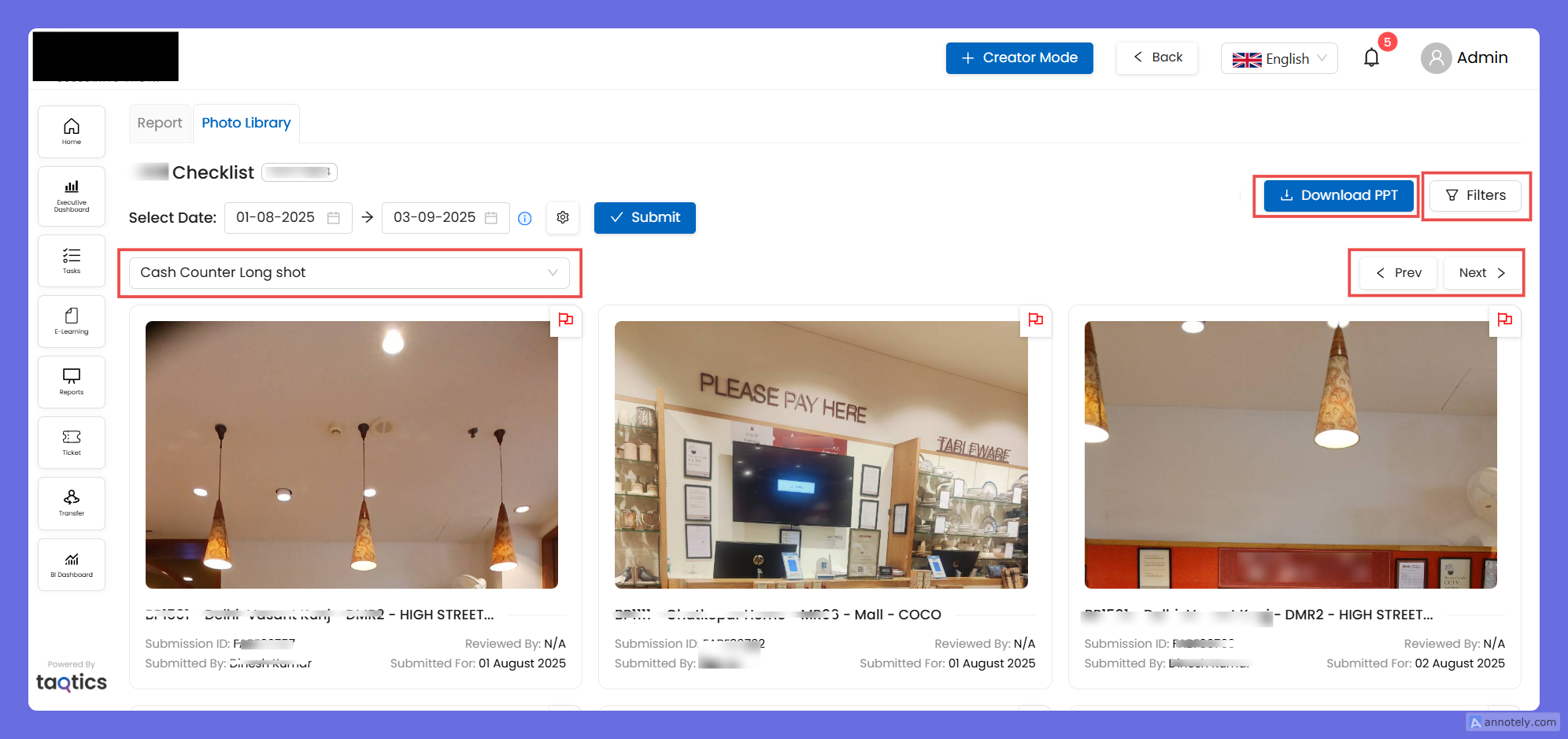
- Pagination: Prev / Next to move through pages of tiles.
- Filters: same filter panel as Report (stores, tags, question text, etc.).
- Download PPT: exports a PPT of the currently filtered photos.
- Action Points: use the flag icon on any tile to raise an action point directly from that photo.
Quick tips
- Use List view + Tag Filters to audit faster across many stores.
- For management packs, export Picture Slides Only with Arrange by Store Name.
- Heavy photo sets? Increase batch size gradually; if it stalls, lower it.